I was sitting in a cramped cafe in Lisbon last month, staring at my single 13-inch laptop screen while trying to debug a cloud migration script. Between the terminal, the documentation, and my Slack notifications, I felt like I was trying to solve a puzzle through a keyhole. Most “experts” will tell you that a massive, permanent dual monitor configuration is the only way to scale your output, but they’re selling you a desk-bound lifestyle you don’t actually need. They want you to buy heavy stands and proprietary docks that tether you to a single corner of a room, completely ignoring the fact that true productivity is about mobility and flow.
I’m not here to pitch you a $2,000 workstation setup that’s impossible to pack into a carry-on. Instead, I want to show you how to build a lean, high-performance dual monitor configuration that actually works in the real world—whether you’re at a dedicated desk or a mediocre hotel Wi-Fi setup. I’ll be sharing the exact, no-nonsense hardware and cloud-based workflows I use to keep my screens synced and my focus sharp without the unnecessary clutter.
Table of Contents
- Mastering the Seamless Extended vs Mirrored Display
- Optimizing Your Ergonomic Workstation Setup for Flow
- Five Ways to Stop Fighting Your Monitors and Start Using Them
- The Bottom Line for Your Mobile Setup
- ## The Invisible Workspace
- Final Thoughts on the Mobile Multi-Screen Setup
- Frequently Asked Questions
Mastering the Seamless Extended vs Mirrored Display
Once you’ve got the hardware in front of you, the real battle begins in your OS settings. Most people default to mirroring their screens, which is a massive waste of real estate unless you’re giving a presentation. For actual deep work, you need to lean into the extended vs mirrored display debate by choosing extended mode every single time. This turns your setup into a continuous canvas, letting you keep your terminal or code editor on one screen while your documentation or Slack stays visible on the other.
The trick to making this feel natural rather than cluttered is managing your spatial awareness. If you’re building a dual monitor desk arrangement, don’t just slap them side-by-side; align them based on your primary focal point to avoid constant neck strain. I’ve found that if your monitors have different specs, you really need to check your refresh rate synchronization to prevent that jarring “stutter” effect when moving your mouse across the gap. When everything flows at the same speed, the hardware finally becomes invisible, and you can actually stay in the zone.
Optimizing Your Ergonomic Workstation Setup for Flow
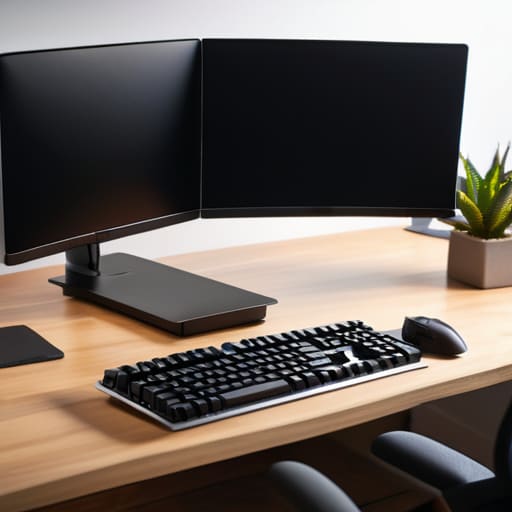
If you’re just plopping two screens on a flat desk, you’re doing it wrong. To actually hit a flow state, your ergonomic workstation setup needs to prioritize eye level and neck posture. I’ve learned the hard way that staring down at monitors for six hours straight is a one-way ticket to a tension headache. I swear by using adjustable arms—specifically checking for VESA mount compatibility before I buy anything—to lift the displays so they sit right at eye level. This clears up desk real estate for my mechanical keyboard and keeps my spine from collapsing into a question mark.
It’s not just about height, though; it’s about the geometry of your movement. A solid dual monitor desk arrangement should minimize the distance your eyes have to travel when switching between a terminal window and a documentation tab. I try to keep the primary screen dead center, with the secondary one angled slightly toward my dominant eye. When you get the angles right, the tech becomes invisible, and you stop fighting your hardware and start actually getting things done.
Five Ways to Stop Fighting Your Monitors and Start Using Them
- Prioritize a single-cable connection via USB-C or Thunderbolt. If I have to hunt for three different power bricks and a dongle every time I set up in a new cafe or Airbnb, the setup has already failed. One cable for video, data, and power is the only way to maintain a mobile, clean workflow.
- Match your panel types and refresh rates. There is nothing more jarring to my focus than moving a window from a crisp, high-refresh-rate primary screen to a washed-out, laggy secondary one. If you’re building a dual setup, try to keep the specs as close as possible to avoid that visual friction.
- Use a high-quality monitor arm instead of stock stands. Desk real estate is precious, especially when you’re working out of small spaces. Getting those bulky plastic bases off your desk makes everything feel more intentional and gives you the freedom to adjust your viewing angle on the fly.
- Standardize your window management shortcuts. Don’t waste time manually dragging and resizing windows. I use dedicated tiling software or built-in OS shortcuts to snap my terminal to one side and my documentation to the other instantly. If you aren’t using keyboard shortcuts to manage your screens, you’re working too hard.
- Mind the verticality. Don’t just place them side-by-side in a massive horizontal arc that forces you to crane your neck. Try a vertical orientation for your secondary monitor; it’s a game changer for reading long stretches of code, documentation, or Slack threads without constant scrolling.
The Bottom Line for Your Mobile Setup
Stop treating dual monitors like a static desk fixture; if your configuration isn’t portable or easy to reconfigure on the fly, it’s just extra weight in your bag.
Prioritize seamless display modes—use extended displays to expand your digital workspace and mirrored displays only when you actually need to mirror your screen for a quick presentation.
Focus on the invisible details like cable management and ergonomic positioning, because if you’re constantly fighting your hardware, you’re never going to hit a flow state.
## The Invisible Workspace
A dual monitor setup shouldn’t feel like you’re building a fortress around your desk; it should feel like an extension of your mental bandwidth, giving you enough digital real estate to stay in flow without being tethered to a single corner of a room.
Elias Vandermeer
Final Thoughts on the Mobile Multi-Screen Setup
At the end of the day, a dual monitor configuration isn’t about cluttering your desk with more glass and plastic; it’s about expanding your cognitive bandwidth. We’ve covered how to choose between extended and mirrored modes to suit your specific task, and how to position those screens so you aren’t killing your neck by the end of a session. Whether you’re running a heavy cloud-based IDE on one screen and documentation on the other, or just managing a massive Slack thread while you code, the goal is to make the hardware disappear. When your setup is optimized, you stop thinking about the monitors and start actually focusing on the flow state.
Don’t let the fear of “gear weight” or complicated cable management keep you tethered to a single, cramped laptop screen. The world is too big to be limited by a 13-inch display, especially when you’re trying to build something meaningful. Invest in the right portable solutions, keep your cloud tools synced, and build a workspace that actually moves with you. Your setup should be a launchpad, not an anchor. Go out there, find a decent Wi-Fi signal, and build a workflow that doesn’t hold you back.
Frequently Asked Questions
How do I manage dual monitors without carrying a massive, heavy docking station every time I move to a new city?
Ditch the brick. If you’re moving between cities like I am, a heavy docking station is just dead weight. I’ve switched to high-bandwidth USB-C cables that handle power delivery and video signal in one go. If your hardware allows it, a portable USB-C hub is much lighter, or better yet, just use a single Thunderbolt cable to a monitor that acts as its own hub. Keep it lean; your spine will thank you.
Is it actually worth the extra screen real estate if I'm working on a single laptop, or does it just mess up my cable management?
Honestly, if you’re just staring at a single laptop screen, adding a monitor is a game-changer for focus—it stops the constant tab-switching that kills your flow. But yeah, the cable clutter is real. To keep it from becoming a mess, I swear by a single USB-C dock. It keeps everything streamlined so you aren’t wrestling with five different wires every time you move your setup to a new cafe or Airbnb.
What’s the best way to keep my dual-screen setup portable enough to work from a cafe without looking like a complete mess?
The key is ditching the heavy monitor arms for something lightweight like a portable USB-C monitor. I usually carry a slim 15-inch panel that slides right into my laptop sleeve. Pair that with a compact, foldable laptop stand and a single multi-port hub to keep the cables from turning your cafe table into a spaghetti nightmare. If you can’t pack it all into one slim backpack in under five minutes, it’s too much gear.