I was sitting in a cramped cafe in Lisbon last month, staring at a massive, 32-inch curved display that some “productivity guru” insisted was the holy grail of efficiency. It was beautiful, sure, but it was also completely useless because it was bolted to a desk in a room I’d never visit again. Most advice regarding an external monitor setup assumes you have a permanent office with a dedicated power grid and a custom-built desk. That’s a lie. If your gear is too heavy to throw in a backpack or too complex to deploy in under five minutes, it’s not an asset—it’s digital baggage that’s just holding you back from actually working.
I’m not here to sell you on the most expensive ultrawide on the market or a setup that requires a degree in electrical engineering to plug in. Instead, I’m going to show you how to build a lean, mobile, and cloud-integrated workspace that actually scales with your life. We’re going to focus on high-performance gear that prioritizes portability and seamless connectivity, ensuring your workflow stays uninterrupted no matter where you happen to be logging in from.
Table of Contents
Mastering the Ultrawide Monitor Benefits for Fluidity
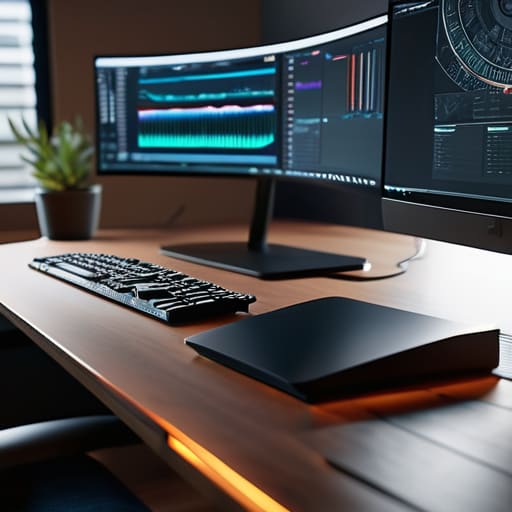
If you’ve ever felt the mental friction of clicking between windows on a single laptop screen, an ultrawide is the immediate fix. For me, the real ultrawide monitor benefits aren’t just about having more “space”; it’s about the psychological flow. Instead of the visual stutter of a traditional dual monitor configuration—where you’re constantly fighting that plastic bezel in the middle—an ultrawide gives you a single, continuous canvas. I can keep my terminal, my IDE, and a documentation tab open side-by-side without ever breaking my stride.
When I’m working out of a temporary spot, I prioritize a setup that minimizes clutter. Using an ultrawide paired with USB-C docking stations is a game changer for my mobility. It allows me to push video, data, and power through a single cable, keeping my desk looking clean and intentional. You don’t need a massive, sprawling desk to feel powerful; you just need a screen that lets you see your entire workflow at once without the constant context switching that kills your focus.
Usb C Docking Stations Tools That Simply Vanish
If you’re still fumbling with a dozen different dongles every time you sit down at a new spot, you’re doing it wrong. For me, the goal is always a single-cable connection. High-quality USB-C docking stations are the unsung heroes of a mobile workflow; they act as the central nervous system for your gear. When I land in a new city, I want to plug one cable into my laptop and instantly have my peripherals, high-speed storage, and displays live. It turns a chaotic mess of wires into a seamless extension of my machine.
Beyond just convenience, a solid dock is essential for maintaining a clean, ergonomic workstation layout. Instead of having cables snaking across your desk like a digital jungle, everything stays tucked away and organized. This isn’t just about aesthetics, though—it’s about stability. A dedicated dock handles the heavy lifting of power delivery and data throughput, ensuring that your refresh rate and resolution optimization stay consistent, even when you’re pushing a demanding dual monitor configuration. If the hardware feels invisible, you’ve done it right.
Five Ways to Keep Your Setup Lean and Functional
- Prioritize single-cable connectivity. If your monitor doesn’t support power delivery via USB-C, you’re carrying too many bricks; look for a display that can charge your laptop and carry your data through one cord.
- Invest in a high-quality, portable monitor as a secondary screen. A 15-inch OLED panel that slides into your tech bag is a game-changer when you’re trying to turn a cramped cafe table into a dual-screen workstation.
- Get a heavy-duty monitor arm instead of using the stock stand. Most factory bases take up way too much desk real estate, and freeing up that space underneath makes a minimalist setup feel much more intentional.
- Match your refresh rates. There’s nothing more distracting than a smooth laptop screen paired with a stuttering external display; keep your hardware specs in sync so your eyes don’t have to constantly adjust to the lag.
- Optimize your cable management from the jump. Use braided sleeves or even just simple velcro ties to tuck everything away; if your workspace looks like a bird’s nest of wires, you’ve already lost the mental clarity needed to focus.
The Mobile Setup Checklist
Prioritize single-cable connectivity via USB-C or Thunderbolt; if you’re fumbling with five different dongles every time you move to a new cafe, your setup has already failed you.
Opt for high-resolution portability over raw screen real estate; an ultrawide is great for the home base, but a high-density portable monitor is what actually keeps your workflow fluid when you’re on the road.
Build for redundancy by ensuring your cloud-based tools and local hardware are perfectly synced, so a hardware hiccup never turns into a full-blown productivity blackout.
## The Tether Trap
A monitor shouldn’t be an anchor that pins you to a single corner of a room; it should be a seamless extension of your digital workspace that stays out of your way until you actually need the screen real estate.
Elias Vandermeer
The Mobile Command Center
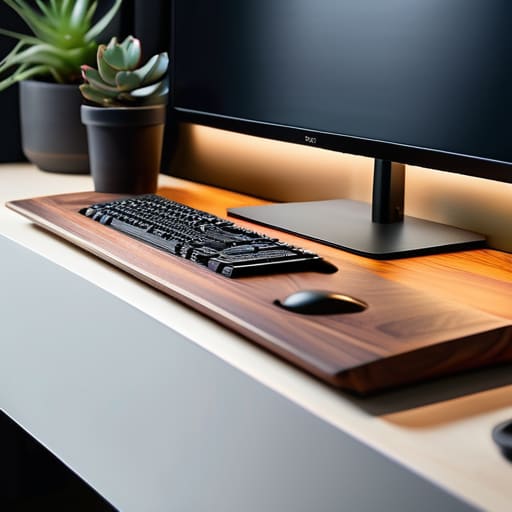
At the end of the day, building the right external monitor setup isn’t about collecting the most expensive gear on the market; it’s about eliminating friction. Whether you’re leaning into the massive screen real estate of an ultrawide to keep your cloud environments visible at a glance, or relying on a streamlined USB-C docking station to keep your cables from becoming a chaotic mess, every choice should serve one purpose: focus. If your hardware requires a PhD to troubleshoot or anchors you to a single corner of a room, it’s failing you. The goal is to create a seamless digital ecosystem that feels as natural as the keyboard under your fingers.
Stop thinking of your workspace as a fixed location and start seeing it as a portable state of mind. Your setup should be an extension of your workflow, something that adapts to the cafe in Berlin or the small apartment in Tokyo just as easily as your home base. When you invest in tools that are truly mobile and cloud-integrated, you aren’t just buying monitors and docks—you’re buying the freedom to work from anywhere without compromising your professional standard. Build a setup that moves with you, and you’ll realize that the world is much bigger than a cubicle.
Frequently Asked Questions
How do I manage cable clutter when I'm switching between a permanent desk and a temporary mobile setup?
The trick is to stop thinking in terms of “plugging things in” and start thinking about a single point of failure—in a good way. I use a high-bandwidth USB-C or Thunderbolt dock as my anchor. Everything—my keyboard, external drive, and monitor—plugs into the dock at my desk. When I need to move, I just unplug one single cable from my laptop. It turns a chaotic mess of wires into a one-second transition.
Is it worth investing in a portable monitor, or should I just stick to a single high-quality ultrawide?
It really depends on where you’re actually doing your work. If you’ve found a solid home base or a consistent co-working spot, a high-quality ultrawide is unbeatable for sheer screen real estate and focus. But if you’re like me—bouncing between cafes or testing cloud latency in different cities—that ultrawide becomes a massive anchor. For true mobility, a portable monitor is worth every penny. It keeps your workflow seamless without tethering you to a single desk.
What's the best way to ensure my laptop doesn't overheat when it's hooked up to a high-resolution external display?
Driving a high-res display puts a massive load on your GPU, which is a recipe for thermal throttling. First, ditch the laptop bag or sleeve while you’re working; they trap heat like an oven. I always use a minimalist, ventilated stand to get some airflow under the chassis. If you’re really pushing pixels, consider a Thunderbolt dock to offload some of that connection stress, and keep your ambient lo-fi playing—it helps me stay calm even when my fans ramp up.