I used to think that a “pro” setup required a massive, heavy-duty desk that stayed bolted to one corner of a room. I was wrong. For a long time, I wasted money on bulky monitor stands that took up half my workspace and forced me to hunch over just to see my code clearly. Most people will try to sell you on high-end, aesthetic-only gear, but the real monitor arm benefits have nothing to do with looking cool for a desk setup photo. It’s about reclaiming your physical space and making sure your gear actually works for you, rather than you working around your gear.
I’m not here to give you a curated list of overpriced gadgets that look good on Instagram but fail in the real world. Instead, I’m going to break down how a solid arm can actually streamline your workflow and keep your setup portable enough to move whenever the mood strikes. I’ve tested enough setups in cramped cafes and temporary apartments to know what actually matters. You’re going to get the honest, no-nonsense truth about how to build a frictionless workspace that adapts to your life.
Table of Contents
An Ergonomic Workstation Setup That Moves With You
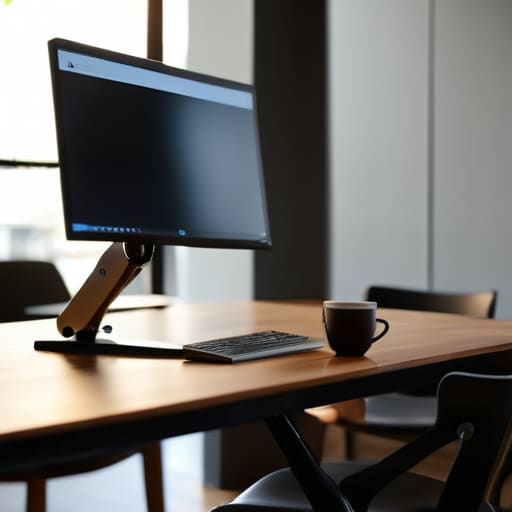
When I’m working out of a tiny Airbnb or a cramped cafe, the biggest hurdle isn’t the Wi-Fi—it’s the physical toll of a bad setup. Most people settle for whatever screen height the table offers, but that’s a recipe for neck pain and fatigue. A solid ergonomic workstation setup means your gear works for your body, not the other way around. By using an arm to lift your screen to eye level, you’re actually improving posture at your desk instead of hunching over a laptop like a question mark.
It’s also about reclaiming your physical space. I’m big on minimalism, and nothing kills my focus like a desk cluttered with bulky stands. Switching to dual monitor mounting solutions allows you to float your screens, freeing up that prime real estate for my mechanical keyboard and notebook. Whether you prefer a clamping vs grommet mount setup depends on your desk’s thickness, but either way, the goal is the same: removing the friction between you and your workflow. If your setup doesn’t allow you to adjust on the fly, it’s just dead weight.
Improving Posture at Desk Through Fluid Alignment
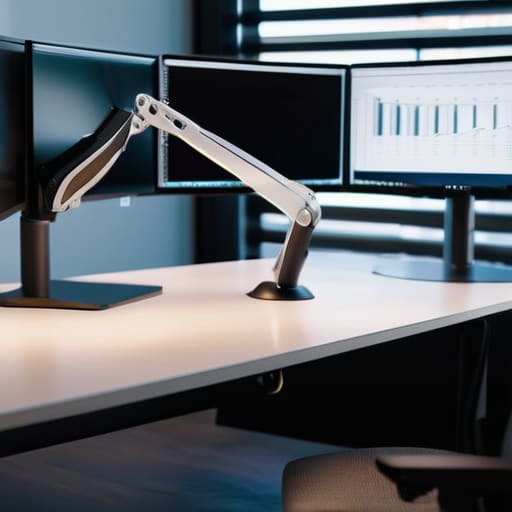
The real problem with most setups isn’t the chair; it’s that your screen is almost always at the wrong height. When you’re staring down at a laptop or a fixed monitor, your neck starts to round, and before you know it, you’re dealing with that dull ache between your shoulder blades. By improving posture at desk through fluid alignment, you’re essentially taking the physical load off your spine. I’ve found that being able to micro-adjust the height and tilt means I can actually sit back and let my body do its thing, rather than leaning in like a gargoyle just to see my code clearly.
It’s about creating a setup that respects your biology. If you’re running a multi-screen workflow, looking into dual monitor mounting solutions is a game changer. It allows you to align the top third of your screens with your eye level, which is huge for reducing eye strain during those long, deep-work sessions. Whether you’re choosing a clamping vs grommet mount based on your desk’s thickness or just trying to find the perfect angle, the goal is the same: total alignment so you can focus on the task, not the discomfort.
Five Ways to Reclaim Your Workspace
- Kill the clutter. Ditching that bulky factory stand for a monitor arm instantly frees up the footprint on your desk, giving you room for your mechanical keyboard or just some breathing space so your setup doesn’t feel suffocating.
- Perfect your eye level. You shouldn’t be hunching over a screen that’s too low; an arm lets you dial in the exact height you need, making sure you aren’t fighting neck strain halfway through a deep-work session.
- Go modular on the fly. If I’m switching from a coding sprint to a video call, I need to move my screen fast. A good arm lets you pivot or tilt the display in seconds without a wrestling match with a plastic base.
- Maximize your vertical real estate. When you lift the monitor off the desk surface, you gain back that “dead space” underneath, which is essential for keeping a minimalist, cable-managed aesthetic that actually works.
- Adapt to any environment. Since I move around a lot, I need a setup that isn’t rigid. A monitor arm allows you to adjust your viewing angle instantly, whether you’re working from a cramped cafe table or a dedicated studio desk.
The Bottom Line: Why Your Setup Needs to Evolve
Stop letting a static desk dictate your posture; use a monitor arm to keep your screen at eye level so you aren’t fighting your own body by 3 PM.
Reclaim your desk real estate by clearing out the monitor stands and clutter, giving you a clean, minimalist space that actually lets you focus.
Prioritize gear that offers fluid movement, ensuring your workstation can adapt to whatever task—or location—you’re tackling next.
## Reclaiming Your Physical Space
A monitor arm isn’t just a piece of hardware; it’s about removing the physical friction between you and your work. When you stop fighting a static screen and start moving it to fit your flow, the tech finally becomes invisible.
Elias Vandermeer
Final Thoughts on a Frictionless Setup
At the end of the day, a monitor arm isn’t just another piece of desk gear to clutter your space; it’s a fundamental tool for reclaiming your workflow. We’ve talked about how it clears up physical desk real estate, fixes your posture by bringing the screen to your eye level, and provides the fluidity needed to transition between deep work and quick administrative tasks. When you stop fighting against a static, unmoving screen, you stop wasting mental energy on physical discomfort. It’s about removing the friction between your brain and your digital environment so that your tools become invisible and your focus stays exactly where it needs to be.
I’ve learned through a lot of different setups—from cramped cafe tables to temporary home offices—that your gear should never be a bottleneck. If your workstation feels rigid, your thinking will eventually feel rigid too. Invest in the ability to move, adjust, and adapt. A setup that can evolve with your needs is the only way to maintain a high level of professional output without burning out. Stop settling for a desk that forces you to adapt to it; instead, build a workspace that adapts to you.
Frequently Asked Questions
How do I pick a monitor arm that won't sag under the weight of a larger screen?
Look, nothing kills my focus faster than a monitor slowly tilting downward mid-task. If you’re running a larger screen, ignore the cheap, spring-loaded arms you see in most “aesthetic” desk setups. You need a gas spring arm or a heavy-duty mechanical one with a high weight capacity rating. Check the specs for the specific Newton force or max weight limit, and always aim for a buffer—if your monitor is 15lbs, get an arm rated for at least 20lbs.
Will a monitor arm actually help if my desk is already super small and cluttered?
Honestly, that’s exactly when you need one. If your desk is tiny, a monitor stand is just more dead weight taking up prime real estate. A monitor arm floats your screen, reclaiming that footprint so you can actually fit a notebook, your keyboard, or a coffee without feeling cramped. It turns a cluttered mess into a streamlined, intentional space. If your setup doesn’t breathe, you aren’t going to focus.
Is it worth investing in a high-end gas spring arm, or are the cheap ones good enough for a mobile setup?
Honestly, if you’re moving around as much as I do, go for the gas spring arm. Cheap, friction-based arms are a headache—they’re clunky, they slip, and they’re a pain to readjust when you’re setting up in a new spot. A high-end gas spring arm makes the monitor feel weightless. You can reposition it with one finger and it actually stays put. It’s about removing friction, and cheap gear just adds it.