I was sitting in a cramped terminal lounge in Berlin last month, staring at a guy trying to unpack a massive external monitor, a tangled web of proprietary cables, and a heavy mechanical keyboard just to get some work done on his MacBook. It was painful to watch. Most people treat a macbook setup like they’re building a permanent desktop workstation, cluttering their lives with gear that only works when they’re tethered to a specific desk. That’s not a setup; that’s an anchor. If your gear prevents you from jumping into a new city or a quiet corner of a library on a whim, you aren’t working mobile—you’re just commuting to a different kind of cage.
I’m not here to sell you on expensive, aesthetic-only accessories that look good in a YouTube thumbnail but fail the moment you hit mediocre Wi-Fi. My goal is to show you how to build a frictionless workflow that actually moves with you. I’ll be sharing the exact, battle-tested tools and cloud configurations I use to keep my environment seamless, whether I’m in a high-end co-working space or a dim cafe. We’re going to focus on portability and performance, ensuring your tech stays invisible so you can actually get the work done.
Table of Contents
- Fluid Macos Optimization Tips for Uninterrupted Focus
- Achieving Seamless Apple Device Synchronization Across Your Life
- The Minimalist Toolkit: 5 Essentials for a Mobile Command Center
- The Mobile Workflow Essentials
- The Philosophy of a Mobile Rig
- Building a Setup That Actually Works for You
- Frequently Asked Questions
Fluid Macos Optimization Tips for Uninterrupted Focus
First, you need to strip away the digital noise. Most people leave every single notification active, which is a death sentence for deep work. I rely heavily on Focus Modes to create a tiered system: one for client calls and another for deep coding sessions. By automating these, you ensure that Apple device synchronization handles the heavy lifting, silencing my iPhone and iPad the second I open a specific project in Xcode. It’s about making the OS work for your brain, not the other way around.
Next, let’s talk about the actual interface. If you’re still hunting through folders, your macbook productivity workflow is broken. I’ve moved almost everything to Spotlight or Raycast; if I can’t launch a tool or find a file in two keystrokes, it’s too slow. I also keep my desktop virtually empty. I use Stage Manager to group my active windows, which helps me keep my mental space as clean as my physical desk. When your software feels as seamless and invisible as your hardware, you finally stop fighting the machine and start actually building.
Achieving Seamless Apple Device Synchronization Across Your Life
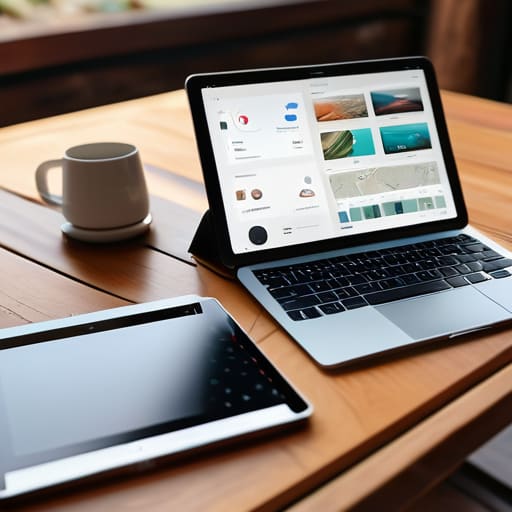
If you’re living the nomad life like I am, your gear shouldn’t feel like a collection of separate islands. I’ve learned the hard way that a fragmented ecosystem is a productivity killer. To truly master apple device synchronization, you have to lean into the continuity features that most people just leave on autopilot. I rely heavily on Universal Control; being able to move my cursor from my MacBook directly onto an iPad sitting next to it makes the iPad feel like a secondary monitor rather than just a tablet. It’s about removing the friction between your devices so you can stay in the flow.
The real magic happens when your cloud-based workflow meets your physical hardware. I keep my entire file structure mirrored across iCloud and a lightweight NAS, ensuring that whether I’m on a train or in a temporary studio, my environment is identical. This level of seamless integration means I don’t waste twenty minutes hunting for a document that’s “stuck” on my home desktop. When your tools are truly synced, your macbook productivity workflow becomes something that exists in the cloud, not just on a single piece of aluminum.
The Minimalist Toolkit: 5 Essentials for a Mobile Command Center
- Ditch the dongle hell. Invest in a high-quality, single-cable USB-C hub that handles power delivery and external displays simultaneously; if I have to plug in four different things just to get a monitor working, the setup has already failed.
- Master your keyboard shortcuts to keep your hands off the trackpad. I’ve spent way too much time fiddling with a mouse in cramped cafes, so learning Spotlight or Raycast is non-negotiable for staying in a flow state.
- Prioritize a lightweight, high-capacity GaN charger. Carrying a massive brick is a rookie mistake that kills your portability; a tiny 65W GaN charger fits in my tech pouch and powers everything from my MacBook to my peripherals without the bulk.
- Optimize your cloud-first file structure. Stop saving things to your local desktop; use iCloud or a dedicated cloud drive so that if I’m forced to switch to a backup device on a train, my entire workflow is exactly where I left it.
- Curate a “Digital Noise” kit. Since I can’t control the chaotic Wi-Fi or the loud espresso machine next to me, a pair of solid ANC headphones paired with a dedicated lo-fi playlist is the only way I can actually trigger my focus mode.
The Mobile Workflow Essentials
Stop over-investing in heavy peripherals; your setup’s value is measured by how fast you can go from a cafe table to a cloud-based workstation without friction.
Prioritize software that bridges the gap between your devices so your files are always where you are, regardless of which city you’re currently calling home.
Treat your digital environment like your physical one—keep it minimalist, keep it organized, and ensure every tool serves a specific purpose in your workflow.
The Philosophy of a Mobile Rig
A MacBook setup shouldn’t be a collection of expensive gear you’re tethered to; it’s a lightweight, cloud-synced ecosystem that lets you turn a random corner of a terminal or a quiet cafe into a high-performance workstation in seconds.
Elias Vandermeer
Building a Setup That Actually Works for You
At the end of the day, a great MacBook setup isn’t about owning the most expensive peripherals or having a desk that looks like a Pinterest board. It’s about stripping away the friction. We’ve looked at how optimizing your macOS settings can keep you in the zone, and how leveraging the Apple ecosystem ensures your files are exactly where you need them, whether you’re in a quiet library or a loud terminal in Berlin. When your software and hardware work in total harmony, you stop fighting your tools and start actually doing the work. The goal is to make your technology invisible so your focus can remain absolute.
Don’t get caught in the trap of “perfecting” your setup indefinitely. I’ve spent way too many hours tweaking keyboard acoustics or cable management only to realize I hadn’t actually written a single line of code. Your setup is a living thing; it should evolve as your workflow shifts and your locations change. Build something lean, keep it cloud-centric, and make sure it’s ready to move the second you feel the itch to travel. Remember, the most professional setup in the world is useless if it keeps you tethered to a single desk. Get out there and make your workspace as mobile as your ambition.
Frequently Asked Questions
How do I manage my cloud-based workflows when I'm stuck on a spotty cafe Wi-Fi connection?
When the cafe Wi-Fi starts acting up, I stop relying on real-time syncing and switch to a “local-first” workflow. I keep my active project files on my machine, not just in the cloud, and use Git or version control to manage changes. I also lean heavily on lightweight, browser-based tools that don’t require a massive bandwidth hog. Basically, don’t let a dropped connection kill your momentum; work offline and let the cloud catch up later.
What are the best lightweight peripherals that won't ruin my mobile desk setup?
If you’re traveling like I do, every extra gram in your bag feels like a tax. Skip the heavy mechanical boards; grab a Logitech MX Keys Mini. It’s low-profile, tactile enough for real work, and switches between devices instantly. Pair it with a Logitech MX Anywhere mouse—it works on literally any surface, even that sketchy marble table at the cafe. Keep it light, keep it wireless, and don’t let your gear become a burden.
How can I automate my file syncing so I don't have to manually manage versions between devices?
Honestly, if you’re still manually dragging files or worrying about version conflicts, you’re fighting your own workflow. I rely heavily on iCloud Drive for everything, but for more complex project structures, I use Dropbox with its smart sync enabled. It keeps the local footprint tiny while ensuring the latest version is always live in the cloud. Set up your folders to sync automatically across all your devices so you can just jump from your MacBook to an iPad without a second thought.