Category: Remote Work

  • Creating a Minimalist Home Office

    Creating a Minimalist Home Office

    I spent most of my junior year in college staring at a desk that looked more like a graveyard for tangled cables and heavy, outdated hardware. Everyone told me that to be a “serious” tech professional, I needed a massive, permanent workstation with dual monitors and a desktop that weighed more than my luggage. They were wrong. Most of that gear is just friction disguised as productivity. If your minimalist desk setup is just a collection of expensive, aesthetic trinkets that you can’t pack into a backpack and take to a coffee shop in a new city, then you haven’t actually built a workspace—you’ve just built a cage.

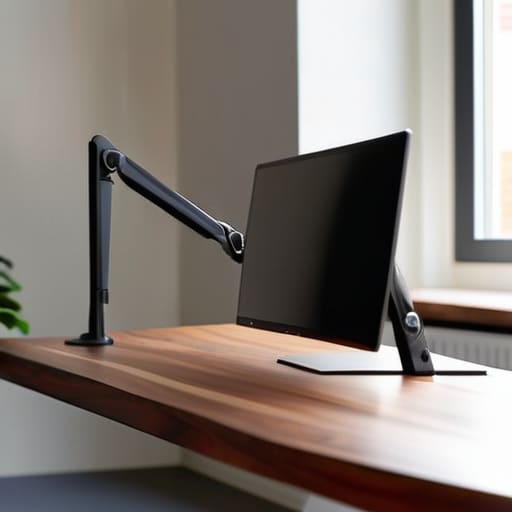
    I’m not here to sell you on a specific brand of overpriced mechanical keyboard or a $500 monitor arm. Instead, I want to show you how to build a setup that actually works for you. I’m going to break down the exact, cloud-first principles I use to stay mobile and efficient, regardless of whether I’m in a quiet library or a noisy transit hub. My goal is to help you strip away the digital and physical clutter so you can finally achieve a state of seamless focus.

    Table of Contents

    A Clutter Free Workstation Built for Deep Work

    A Clutter Free Workstation Built for Deep Work

    If you’re staring at a desk covered in tangled wires and half-finished coffee mugs, you aren’t working; you’re just managing chaos. To get into a flow state, you need a clutter free workstation that doesn’t fight for your attention. I’ve learned that every physical object on your desk is a potential distraction. I keep mine stripped down to the essentials: a laptop, a high-quality mechanical keyboard, and a single monitor. If I haven’t touched a piece of gear in two hours, it doesn’t belong on the surface.

    The real secret to maintaining this isn’t just buying less stuff; it’s about how you handle what you do have. I’m obsessed with clean cable management solutions because nothing kills a vibe faster than a “spaghetti” mess under your feet. I use under-desk trays and braided sleeves to keep everything tucked away and invisible. When your environment is dialed in, you stop noticing the tools and start actually doing the work. It’s about creating an ergonomic minimalist office that supports your body and your brain without requiring constant maintenance.

    Curating Minimalist Tech Accessories That Disappear

    Curating Minimalist Tech Accessories That Disappear.

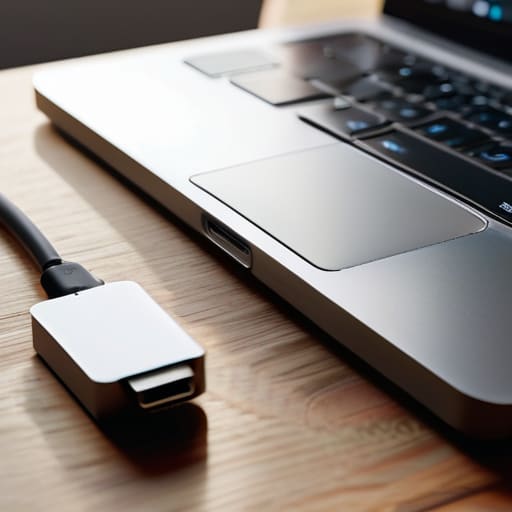
    The trick to finding the right gear isn’t about buying the most expensive kit; it’s about choosing tools that don’t demand your attention. I’ve learned the hard way that every extra dongle or bulky peripheral is just another thing to trip over mentally. I lean heavily into minimalist tech accessories that serve a dual purpose. For me, that means a high-quality mechanical keyboard that feels tactile but stays compact, and a single, reliable USB-C hub that handles everything from my external drive to my peripherals. If a piece of gear doesn’t earn its spot on my desk through pure utility, it’s gone.

    I also focus on keeping the visual noise to a minimum to maintain a productivity enhancing workspace. I tend to stick to a neutral color palette for my gear—matte blacks, greys, or sand tones—so nothing clashes with my environment, whether I’m in a quiet cafe or a temporary rental. Most importantly, I treat my cables like a nuisance to be solved rather than a permanent fixture. Using subtle cable management solutions like magnetic ties or under-desk trays ensures that my tech stays functional without looking like a tangled mess of wires.

    Five Rules for a Setup That Doesn't Hold You Back

    • Go wireless or go home. Every single cable snaking across your desk is a visual distraction that breaks your focus. If you can’t ditch the dongles and the power bricks for a clean, wireless peripheral setup, you’re just managing clutter instead of managing your workflow.
    • Prioritize cloud-first storage over physical drives. I stopped carrying external SSDs everywhere once I realized my entire workflow could live in a well-configured cloud environment. If you can’t access your project files from a cafe in Lisbon or a library in Berlin, your setup isn’t truly portable.
    • Master the art of the single-cable dock. If you’re moving between locations, you don’t have time to plug in six different things. A single USB-C Thunderbolt dock is the ultimate minimalist cheat code; one plug for power, monitors, and peripherals, and you’re live in seconds.
    • Audit your digital desktop as much as your physical one. A clean desk means nothing if your monitor is a graveyard of random icons and unorganized folders. Keep your digital workspace as lean as your physical one so your brain doesn’t have to process unnecessary noise.
    • Invest in high-quality, multi-functional gear. Stop buying “single-use” tech gadgets. I’d rather have one high-end mechanical keyboard that feels great to type on for ten hours than a desk full of cheap, plastic accessories that serve no real purpose.

    The Bottom Line

    If a piece of gear doesn’t serve a specific, repeatable purpose, it’s just visual noise—toss it or archive it.

    Prioritize cloud-based workflows and portable hardware so your “office” is wherever you have a decent Wi-Fi signal.

    Aim for a setup where the tools feel invisible; the less you notice your equipment, the more you’ll notice your work.

    The Philosophy of Less

    A desk setup shouldn’t be a collection of gear you’re proud to show off; it should be a seamless extension of your workflow that stays out of your way until you actually need it.

    Elias Vandermeer

    The Path to a Seamless Workflow

    The Path to a Seamless Workflow setup.

    At the end of the day, a minimalist desk setup isn’t about owning fewer things just for the sake of aesthetics; it’s about intentionality. We’ve looked at how stripping away the physical clutter and choosing tech that integrates seamlessly into the cloud can fundamentally change your relationship with your work. By focusing on high-quality, portable tools and keeping your immediate environment clean, you remove the friction that usually leads to distraction. When your gear is streamlined and your cables are managed, you stop fighting your environment and start mastering your focus.

    I’ve learned through a lot of trial and error—and plenty of heavy, useless gear—that your setup should serve you, not the other way around. Whether you’re working from a quiet corner of a library or a makeshift desk in a small city halfway across the world, your digital and physical workspace should be an extension of your mind. Don’t get caught up in the gear acquisition trap. Instead, build a foundation that is lightweight, mobile, and ready for whatever comes next. Your best work happens when the tools disappear and only the craft remains.

    Frequently Asked Questions

    How do I keep a minimalist setup functional when I'm moving between different locations or cafes?

    The trick is to stop thinking in terms of “gear” and start thinking in terms of “ecosystems.” If your workflow relies on a specific desktop dock or a heavy monitor, you’ve already lost. I stick to a single, high-performance laptop and a cloud-based everything approach. My “setup” is really just a slim tech pouch with a GaN charger, a travel hub, and my mechanical keyboard. If it doesn’t fit in my backpack, it doesn’t belong in my workflow.

    What are the best cloud-based tools to replace physical hardware like external drives or bulky docking stations?

    Ditch the heavy external drives and those bulky docks that tether you to a single desk. I’ve moved almost everything to the cloud. For file storage, I rely on Dropbox or Google Drive—it’s seamless and works even on spotty cafe Wi-Fi. To replace a physical dock, I use high-speed Thunderbolt hubs or just stick to a single USB-C connection for everything. If your data isn’t accessible from any machine, you aren’t actually mobile.

    How can I maintain a clean, cable-managed look without sacrificing the power I need for heavy technical tasks?

    It’s a common trap: thinking you have to choose between a clean desk and a powerful machine. You don’t. The trick is moving the heavy lifting to the cloud or a dedicated hub. I use a single high-spec Thunderbolt dock tucked under my desk; it handles my peripherals and power while leaving only one cable visible. If you’re running heavy builds, offload the processing to a remote server. Keep the hardware invisible, and keep the power accessible.

  • Communicating Effectively Across Distributed Teams

    Communicating Effectively Across Distributed Teams

    I was sitting in a cramped cafe in Lisbon last month, trying to sync a cloud deployment while my lo-fi playlist fought for dominance against the screeching espresso machine. My client was pinging me on three different apps, asking for “status updates” that should have been visible in our shared dashboard if our distributed team communication wasn’t such a fragmented mess. Most companies think they need a massive, expensive suite of enterprise tools to stay connected, but honestly? Most of those platforms are just digital clutter that actually slows you down.

    I’m not here to sell you on a new subscription or a complex hierarchy of Slack channels. I want to show you how to strip away the noise and build a workflow that actually works when you’re moving between time zones and mediocre Wi-Fi. I’ll be sharing the exact, no-nonsense frameworks I use to keep my integrations seamless and my focus unbroken. We’re going to focus on making your tools invisible so you can stop managing software and start actually getting your work done.

    Table of Contents

    Seamless Digital Workspace Management for Flow

    Seamless Digital Workspace Management for Flow.

    The biggest killer of deep work isn’t a bad Wi-Fi connection; it’s the constant, frantic pinging of notifications that fragment your attention. If you’re constantly jumping between Slack, email, and three different project boards, you aren’t actually working—you’re just reacting. Effective digital workspace management means setting up a system where information flows predictably without requiring your immediate presence. I’ve learned that the goal is to create an environment where your tools facilitate a state of flow rather than constantly interrupting it.

    To get there, you have to lean heavily into asynchronous communication strategies. Instead of forcing everyone into a synchronous meeting that could have been a well-structured Notion page or a Loom video, treat your documentation as the single source of truth. When your team relies on high-quality, written context, you eliminate the need for “quick syncs” that derail your entire afternoon. Stop treating every message like an emergency and start building a workflow that respects the rhythm of deep focus.

    Leveraging Remote Work Collaboration Tools Without Friction

    Leveraging Remote Work Collaboration Tools Without Friction

    The problem with most remote work collaboration tools isn’t that they don’t work; it’s that they create more noise than signal. If you’re jumping between five different apps just to find a single project update, your tech stack is failing you. I’ve seen so many setups where the tools actually interrupt the flow instead of facilitating it. To fix this, you need to prioritize asynchronous communication strategies that allow people to contribute when they’re actually in the zone, rather than forcing everyone into a constant state of “available” on a chat app.

    I try to treat my digital environment like a well-built mechanical keyboard—every component needs to serve a specific purpose without unnecessary clutter. When you’re building out your workflow, aim for tools that integrate deeply with your existing cloud setup. You want to focus on overcoming remote communication barriers by reducing the number of clicks it takes to get an answer. If your documentation, task management, and chat aren’t talking to each other, you aren’t working; you’re just managing chaos.

    My Rules for Keeping the Signal-to-Noise Ratio High

    • Kill the “Always-On” Expectation. If your team feels like they have to respond to every Slack ping within thirty seconds, they aren’t working—they’re just reacting. Set clear windows for deep work where notifications are silenced. Real productivity happens in the gaps between the pings.
    • Default to Asynchronous. Stop scheduling meetings just to “sync up.” If it can be an organized Loom video or a well-structured Notion doc, do that instead. Meetings should be the exception for complex problem-solving, not the default for status updates.
    • Centralize the Source of Truth. Nothing kills flow faster than hunting through three different threads to find a single spec. Pick one cloud-based hub—whether it’s Linear, Trello, or a shared doc—and make it the law. If it’s not in the hub, it doesn’t exist.
    • Over-Communicate Context, Not Just Content. In a distributed setup, you lose the “watercooler” cues. When you drop a task or a request, don’t just say what needs to be done; explain why and what the priority level is. It saves five follow-up messages later.
    • Audit Your Stack Monthly. Every few months, look at your tools and ask: “Is this actually making my life easier, or is it just another tab I have to manage?” If a tool adds friction instead of removing it, cut it. A bloated tech stack is just digital clutter.

    The Bottom Line: Build for Mobility, Not Just Presence

    Stop treating your communication tools like a destination; they should be an invisible layer that supports your workflow without forcing you to stop and troubleshoot mid-task.

    If your team’s setup isn’t cloud-first and portable, you’re not building a distributed team—you’re just building a digital version of a cubicle that limits where you can actually work.

    Focus on reducing friction over adding features; a simple, seamless toolset that actually works on mediocre Wi-Fi is worth more than a dozen complex platforms that break your focus.

    ## The Frictionless Connection

    “If your team has to stop and think about how they’re supposed to talk to each other, you’ve already lost the flow. Distributed communication shouldn’t feel like a series of meetings; it should feel like a continuous, invisible layer of your workspace that just works, regardless of where you’re logged in from.”

    Elias Vandermeer

    The Bottom Line

    The Bottom Line: Streamlined digital workspace.

    At the end of the day, effective distributed communication isn’t about hoarding every new app that hits Product Hunt; it’s about stripping away the noise. We’ve looked at how a seamless digital workspace and low-friction collaboration tools can keep you in the zone rather than pulling you out of it. If your setup requires constant troubleshooting or manual syncing, you aren’t actually working—you’re just managing your own chaos. The goal is to build a stack where the tech becomes invisible, allowing your team to focus on the actual output rather than the logistics of how to send a file or join a call.

    Moving away from the traditional office model is a massive shift, but it’s one that offers a level of freedom most people can’t even imagine. Don’t let clunky, legacy processes tether you to a desk or a specific time zone. Build your communication flow to be as mobile and resilient as you are. When you finally get your cloud-first setup right, you’ll realize that true productivity isn’t about being tethered to a physical location—it’s about having the right digital infrastructure to meet you wherever you happen to be in the world.

    Frequently Asked Questions

    How do I keep my team from burning out on constant Slack notifications while still staying in the loop?

    The constant ping of Slack is the fastest way to kill deep work. If your team is reactive instead of proactive, you’ve already lost. I suggest moving away from “always-on” expectations and toward asynchronous workflows. Use dedicated channels for non-urgent updates and set clear “deep work” blocks where notifications are muted. If it’s not a fire, it can wait for a scheduled sync. Protect your focus; it’s your most valuable asset.

    What’s the best way to handle real-time collaboration when half the team is on high-speed fiber and the other half is on shaky cafe Wi-Fi?

    The trick is to stop relying on heavy, synchronous video calls for everything. If someone’s on shaky cafe Wi-Fi, a high-def Zoom call is just going to turn into a laggy nightmare. Switch to asynchronous-first workflows. Use tools that prioritize text-based updates and lightweight cloud syncing. If you must jump on a call, keep the bandwidth low—audio only is often more reliable than trying to force a glitchy video stream through a weak connection.

    How do we move away from endless Zoom meetings and actually use asynchronous tools to protect our deep work time?

    The problem is we’ve treated video calls like a default setting instead of a last resort. To fix this, you have to kill the “meeting for the sake of meeting” culture. Start moving status updates and quick questions into async channels like Loom or Slack threads. If it doesn’t require real-time debate, don’t book a slot on my calendar. Protect your deep work by making synchronous time the exception, not the rule.

  • Maintaining Health While Working Remotely

    Maintaining Health While Working Remotely

    I was sitting in a cramped cafe in Lisbon last month, staring at a $400 “ergonomic” laptop stand that was currently doing nothing but taking up space in my tech pouch. It felt like a joke. Most advice you see about remote worker wellness is just a way to sell you more gear you don’t need or suggest “mindfulness” when your real problem is a cluttered digital workflow and a setup that feels like a cage. If your wellness routine requires you to be tethered to a specific desk or a mountain of expensive peripherals, it’s not wellness—it’s just another obligation holding you back from actually living.

    I’m not here to pitch you on overpriced standing desks or complicated meditation apps. Instead, I want to talk about how to build a lifestyle where your tools are invisible and your setup is actually adaptable. I’m going to share the practical, cloud-first strategies I use to stay sharp while moving between cities, focusing on how to maintain your mental clarity without sacrificing your mobility. We’re going to strip away the fluff and focus on what actually works for a seamless, high-performance life.

    Table of Contents

    Optimizing Your Ergonomic Home Office Setup for Fluid Focus

    Optimizing Your Ergonomic Home Office Setup for Fluid Focus

    Most people think an ergonomic home office setup is just about buying a fancy chair and calling it a day. I used to think that too, back when I was still tethered to a single desk in a cramped apartment. But after months of moving between Airbnbs and co-working spaces, I’ve realized that true ergonomics is about adaptability. If your gear is too heavy to move or your monitor height is fixed, you’re essentially building your own cage. I aim for a setup that supports my posture whether I’m in a cafe in Lisbon or a library in Tokyo, focusing on modularity that keeps my spine aligned without sacrificing portability.

    Beyond the hardware, you have to be intentional about movement to avoid the physical toll of being glued to a screen. I’ve found that preventing a sedentary lifestyle isn’t about a scheduled hour at the gym; it’s about integrating micro-movements into your workflow. I use a standing desk converter that I can pack into a backpack, allowing me to switch positions whenever I feel my focus dipping. If you stay static for four hours straight, your brain is going to fog up long before your back starts hurting.

    Preventing Sedentary Lifestyle With a Truly Adaptive Workspace

    Preventing Sedentary Lifestyle With a Truly Adaptive Workspace

    The problem with a “perfect” setup is that it can easily become a trap. When you finally dial in your gear and find that sweet spot of comfort, the temptation is to stay anchored there for eight hours straight. But sitting still is a slow drain on your cognitive load. I’ve learned that preventing a sedentary lifestyle isn’t about buying a $1,500 standing desk; it’s about building movement into your actual workflow. If your gear is too heavy or too static to move, you’ll end up stuck in one position, and that’s when the brain fog sets in.

    I try to treat my workspace like a modular system. If I’m stuck on a complex integration task, I might move to a standing counter for twenty minutes just to shift my perspective. It’s a small tweak, but it’s essential for maintaining long-term work-life balance for remote employees. You have to break the loop of constant sitting. Think of your physical movement as a way to clear the cache in your brain—sometimes you need to step away from the screen to actually solve the problem sitting right in front of you.

    Digital Hygiene: Keeping Your Brain as Clean as Your Cable Management

    • Audit your notification stack. If your phone is pinging every time a random Slack channel breathes, you aren’t working; you’re just reacting. Turn off everything that isn’t mission-critical to protect your deep work state.
    • Implement a hard “analog” cutoff. When I’m done for the day, the laptop goes in the bag and stays there. You need a physical ritual to signal to your brain that the digital world is officially closed.
    • Stop treating your eyes like they’re invincible. Use blue light filters or high-quality glasses, and actually follow the 20-20-20 rule. Staring at a screen for ten hours straight without a break is a fast track to burnout and headaches.
    • Sync your tasks with your energy, not just your clock. If your brain is fried by 3 PM, don’t force complex systems integration. Use that low-energy window for mindless admin or cleaning your mechanical switches instead.
    • Build a cloud-first documentation habit. Don’t let vital info live on a single physical machine. If you can’t access your workflow from a tablet in a cafe, your system is too rigid and will eventually cause unnecessary stress.

    The Bottom Line: Build for Mobility, Not Just Comfort

    Stop building a static monument to your job; if your gear isn’t cloud-synced and portable enough to move from a desk to a cafe, you’re building a cage, not a workspace.

    Physical health isn’t just about an expensive chair—it’s about creating a setup that forces you to move and adapt rather than staying locked in one position for eight hours.

    Prioritize seamless tool integration so your tech fades into the background, allowing your focus to stay on the task instead of fighting your environment.

    ## Digital Wellness Isn't a Luxury

    “Wellness isn’t about buying a fancy standing desk or a subscription to a meditation app; it’s about building a workflow that doesn’t drain your battery before you’ve even finished your first sprint. If your tech setup is constantly fighting you, your brain is going to pay the price.”

    Elias Vandermeer

    The Final Sync

    Achieving productivity with The Final Sync.

    At the end of the day, wellness isn’t about buying the most expensive ergonomic chair or following a rigid 9-to-5 schedule that doesn’t exist anymore. It’s about the intersection of your physical space and your digital workflow. We’ve talked about how a properly tuned desk setup prevents physical burnout and how an adaptive, cloud-first routine keeps you from feeling tethered to a single spot. If you can’t move your setup, or if your tools are constantly fighting your environment, you aren’t working—you’re just managing friction. Real productivity happens when your gear and your habits become invisible, leaving you with nothing to do but actually execute the work.

    Don’t let your workspace become a cage that dictates how you live. Whether you’re working from a tiny apartment or a cafe with spotty Wi-Fi, your priority should always be maintaining a setup that serves your mobility. Stop trying to fit your life into a static office model and start building a system that evolves with you. When you finally bridge the gap between a seamless digital stack and a healthy physical routine, you realize that professional freedom isn’t just about where you work, but how much control you actually have over your own focus. Now, go fix your cables, grab your headphones, and get back to it.

    Frequently Asked Questions

    How do I maintain a high-performance cloud workflow when I'm working from locations with unreliable or spotty Wi-Fi?

    The key is to stop relying on a continuous stream and start building for latency. I never trust local Wi-Fi; I always run a local Git repo and work offline as much as possible, syncing to the cloud only when the connection stabilizes. I also keep a dedicated mobile hotspot as a failover. If your workflow breaks the second your ping spikes, your setup isn’t resilient—it’s fragile. Build for the worst-case connection.

    What are some minimalist, portable gear recommendations that won't compromise my ergonomics when I'm traveling?

    If you’re moving between cafes or Airbnbs, don’t settle for a laptop sitting flat on a table—that’s a recipe for neck pain. I always pack a Roost or Nexstand; they’re lightweight, foldable, and save my posture. Pair that with a Logitech MX Anywhere mouse and a compact mechanical keyboard like the NuPhy Air75. It keeps my setup tactile and ergonomic without adding bulk to my tech pouch. Keep it slim, keep it mobile.

    How can I set digital boundaries to prevent my "always-on" remote setup from leading to burnout?

    The problem with a cloud-based setup is that your office is literally in your pocket. If you’re checking Slack on your phone while grabbing coffee, you aren’t “remote”—you’re just tethered. I had to implement a hard digital sunset. Once my lo-fi playlist stops, the work tabs close, and notifications go dark. If your tools are invisible, your work hours need to be, too. Don’t let your setup bleed into your life.

  • Securing Cloud Tools for Your Business

    Securing Cloud Tools for Your Business

    I was sitting in a cramped cafe in Lisbon last month, trying to push a critical update through a spotty Wi-Fi connection, when I realized how much most “expert” advice on cloud security protocols is actually just expensive noise. Most people try to sell you these massive, bloated enterprise suites that act like digital roadblocks, forcing you to jump through endless hoops just to access your own data. It’s frustrating because security shouldn’t feel like a constant battle against your own tools. If your setup is so heavy that it kills your momentum, it’s not actually protecting your work—it’s just hindering your ability to do it.

    I’m not here to pitch you some overpriced, over-engineered software stack that requires a dedicated IT department to manage. Instead, I want to break down the specific cloud security protocols that actually matter for people who need to stay mobile and efficient. I’ll show you how to build invisible guardrails around your data—setups that keep your files locked down tight without ever breaking your flow or forcing you back into a cubicle.

    Table of Contents

    Zero Trust Architecture Securing Your Flow Without Friction

    Zero Trust Architecture Securing Your Flow Without Friction

    Zero Trust Architecture: Securing Your Flow Without Friction

    I used to think security meant building a massive digital wall around my data, but that mindset is outdated. If you’re working from a cafe in Lisbon or a library in Tokyo, a traditional perimeter doesn’t exist. That’s why I’ve moved entirely toward a zero trust architecture. Instead of trusting everything inside a network, you assume everything is a potential threat until proven otherwise. It sounds intense, but when implemented correctly, it’s actually much smoother.

    The key is integrating robust identity and access management into your daily routine. You shouldn’t have to jump through hoops every five minutes, but the system needs to verify that it’s actually you accessing that sensitive configuration file. It’s about creating a setup where security is an invisible layer—something that validates your identity in the background so you can stay in your zone. When your tools handle the verification seamlessly, you stop worrying about vulnerabilities and start focusing on the actual build.

    Mastering the Shared Responsibility Model for Total Mobility

    Mastering the Shared Responsibility Model for Total Mobility.

    When I first started freelancing, I made the mistake of assuming that moving my entire workflow to the cloud meant the provider was handling everything. That’s a massive misconception. You have to understand the shared responsibility model if you actually want to sleep soundly while working from a cafe in Lisbon or a library in Tokyo. The cloud provider is responsible for the security of the cloud—the physical servers and the underlying infrastructure—but you are entirely responsible for the security of what you put in it.

    If you leave a database open or misconfigure your permissions, no amount of provider-side protection will save you from a headache. For a mobile setup, this means your focus needs to shift toward robust identity and access management. I treat every login as a potential weak point. It’s not just about having a strong password; it’s about ensuring that the only person accessing your environment is actually you, regardless of how sketchy the local Wi-Fi might be. If you don’t own your side of the equation, your mobility is just an invitation for trouble.

    Five Ways to Tighten Your Perimeter Without Killing Your Vibe

    • Stop relying on just a password. If you aren’t using hardware security keys or at least a solid authenticator app, you’re leaving the door unlocked. MFA should be non-negotiable, even if it adds two seconds to your login.
    • Automate your encryption. Don’t manually decide what gets protected; set up protocols so that your data is encrypted at rest and in transit by default. It should happen in the background while you’re focusing on the actual build.
    • Audit your access regularly. I’ve seen too many setups where old permissions just sit there like digital clutter. If you don’t need access to a specific bucket or server anymore, revoke it immediately. Keep your permissions lean.
    • Use identity-based access instead of network-based. In a world where I’m working from a cafe in Lisbon one week and a library in Tokyo the next, the “office network” doesn’t exist. Secure the user and the device, not the IP address.
    • Monitor your logs without drowning in them. You don’t need a wall of scrolling text, but you do need smart alerts. Set up triggers for weird behavior—like a massive data egress at 3 AM—so you can catch issues before they become disasters.

    The Bottom Line for Your Mobile Workflow

    Security shouldn’t feel like a roadblock; treat it as an invisible layer that lets you work from anywhere without constantly checking your back.

    Stop assuming the provider handles everything—know exactly where your responsibility ends and theirs begins so you don’t leave a door open.

    Build your setup around the principle of least privilege, ensuring that even if a connection is compromised, your entire system doesn’t go down with it.

    ## The Invisible Guardrail

    “Real security shouldn’t feel like a roadblock or a constant series of pop-ups; it should be the invisible infrastructure that lets you work from a cafe in Lisbon or a library in Tokyo without ever worrying if your data is actually safe.”

    Elias Vandermeer

    Moving Forward, Not Just Staying Secure

    Moving Forward, Not Just Staying Secure.

    At the end of the day, getting your cloud security right isn’t about building a massive, impenetrable fortress that requires a PhD to operate. It’s about layering your defenses—using Zero Trust to verify every connection and understanding exactly where your responsibility ends and your provider’s begins. When you nail the shared responsibility model, you aren’t just checking a compliance box; you’re building a foundation that allows you to work from anywhere without constantly looking over your shoulder. The goal is to have these protocols running silently in the background, so they become part of your digital environment rather than a constant hurdle in your way.

    Don’t let the complexity of these systems intimidate you into staying tethered to a single desk or a rigid corporate network. Security should be the invisible scaffolding that supports your freedom, not the cage that limits it. As you refine your setup and migrate more of your life to the cloud, remember that the most effective tools are the ones you eventually forget are even there. Build a workflow that is resilient, portable, and seamless, and you’ll find that you aren’t just protecting your data—you’re protecting your ability to live life on your own terms.

    Frequently Asked Questions

    How do I implement zero trust without adding ten extra steps to my login process every single time?

    The trick is moving away from manual gates and toward continuous, invisible verification. You don’t want to be typing in codes every time you switch from a cafe in Lisbon to a library in Berlin. Instead, lean into device posture checks and biometrics. If your hardware is recognized and your connection looks solid, the system should just let you through. It’s about verifying the context of your session, not just your password.

    If I'm moving between different networks and cities, how do I keep my data secure without relying on a clunky, slow VPN?

    Honestly, if you’re hopping between cafes and coworking spaces, a traditional VPN is just going to kill your latency and kill your vibe. Instead, look into Zero Trust Network Access (ZTNA). It treats every connection as untrusted by default, regardless of the network. It’s basically identity-based security that works at the application layer. It’s much faster, keeps your handshake seamless, and ensures your data stays locked down without that annoying “connecting…” lag.

    Where exactly does my responsibility end and the cloud provider's begin when I'm managing my own custom server builds?

    That’s the million-dollar question. When you’re running custom builds, the line gets blurry fast. Think of it like this: the provider handles the physical hardware and the hypervisor—the stuff you can’t touch. But once you’ve provisioned that instance, you’re the architect. You’re responsible for the OS patching, the firewall configurations, and every single bit of data flowing through it. If your custom kernel has a hole, that’s on you, not them.

  • Dealing With Excessive Video Calls

    Dealing With Excessive Video Calls

    I was sitting in a cramped cafe in Lisbon last month, trying to push through a complex cloud integration task, when my laptop pinged with yet another “quick sync” invite. As the video call connected, the grainy face of a manager appeared, and suddenly, the ambient lo-fi track I rely on to focus was drowned out by the hollow, draining drone of small talk. That’s when it hit me: remote meeting fatigue isn’t just about having too many calls; it’s about the way these digital interruptions shatter your flow and turn your portable office into a prison. We’ve been sold this lie that being “always available” is the peak of professional freedom, but in reality, it’s just a different kind of tether.

    I’m not here to give you some corporate-approved list of “wellness tips” or suggest you take a meditation break between calls. Instead, I’m going to show you how to reclaim your autonomy by restructuring your digital workflow and optimizing your setup to minimize screen drain. I’ll share the exact tools and boundaries I use to keep my work seamless and my focus sharp, ensuring your setup actually serves your life rather than just feeding the endless cycle of meaningless video calls.

    Table of Contents

    Mitigating Cognitive Load in Remote Work

    Mitigating cognitive load in remote work.

    The problem isn’t just the time spent on camera; it’s the sheer amount of mental energy required to process non-verbal cues through a grainy lens. When you’re staring at a grid of faces, your brain is working overtime to interpret micro-expressions that would be obvious in person. This constant processing is a primary driver of cognitive load in remote work, leaving you feeling completely fried by 3:00 PM even if you haven’t actually “done” much deep work.

    To combat this, I’ve started leaning heavily into the asynchronous communication benefits of tools like Loom or Slack. If a quick screen recording can explain a system architecture change or a bug fix, don’t schedule a thirty-minute sync to do it. By cutting down the number of live sessions, you give your brain the space it needs to actually focus on the technical tasks at hand.

    I also treat my digital environment like my physical desk: if it’s cluttered, my head follows. I use strict screen time management protocols to ensure I’m not just oscillating between a meeting and an inbox. If you aren’t intentionally designing your workflow to include quiet periods, you’re basically asking for burnout.

    Beyond the Screen Digital Wellness Strategies

    Beyond the Screen Digital Wellness Strategies.

    We need to stop treating our eyes like they’re indestructible. When I’m working from a cafe in a new city, it’s easy to lose track of how many hours I’ve spent staring at a grid of faces, but that’s exactly when the burnout starts to creep in. Implementing strict screen time management isn’t just about taking breaks; it’s about reclaiming your focus. I’ve started using the 20-20-20 rule religiously—every twenty minutes, I look at something twenty feet away for twenty seconds. It sounds basic, but it keeps my head from feeling like it’s in a vice by 3:00 PM.

    Beyond the physical strain, we have to address how we actually interact. One of the best digital wellness strategies I’ve adopted is pushing for more asynchronous communication. If a quick Slack message or a Loom video can replace a scheduled call, take the option. Reducing the sheer number of live interactions is the only way to combat video conferencing burnout before it hits. Your brain wasn’t designed to process non-verbal cues through a lens for eight hours straight; stop forcing it to.

    Practical Moves to Reclaim Your Focus

    • Audit your camera usage. If the meeting doesn’t require visual cues for a specific task, turn the video off. It stops that weird psychological pressure of constantly monitoring your own face on a tiny thumbnail.
    • Implement “audio-only” walking meetings. If you’re just listening to a status update, ditch the desk. Put on your noise-canceling headphones and walk around the block. It breaks the physical stagnation that makes meetings feel like a slog.
    • Strict buffer zones are non-negotiable. Stop booking calls back-to-back. I leave at least fifteen minutes between sessions to reset my brain, grab water, or just stare at a wall so I’m not carrying the stress of one call into the next.
    • Optimize your audio gear. Half the fatigue comes from straining to hear people through crappy laptop mics or shitty Wi-Fi. Invest in a decent dedicated mic or high-quality earbuds; making the audio seamless reduces the cognitive effort required to just… listen.
    • Curate your notification environment. When you’re in a deep-work block, your Slack and email should be dead to the world. Don’t let a flurry of pings interrupt your flow just to pull you into a meeting you didn’t even need to attend.

    The Bottom Line: Making Your Setup Work for You

    Stop treating your calendar like a cage; build a workflow that prioritizes deep work blocks over back-to-back video calls.

    Invest in a portable, cloud-first toolkit so your productivity isn’t tethered to a single desk or a specific high-speed connection.

    Protect your focus by minimizing digital friction—if a tool or a notification isn’t helping you get the job done, it’s just noise.

    The High Cost of Constant Connectivity

    “We’ve traded the physical exhaustion of a commute for a mental drain that never actually shuts off; if your setup doesn’t allow you to disconnect from the grid, you aren’t working remotely—you’re just tethered to a different kind of cage.”

    Elias Vandermeer

    Reclaiming Your Focus

    Reclaiming Your Focus through intentional boundaries.

    At the end of the day, fighting meeting fatigue isn’t about finding some magic productivity app or a better webcam; it’s about setting boundaries with your own digital environment. We’ve talked about reducing cognitive load, optimizing your physical setup, and actually stepping away from the screen to reset. If you keep letting your calendar dictate every waking hour, you aren’t working—you’re just reacting. You have to be intentional about protecting your deep work windows and ensuring your tools are serving you, rather than the other way around. A truly efficient setup is one that stays out of your way so you can actually get things done.

    I’ve learned through plenty of long flights and mediocre cafe Wi-Fi that professional freedom only works if you have the discipline to maintain it. Don’t let the convenience of being “always on” turn into a trap that leaves you feeling burnt out and disconnected. Your workspace—and your life—should be built around your ability to focus and create, not your ability to sit through endless, unproductive calls. Build a system that is portable, seamless, and sustainable. Once you stop letting the digital tether pull you in every direction, you’ll finally find the space to do the work that actually matters.

    Frequently Asked Questions

    How can I tell if I'm actually burnt out or if it's just a bad Wi-Fi connection making me more frustrated?

    It’s a fine line. If your frustration spikes only when a packet drops or a video freezes, that’s just technical friction—fix the router or grab a hotspot. But if you feel a heavy, persistent dread before you even open your laptop, or if the thought of a cloud-based workflow feels exhausting rather than liberating, that’s burnout. One is a hardware issue; the other is a signal that your lifestyle needs a reboot.

    Are there any specific cloud-based tools that actually help reduce meeting clutter instead of just adding more notifications?

    Honestly, most tools just add more noise, but if you switch to asynchronous workflows, the clutter disappears. I rely heavily on Loom for quick video walkthroughs—it kills the need for a “quick sync” that inevitably turns into a 30-minute drain. For documentation, Notion or Obsidian (synced via cloud) keeps everything searchable so you aren’t hunting through Slack threads. If you can replace a meeting with a well-structured async update, do it.

    Is it possible to maintain a professional presence in meetings without having to stay glued to my desk for eight hours straight?

    Absolutely. The “glued to the desk” mindset is a relic of the cubicle era. To stay professional while moving around, you just need to decouple your presence from your physical location. Invest in a solid mobile workstation—a high-quality noise-canceling headset and a reliable 5G hotspot are non-negotiable. If your cloud tools are synced and your hardware is portable, you can transition from a cafe to a park without missing a beat or losing your edge.

  • Managing Cables in Your Desk Setup

    Managing Cables in Your Desk Setup

    I was sitting in a tiny, overpriced Airbnb in Lisbon last month, trying to deploy a cloud patch on a deadline, when I realized my entire workflow was being sabotaged by a literal bird’s nest of wires under my desk. I’d spent three hours setting up a “minimalist” mobile station, only to have a tangled mess of power bricks and Ethernet cables turn my workspace into a cluttered disaster zone. Most people think desk cable management requires a massive investment in proprietary plastic trays or expensive designer organizers, but that’s just marketing fluff. If your setup isn’t clean, it’s not a workspace—it’s a distraction that keeps you from actually doing the work.

    I’m not here to sell you on some overpriced aesthetic kit that falls apart the moment you move your desk. Instead, I’m going to show you how I build frictionless setups that actually travel with me. I’ll share the exact, low-cost tools I use to keep my cables invisible and my mind focused, regardless of whether I’m in a home office or a cramped cafe. This is about functional simplicity, not just looking good for a photo.

    Table of Contents

    Hidden Wire Routing for an Invisible Workflow

    Hidden Wire Routing for an Invisible Workflow

    The real trick to a clean setup isn’t just hiding the mess; it’s making sure the wires aren’t even part of your visual field. Most people just tuck a few cords behind their monitor and call it a day, but that’s a temporary fix. If you want a truly invisible workflow, you need to look underneath. I’m a big fan of mounting a dedicated tray or using specialized under desk cable management solutions to house your power strips and bulky bricks. When everything is anchored to the underside of the desk, the surface stays completely clear, leaving you zero mental friction when you sit down to work.

    For the cables that actually have to travel from your peripherals to your machine, stop letting them hang like loose spaghetti. I usually grab some high-quality cable management sleeves to bundle those lines into a single, neat cord. It makes the whole rig look intentional rather than accidental. If you’re aiming for a minimalist, wireless desk setup, every single inch of visible wire is a distraction you don’t need. Route them along the legs of the desk using adhesive clips, and suddenly, your tech just disappears.

    The Power of Under Desk Cable Management Solutions

    The Power of Under Desk Cable Management Solutions.

    If you’re serious about a clean aesthetic, you have to stop thinking about what sits on top of your desk and start looking at what’s happening underneath it. Most people focus on the peripherals, but the real chaos is usually lurking near your feet. Investing in proper under desk cable management solutions—like heavy-duty trays or mesh hammocks—is the only way to actually clear the floor space. When you get those power bricks and long extension cords off the ground and tucked into a tray, the entire room feels lighter.

    It’s not just about looking good for a webcam, either; it’s about mental clarity. A tangled web of wires creates a subconscious sense of friction that pulls you out of your flow state. I like to use a combination of adhesive desk cable clips to guide individual lines along the underside of the frame, ensuring nothing dangles or snags your legs. By securing everything tightly to the structure, you create a stable, ergonomic workstation setup that feels intentional rather than accidental. When the hardware disappears, you can finally just focus on the code.

    Small Tweaks for a Zero-Friction Setup

    • Label everything at both ends. When you’re troubleshooting a connection in a coffee shop or a temporary rental, you don’t want to be playing a guessing game with a dozen identical black USB-C cables.
    • Use adhesive cable clips for your peripherals. Don’t let your mouse or keyboard wires slide off the desk every time you move them; a tiny clip keeps them exactly where they belong.
    • Invest in a high-quality power strip with a long cord. If your outlet is three feet away from your desk, don’t use an extension cord—use a dedicated power strip that you can actually mount to the underside of your desk.
    • Group your cables with Velcro ties, not plastic zip ties. Zip ties are permanent and aggressive; Velcro is modular, meaning you can actually add or remove a device without needing a pair of scissors and a prayer.
    • Keep your “active” cables separate from your “static” ones. Your power bricks and heavy-duty cables should stay tucked away, while your high-frequency devices like your mouse or laptop charger should have a clear, unobstructed path.

    Cut the Cordage, Find Your Focus

    Stop treating cable management as an afterthought; it’s a core part of your workflow that prevents mental friction.

    Aim for an invisible setup by routing everything through under-desk trays or routing channels so your eyes stay on the work, not the mess.

    Prioritize portability and modularity—if you can’t pack up your setup or move it to a new spot without a headache, your system is broken.

    The Philosophy of the Invisible Setup

    If I have to look at a tangle of wires every time I sit down to work, my setup has already failed me. Cable management isn’t about making a desk look pretty for a photo; it’s about removing the visual noise so your brain can actually stay in the zone.

    Elias Vandermeer

    Final Thoughts on a Frictionless Setup

    Final Thoughts on a Frictionless Setup.

    At the end of the day, managing your cables isn’t just about making your desk look good for a photo; it’s about removing the physical friction that interrupts your flow. Whether you’re routing wires through hidden channels or investing in solid under-desk trays, the goal is the same: to make the hardware disappear. When you stop seeing a tangled mess of black cords every time you sit down, your brain can finally stop processing the clutter and start focusing on the actual task at hand. A clean setup is a functional setup, and once you’ve mastered the basics of routing and containment, you’ll realize how much mental energy you were wasting on a disorganized space.

    My philosophy has always been that your tools should serve you, not the other way around. If your workspace feels heavy or chaotic, it’s likely because your environment is fighting against your workflow. Don’t get caught up in buying every expensive gadget on the market; just focus on making your setup seamless and portable. When you build a workspace that is organized, invisible, and adaptable, you aren’t just tidying a desk—you’re engineering an environment where you can actually do your best work, no matter where in the world you happen to be logging in from.

    Frequently Asked Questions

    How do I manage cables if I'm constantly moving my setup between different locations?

    If you’re moving as much as I am, permanent mounting is your enemy. Forget the heavy trays bolted to the desk; you need modularity. Stick to high-quality velcro ties instead of plastic zip ties—you’ll thank me when you’re tearing things down in ten minutes. I always pack a dedicated tech pouch with a portable cable management kit and a few magnetic clips. It keeps everything bundled and ready to plug in the second I find decent Wi-Fi.

    What's the best way to handle power strips without having a massive, bulky brick hanging under my desk?

    Ditch the bulky plastic bricks. If you’re serious about a clean setup, look into mounting a slim power strip directly to the underside of your desk using heavy-duty command strips or a dedicated mounting bracket. Even better? Switch to a rack-mountable or slimline strip designed for mounting. It keeps the bulk out of sight and stops that heavy “brick” from pulling on your cables. If it’s not tucked away, it’s just visual noise.

    How do I keep my cables organized without making them impossible to swap out when I upgrade my gear?

    The mistake most people make is over-binding. If you use zip ties for everything, you’re basically building a permanent tomb for your tech. Instead, stick to Velcro wraps. They’re much more forgiving when you decide to swap out a mechanical keyboard or a new monitor. I also recommend using a modular cable tray rather than adhesive clips; it gives you the breathing room to swap gear without ripping everything off your desk.

  • Working Together on Digital Documents

    Working Together on Digital Documents

    I was sitting in a cramped cafe in Lisbon last month, staring at a spinning loading icon while trying to merge three different versions of a project spec. The Wi-Fi was spotty, my lo-fi playlist was glitching, and I was stuck in that familiar, soul-crushing loop of “Final_v2_REAL_final.docx” email chains. It’s honestly ridiculous that in an era of seamless cloud integration, we’re still treating collaborative document editing like a high-stakes game of digital hot potato. Most “enterprise solutions” out there are just bloated, expensive wrappers designed to keep you tethered to a desktop, rather than actually helping you flow.

    I’m not here to sell you on some shiny, overhyped software suite that requires a PhD to navigate. Instead, I want to show you how to build a setup that actually works when you’re moving between time zones and mediocre hotspots. I’ll be breaking down the tools that stay out of your way, focusing on low-latency, cloud-first workflows that let you focus on the work rather than the friction. If you’re tired of fighting your tools and just want to get things done, let’s dive in.

    Table of Contents

    Mastering Seamless Document Co Authoring Workflows

    Mastering Seamless Document Co Authoring Workflows.

    The real headache isn’t just having multiple people in a file; it’s the friction that happens when everyone is trying to move in different directions. If you’re still relying on “v2_final_FINAL” file naming conventions, you’re already losing. To actually scale, you need to lean into synchronous editing tools that handle the heavy lifting for you. I’ve found that the best workflows are the ones where the tech stays out of the way, allowing the team to focus on the logic of the document rather than the mechanics of how to save it.

    The trick to mastering these document co-authoring workflows is knowing when to be live and when to step back. Sometimes, you need real-time presence to brainstorm, but most of the time, you need robust asynchronous communication in docs to avoid constant pings. I always look for platforms that handle conflict resolution in shared files silently in the background. If I have to manually merge changes or fix a broken paragraph because two people typed in the same spot, the tool has already failed me. You want a setup that feels like a single, fluid brain, not a digital tug-of-war.

    The Power of Cloud Based Document Management

    The Power of Cloud Based Document Management

    The real advantage of cloud-based document management isn’t just about avoiding a “final_v2_FINAL.docx” naming nightmare; it’s about removing the friction between an idea and its execution. When I’m working from a cafe in a city I can barely pronounce, I can’t afford to be tethered to a local drive or a clunky VPN just to see what my team updated overnight. You need a system where the file lives in the ether, accessible from any machine, provided the Wi-Fi isn’t completely trashed.

    Moving everything to the cloud transforms how we handle asynchronous communication in docs. Instead of waiting for a ping on Slack to tell you a draft is ready, you can jump into the file, see the progress, and leave contextual comments exactly where they matter. This shift allows for a much more fluid rhythm; you aren’t just passing files back and forth like a hot potato, you’re building something together in real-time. It turns a static document into a living workspace that actually keeps up with a mobile lifestyle.

    Five ways to stop fighting your files and start actually working

    • Ditch the “Final_v2_REAL_final.docx” naming nightmare; if you aren’t using a single source of truth in a live cloud environment, you’re just wasting mental bandwidth on version control.
    • Treat your notification settings like your cable management—keep them clean. Mute every non-essential ping so you don’t lose your flow every time a teammate leaves a minor comment.
    • Use the “comment thread” for the messy stuff. Don’t clutter the actual document body with debates; keep the discussion in the sidebar so the core content stays readable and focused.
    • Master the art of the asynchronous check-in. Since I’m rarely in the same time zone as my clients, I rely on clear, tagged @mentions rather than expecting someone to be sitting at their desk waiting for me.
    • Always check your mobile accessibility. If you’re jumping from your desk to a cafe, make sure the tools you’re using don’t break or become unusable the second you switch from a mechanical keyboard to a laptop trackpad.

    The bottom line: Work where you want, not where you’re tethered

    Stop treating version control like a chore; if your tools aren’t handling real-time syncing automatically, they’re actively stealing your focus.

    Build your workflow around the cloud, not the hardware—if your setup can’t survive a move to a new city or a spotty coffee shop connection, it’s too fragile.

    Prioritize seamless integration over feature bloat; the best tools are the ones that stay out of your way so you can actually stay in the zone.

    ## The friction of the old way

    “If you’re still emailing ‘Final_v2_EDITED’ files back and forth, you aren’t collaborating; you’re just managing a digital graveyard. Real work happens when the tool disappears and the document becomes a living, breathing space that everyone can touch at once.”

    Elias Vandermeer

    The Bottom Line

    The Bottom Line: Seamless collaborative editing.

    At the end of the day, mastering collaborative editing isn’t about chasing every new feature in a software suite; it’s about removing the friction between your brain and the screen. We’ve covered how to build workflows that actually make sense, moving away from the nightmare of “Final_Version_v2_EDITED.docx” and toward a single, living source of truth in the cloud. When you nail your document management and co-authoring processes, you stop managing files and start actually doing the work. It’s about making your tools invisible and seamless so that the technology serves your focus rather than breaking it.

    My philosophy hasn’t changed since I left the cubicle life behind: your setup should adapt to you, not the other way around. Whether you’re sitting in a quiet corner of a cafe or working from a temporary desk in a new city, your ability to collaborate shouldn’t be tethered to a specific location or a clunky local server. Stop letting outdated, static processes hold your productivity hostage. Build a digital environment that is portable, cloud-first, and built for movement. That is how you reclaim your time and, more importantly, your freedom to create from anywhere in the world.

    Frequently Asked Questions

    How do I prevent people from accidentally overwriting my work when we're all editing the same file at once?

    Honestly, the “last save wins” era needs to stay in the past. If you’re still losing work to accidental overwrites, you aren’t using a true real-time engine. Stick to tools that support granular version history and live presence indicators—those little colored cursors that show exactly where everyone is sitting. If a tool doesn’t let you roll back to a specific timestamp without breaking the whole flow, it’s not a professional setup; it’s a liability.

    Is there a way to keep a collaborative setup secure without it becoming a massive headache for my workflow?

    Look, I get it. Security usually feels like a wall between you and your actual work. But you don’t need to lock yourself in a digital vault to stay safe. Focus on identity, not just passwords. Use hardware security keys and strict MFA—it’s a minor friction point that pays off massively. If you keep your access centered on verified identities and use granular permissions, you can stay secure without turning your workflow into a nightmare.

    What happens to my progress if I'm working on a spotty cafe Wi-Fi connection and the sync fails?

    This is exactly why I test my setups on mediocre connections before I commit to a long session. Most modern cloud tools use local caching, meaning your changes are saved to your device’s temporary memory first. When the Wi-Fi blips, you keep typing; once you’re back online, the tool pushes those cached edits to the cloud. Just don’t rely on a browser tab that hasn’t refreshed in hours—always check your sync status icon before closing your laptop.

  • Understanding Cloud Computing for Work

    Understanding Cloud Computing for Work

    I was sitting in a cramped cafe in Porto last month, staring at a spinning loading icon while my laptop fan sounded like a jet engine trying to process a local database. It was a total wake-up call: if my entire workflow depended on the physical specs of the machine in front of me, I wasn’t actually free—I was just a prisoner with better scenery. Most people treat cloud computing basics like they’re some impenetrable wall of enterprise jargon, but that’s just marketing fluff designed to sell expensive subscriptions. The truth is, if you aren’t using the cloud to offload the heavy lifting, you’re just tethering yourself to a desk without even realizing it.

    I’m not here to give you a textbook definition or a lecture on corporate scalability. Instead, I’m going to break down what actually matters for someone who wants to work from anywhere without their hardware holding them back. We’re going to strip away the hype and look at how these tools actually function in a real-world, mobile setup. By the end of this, you’ll understand how to build a digital environment that is truly seamless, so you can stop worrying about your local storage and start focusing on the work that actually moves the needle.

    Table of Contents

    Saas Paas Iaas Explained Choosing Your Invisible Toolkit

    Saas Paas Iaas Explained Choosing Your Invisible Toolkit

    When you start digging into the actual layers of how this all works, you’ll run into the classic SaaS, PaaS, and IaaS breakdown. Think of it like building a custom mechanical keyboard. IaaS (Infrastructure as a Service) is like buying the bare PCB and switches; you get the raw power and the on-demand computing resources, but you’re responsible for everything else. It’s great if you want total control, but it’s a lot of maintenance.

    PaaS (Platform as a Service) is more like buying a pre-soldered kit. The foundation is set, so you can just focus on the firmware and the actual “feel” of the build. It’s perfect for devs who want to deploy code without babysitting the underlying OS. Finally, SaaS (Software as a Service) is the finished, plug-and-play board. You just open it and start typing. Whether it’s Notion or Slack, you’re just using the tool, not managing the guts.

    Understanding SaaS PaaS IaaS explained is really about deciding how much “heavy lifting” you actually want to do. If you’re trying to maintain a fluid, mobile workflow, you generally want to lean toward the higher levels of abstraction so you aren’t stuck troubleshooting server configurations from a coffee shop.

    On Demand Computing Resources to Fuel Your Focus

    On Demand Computing Resources to Fuel Your Focus

    The real magic happens when you stop worrying about whether your laptop has enough RAM to handle a heavy build and start leaning into on-demand computing resources. When I’m working out of a cramped cafe in Lisbon, I don’t want to be limited by the hardware sitting on my lap. Instead, I want to spin up a virtual instance in seconds, do the heavy lifting in the cloud, and shut it down when I’m done. This elasticity is what makes a truly fluid workflow possible; you aren’t buying a massive server upfront, you’re just renting the power you need, exactly when you need it.

    This shift from ownership to access is a game changer for anyone trying to stay mobile. Whether you’re navigating the nuances of public vs private cloud setups for a client or just trying to sync a massive database across three different time zones, the goal is the same: zero friction. You shouldn’t have to pause your flow to troubleshoot a local hardware bottleneck. If your tools aren’t scaling alongside your project, they’re just dead weight holding you back from actually getting the work done.

    5 Ways to Stop Fighting Your Tech and Start Using the Cloud

    • Prioritize “browser-first” workflows. If a tool requires a heavy, local installation that eats your RAM, it’s going to fail you when you’re working from a cafe on a mediocre connection. Look for web-based versions that sync instantly.
    • Audit your data redundancy. Don’t just rely on one provider; if your entire life is in one ecosystem and that service goes down, you’re stuck. Use a secondary cloud backup for your most critical files so you aren’t paralyzed by a single outage.
    • Master your sync settings. There is nothing worse than closing a laptop in Lisbon only to realize your files didn’t actually upload to the cloud. Always double-check that your “offline mode” settings aren’t accidentally keeping your work trapped on your local drive.
    • Automate the boring stuff. Use cloud-based automation tools to handle file transfers or backups in the background. The goal is to make the infrastructure invisible so you can stay in your flow state without manual maintenance.
    • Security isn’t optional, even when you’re nomadic. Since you’re accessing everything remotely, enable hardware-based MFA (like a YubiKey) across all your cloud accounts. Relying on SMS codes is a massive vulnerability when you’re jumping between different networks.

    The Bottom Line: Build for Mobility

    Stop thinking about “buying hardware” and start thinking about “renting capability.” The goal is to move your heavy lifting to the cloud so your actual machine stays light, fast, and portable.

    Don’t get caught in the trap of over-provisioning. Use the on-demand nature of the cloud to scale your resources up when you’re deep in a project and scale them back down when you’re just coasting.

    Your setup is only as good as its accessibility. If your workflow relies on a specific physical server or a localized drive, you aren’t a digital nomad—you’re just a remote worker with a longer commute.

    The Death of the Desk

    “If your entire workflow is tied to a single physical machine, you aren’t working; you’re just tethered. Cloud computing isn’t about fancy servers—it’s about making sure your ability to build, code, and create isn’t limited by the chair you’re sitting in or the Wi-Fi signal in your current city.”

    Elias Vandermeer

    The Freedom of a Cloud-First Mindset

    The Freedom of a Cloud-First Mindset.

    At the end of the day, understanding the difference between SaaS, PaaS, and IaaS isn’t about memorizing textbook definitions for an exam. It’s about knowing which lever to pull so your tech stays out of your way. Whether you’re leveraging a full software suite to manage your freelance clients or building out a custom infrastructure to handle heavy data loads, the goal is the same: minimizing friction. When you stop worrying about local hardware limitations and start utilizing on-demand resources, you stop being a slave to your desk. You’ve moved past the era of “if it isn’t on my hard drive, I can’t work,” and into a world where your entire professional ecosystem is truly portable.

    My advice? Don’t get caught up in the complexity of the tools themselves. The best tech is the kind you forget is even running. Use the cloud to build a setup that scales with your ambition, not one that anchors you to a single zip code. Once you strip away the heavy, localized baggage, you’ll realize that your most valuable asset isn’t your gear—it’s your ability to focus from anywhere in the world. Build a workspace that adapts to you, and then go see what you can actually achieve when the tech finally becomes invisible.

    Frequently Asked Questions

    How do I actually keep my data secure when it's not sitting on a physical drive in my backpack?

    It’s a valid fear. If your data isn’t under your physical control, you have to trust the architecture. For me, it comes down to zero-trust principles and end-to-end encryption. Don’t just rely on a provider’s “security” checkbox; use tools that encrypt your files locally before they even hit the cloud. Layer that with hardware security keys for MFA—not SMS codes—and you’ll find that being untethered doesn’t have to mean being vulnerable.

    Is it worth paying for premium cloud subscriptions if I'm just working solo, or can I get by with free tiers?

    Honestly, don’t overspend just because a tool looks shiny. If you’re flying solo, free tiers are your best friend—use them to stress-test your workflow first. But there’s a tipping point. If a “free” tool starts hitting you with constant storage limits or annoying watermarks that break your flow, that’s when you upgrade. Pay for the friction you want to eliminate, not just for the sake of having premium features.

    How much does a spotty café Wi-Fi connection actually mess with my ability to use these cloud-based tools effectively?

    Honestly, it’s a massive headache if you aren’t prepared. If you’re relying on heavy, real-time syncing for massive files, a jittery connection will turn your workflow into a series of loading spinners. It kills your momentum. I try to stick to lightweight, browser-based tools and always keep a local cache of my essential docs. If your setup requires a perfect fiber connection just to function, you aren’t actually mobile—you’re just tethered to a different wall.

  • Improving Your Video Call Quality

    Improving Your Video Call Quality

    I was sitting in a cramped cafe in Lisbon last month, trying to explain a cloud migration architecture to a client, when my video feed turned into a pixelated, muddy mess. It wasn’t even a bad connection; it was just a subpar sensor struggling to handle the natural light from the window. Most people will tell you that you need a thousand-dollar DSLR setup and a studio lighting kit to look professional, but that’s just noise. In reality, obsessing over hyper-expensive gear is a distraction from what actually matters: having a setup that stays reliable whether you’re at a dedicated desk or a temporary workstation. True webcam quality isn’t about the most expensive glass; it’s about how seamlessly the tech integrates into your actual life without requiring a degree in cinematography to operate.

    I’m not here to sell you on the latest marketing hype or a list of overpriced gadgets that will just collect dust in your tech bag. Instead, I want to show you how to find that sweet spot where clarity meets portability. I’ll be breaking down what actually moves the needle for remote professionals and how to optimize your environment so your tools stay invisible. My goal is to help you achieve a professional presence that works anywhere, without the unnecessary clutter.

    Table of Contents

    Mastering Low Light Webcam Performance Without the Friction

    Mastering Low Light Webcam Performance Without the Friction

    Most of the time, I’m working out of cafes or Airbnbs where the lighting is either nonexistent or aggressively uneven. When you’re stuck in a dim room, you quickly realize that low light webcam performance isn’t just about having a fancy lens; it’s about how your hardware handles grain. If your camera has a tiny sensor, it’s going to struggle, turning your video into a muddy, pixelated mess the second the sun goes down. Instead of fighting it, I usually try to position myself so the light hits my face from the side rather than from behind, which prevents that washed-out look.

    Another thing that trips people up is the constant hunting for focus. If you’re in a low-light environment, many cameras struggle with autofocus vs fixed focus logic, causing that annoying jitter where the image constantly blurs and sharpens. I’ve learned to favor setups that allow me to lock my focus manually or use a slightly wider field of view to mask minor movements. It’s all about reducing the digital noise so the hardware stays out of the way, letting you actually focus on the conversation instead of your grainy silhouette.

    Why Sensor Size Matters for a Seamless Visual Experience

    Why Sensor Size Matters for a Seamless Visual Experience

    When you’re staring at a spec sheet, it’s easy to get distracted by megapixels, but that’s mostly marketing fluff. If you want a setup that actually feels professional without constant tweaking, you need to look at the webcam sensor size. A larger sensor captures more light and more detail, which is the real secret to avoiding that grainy, “cheap” look. When the sensor is too small, the camera tries to compensate by cranking up the digital gain, which leads to terrible noise reduction in video and a washed-out image that makes you look like you’re filming through a fog.

    I’ve learned the hard way that a tiny sensor is a massive liability when you aren’t in a studio with perfect lighting. If you’re working from a cafe or a rental with questionable overhead lights, a larger sensor handles those shadows gracefully. It ensures your frame rate for video calls stays stable and fluid, rather than stuttering every time you move your hands. Ultimately, a decent sensor means you can stop fiddling with your settings and just focus on the meeting.

    Five Ways to Stop Looking Like a Pixelated Ghost

    • Stop relying on your overhead room light. If you’re working from a cafe or a temporary rental, grab a small, portable LED panel. It’s much better to have a dedicated light source than to fight with a single, harsh bulb coming from behind you.
    • Check your software settings before every call. Most webcams default to “auto-everything,” which usually results in weird color shifts or constant refocusing. Lock your exposure and white balance so the image stays consistent throughout your meeting.
    • Position your lens at eye level. It sounds basic, but propping your laptop up on a stack of books or a portable stand makes a massive difference. Looking down into a camera creates a “neck-beard” angle that makes even the best sensor look amateur.
    • Manage your bandwidth, not just your video. If you’re on mediocre Wi-Fi, a high-res stream will just stutter and look like a slideshow. If the connection is struggling, drop your output resolution to 720p. A sharp 720p image is always better than a frozen 4K one.
    • Keep the lens clean. I can’t tell you how many times I’ve sat through a technical troubleshooting session only to realize there was just a fingerprint smudge on the glass. A quick wipe with a microfiber cloth goes a long way.

    The Bottom Line for Your Setup

    Stop chasing megapixels and start looking at sensor size; a bigger sensor handles poor lighting naturally so you aren’t constantly fighting with software tweaks.

    Your gear should be invisible—if you have to spend ten minutes adjusting settings every time you move to a new cafe or Airbnb, the tech is failing you.

    Prioritize hardware that works in real-world conditions, like dim hotel rooms or uneven natural light, rather than what looks good in a controlled studio.

    The Invisible Tool

    “At the end of the day, I don’t care about megapixels or spec sheets; I care about whether my video looks like a grainy mess when I’m working from a cafe in Lisbon or a dim Airbnb in Berlin. Good webcam quality isn’t about looking like a movie star—it’s about the tech disappearing so your clients actually see you, not your struggle with the lighting.”

    Elias Vandermeer

    Final Thoughts on the Visual Workflow

    Final Thoughts on the Visual Workflow.

    At the end of the day, getting your webcam quality right isn’t about chasing the highest specs just for the sake of a numbers game. It’s about understanding how sensor size and light management play into your actual environment, whether you’re in a bright cafe or a dimly lit Airbnb. If you’ve mastered the balance between hardware capability and environmental control, you’ve removed a massive layer of technical friction. You shouldn’t be spending your energy troubleshooting why you look like a grainy shadow during a client call; you should be focused on the integration and the work itself. When your gear is reliable, it effectively becomes invisible.

    My philosophy has always been that your tech should serve your freedom, not dictate it. A high-quality setup isn’t a luxury reserved for people sitting in glass-walled offices in San Francisco; it’s a tool that allows you to show up as a professional from anywhere in the world. Don’t let mediocre hardware be the thing that anchors you to a desk or makes you feel less than capable when you’re on the move. Build a setup that is seamless, portable, and resilient. Once you stop worrying about how you look on screen, you’re finally free to actually do the work you moved away from the cubicle to do in the first place.

    Frequently Asked Questions

    Is it actually worth carrying around a dedicated mirrorless camera and capture card, or can I just optimize my current setup?

    Honestly? For most of what I do, carrying a mirrorless rig and a capture card is just extra weight and unnecessary friction. Unless you’re doing high-end client presentations where every pixel counts, it’s overkill. I’d rather spend that energy optimizing my current lighting and finding a webcam with a decent sensor. If your setup isn’t portable or easy to deploy on mediocre Wi-Fi, it’s just a bottleneck. Keep it lean; keep it seamless.

    How do I stop my webcam from looking like a grainy mess when I'm working from a cafe with bad lighting?

    First, stop fighting the overhead lights. If you’re in a cafe, try to position yourself so you’re facing a window rather than having the light behind you. If that’s not an option, grab a small, portable LED panel that clips to your laptop. It sounds like extra gear, but a tiny bit of controlled light beats a grainy, noisy sensor every single time. It keeps the workflow seamless without needing a studio setup.

    Are there any lightweight software tools that can clean up my video feed without killing my laptop's CPU?

    Honestly, you don’t want some bloated suite running in the background eating your CPU cycles. If you’re on a laptop, every bit of overhead matters. I usually stick to the built-in filters in apps like Zoom or Teams—they’re surprisingly optimized. If you need more control, try something lightweight like OBS with a basic LUT; it’s way more efficient than those heavy AI-driven “beautification” apps that turn your laptop into a space heater.

  • Optimizing Workflows With Cloud Technology

    Optimizing Workflows With Cloud Technology

    I was sitting in a cramped, overpriced cafe in Lisbon last month, staring at a spinning loading icon while my local drive refused to sync a critical project file. The Wi-Fi was mediocre at best, and my entire productivity was tethered to a single piece of hardware sitting back in my apartment. That’s the moment it hit me: if your entire professional life depends on being physically present at a specific desk, you aren’t actually free; you’re just on a very long leash. Most people treat a cloud based workflow like some expensive enterprise luxury, but it’s actually the only way to stop being a slave to your hardware.

    I’m not here to sell you on some bloated, high-priced software suite that promises to “revolutionize your synergy.” We both know that’s corporate nonsense. Instead, I want to show you how to build a setup that is actually portable and resilient. I’m going to break down the specific tools and architectural shifts I use to keep my systems seamless, whether I’m working from a high-end studio or a spotty connection in a small-town library. No fluff, just the practical setups that let you focus on the work, not the infrastructure.

    Table of Contents

    Ditch the Desk Building Scalable Digital Infrastructure

    Ditch the Desk Building Scalable Digital Infrastructure

    If you’re still relying on local drives or hardware that lives under a desk, you aren’t building a career; you’re building a cage. To actually move freely, you need to treat your entire operational stack as a piece of scalable digital infrastructure. This means moving away from the “save to desktop” mentality and leaning into environments where your data and tools are accessible from a coffee shop in Lisbon just as easily as a high-speed setup in Berlin. When your systems are decentralized, your productivity isn’t tied to a physical location or a specific piece of hardware.

    The goal is to reach a point where your tools feel invisible. By integrating cloud-native application workflows, you ensure that as your client list grows, your setup doesn’t buckle under the weight. You shouldn’t be spending your time troubleshooting local server lag or syncing massive files via USB; you should be leveraging automated systems that handle the heavy lifting in the background. If your setup can’t scale up instantly when a project hits a fever pitch, it’s not a professional environment—it’s just a hobby.

    Seamless Saas Workflow Management for Infinite Mobility

    Seamless Saas Workflow Management for Infinite Mobility

    If you’re still relying on local installs or heavy, proprietary software that requires a specific machine to run, you’re essentially tethering yourself to a single zip code. For me, the goal is to make my tech stack feel like an extension of my brain, not a heavy backpack. This is where SaaS workflow management becomes a game changer. When your entire stack—from project tracking to version control—lives in the browser, the difference between working from a high-end studio or a coffee shop in Portugal becomes negligible. You aren’t just “using apps”; you’re building a modular ecosystem that survives a spotty Wi-Fi connection.

    The real magic happens when you stop manually moving files and start leaning into cloud-native application workflows. I’ve found that the most efficient setups are the ones where data flows between tools without me having to act as the manual bridge. When your tools actually talk to each other, you stop fighting the software and start actually doing the work. It’s about creating a system that is lightweight enough to carry in a backpack but powerful enough to handle enterprise-level complexity.

    My Non-Negotiables for a Frictionless Cloud Setup

    • Prioritize “Offline-First” Syncing. I’ve been stuck in a cafe with zero bars of signal more times than I can count. If your cloud tools don’t allow you to keep working locally and then sync once you’re back on decent Wi-Fi, they’re going to fail you when you actually need them.
    • Audit Your SaaS Stack for Redundancy. More isn’t better; it’s just more noise. I keep my toolkit lean. If two different apps are trying to solve the same problem, pick the one with the best API and kill the other. A bloated stack is just digital clutter that slows down your mental flow.
    • Automate the Boring Stuff with Middleware. Don’t waste your brainpower manually moving data from a form to a spreadsheet to a task manager. Use something like Zapier or Make to glue your tools together so the data moves itself while you’re actually focusing on the high-level work.
    • Master Your Security Protocol. Living out of a backpack means I’m constantly on public networks. If you aren’t using a hardware security key and a solid VPN, your entire cloud-based life is one bad handshake away from being compromised. Treat your credentials like your most expensive hardware.
    • Centralize Your Documentation. There is nothing worse than trying to troubleshoot a system error while traveling and realizing your setup notes are buried in a local folder on a laptop you left at the last Airbnb. Keep your SOPs and configuration logs in a cloud-native workspace so they’re accessible from any device, anywhere.

    The Minimalist's Blueprint for Cloud Freedom

    Stop building around hardware; build around access. If your entire workflow isn’t accessible from a laptop on a shaky cafe Wi-Fi, it’s a liability, not an asset.

    Prioritize tool invisibility. The best SaaS stack is the one you don’t have to think about—tools should automate the friction so you can stay in your flow state.

    Scalability is your safety net. Use cloud-based infrastructure that grows with your client list so you never have to pause your life to upgrade a physical server.

    The Death of the Fixed Workspace

    If your entire professional life depends on being physically tethered to a specific machine or a specific desk, you aren’t actually free—you’re just a high-level employee waiting for a desk job. True efficiency means your workflow lives in the cloud, making your location nothing more than a background detail.

    Elias Vandermeer

    The Freedom to Build Anywhere

    The Freedom to Build Anywhere cloud workflow.

    At the end of the day, moving to a cloud-based workflow isn’t just about picking a new set of tools or upgrading your SaaS stack. It’s about stripping away the physical and digital friction that keeps you tethered to a single location. We’ve covered how to build scalable infrastructure that doesn’t care if you’re in a high-end studio or a cramped cafe with spotty Wi-Fi, and how to manage that mobility through seamless integration. When your systems are truly decentralized, you stop managing hardware and start actually managing your output. If your setup requires a specific power outlet or a local server to function, you aren’t working mobile—you’re just on a very long leash.

    My goal has always been to prove that professional excellence isn’t tied to a zip code. As you start migrating your processes and auditing your current tech stack, don’t just look for convenience; look for autonomy. Build a digital environment that is as fluid and adaptable as you are. The moment your tools become invisible is the moment you truly find your flow. Stop building shrines to your desk and start building a portable powerhouse that lets you work from anywhere in the world without missing a single beat.

    Frequently Asked Questions

    How do I keep my connection stable enough to actually work when I'm stuck on spotty cafe Wi-Fi?

    Look, I’ve been there—staring at a spinning loading icon while my lo-fi track loops for the tenth time. First, stop relying on the cafe’s open Wi-Fi for anything critical; it’s a security nightmare and usually trash. Get a decent travel router or a dedicated hotspot. If you’re stuck, use a VPN to stabilize the routing and keep your heavy lifting in the cloud so your local machine isn’t doing the heavy lifting.

    What’s the best way to manage security without making my setup a total nightmare to log into every time?

    Look, I get it. Nothing kills my flow faster than a clunky login process every time I switch from a cafe in Lisbon to a co-working space in Tokyo. The trick is to stop treating security like a chore and start using a hardware-based password manager like Bitwarden paired with a YubiKey. It’s a single, physical touch rather than a dozen annoying prompts. It keeps my cloud stack locked down without turning my workflow into a headache.

    At what point does moving everything to the cloud become more of a headache than it's worth for a solo freelancer?

    It’s a valid concern. You hit the wall when the “complexity tax” outweighs your actual output. If you’re spending more time troubleshooting API integrations or managing subscription bloat than actually billing clients, you’ve over-engineered your life. For a solo dev, the sweet spot is “lean and connected.” If a tool requires a dedicated manual just to sync with your other stack, it’s not a tool anymore—it’s a second job. Keep it simple.