Blog

  • Personalizing Your Home Office Environment

    Personalizing Your Home Office Environment

    I was sitting in a cramped, overpriced Airbnb in Berlin last month, staring at a massive, mahogany executive desk that looked like it belonged in a 1980s law firm. It was heavy, static, and completely useless for someone who needs to be ready to move at a moment’s notice. Most people think home office decor means filling a room with expensive, heavy furniture that anchors you to a single zip code, but that’s just dead weight. If your setup is too bulky to pack into a suitcase or too cluttered to allow for deep focus, it isn’t decor—it’s a distraction.

    I’m not here to sell you on aesthetic trends that look good on a Pinterest board but fail the reality test of a real workflow. Instead, I’m going to show you how to curate a space that actually works with your digital lifestyle. We’re going to talk about minimalist, high-utility pieces that keep your cables managed and your mind clear. My goal is to help you build a setup that is seamless and portable, ensuring your environment adapts to your life rather than holding you hostage to a desk.

    Table of Contents

    Mastering Minimalist Desk Setup for Pure Focus

    Mastering Minimalist Desk Setup for Pure Focus

    If your desk is a graveyard of half-finished coffee mugs and tangled charging cables, you’ve already lost the battle for focus. I’ve learned the hard way that visual clutter translates directly into mental friction. When I’m working from a temporary spot in a new city, I stick to a strict minimalist desk setup—only the essentials that actually facilitate my workflow. Everything else is noise. If a tool doesn’t serve a specific purpose in my current sprint, it doesn’t get a spot on the desk.

    Achieving this isn’t just about having an empty surface; it’s about intentionality. I lean heavily into modern workstation aesthetics that prioritize clean lines and hidden cable management. I’m a bit of a perfectionist when it comes to my gear, so I make sure my peripherals are high-quality but unobtrusive. By stripping away the excess, you aren’t just making the space look better; you’re creating an environment where your brain can actually settle into a deep work state without being constantly interrupted by physical distractions.

    Ergonomic Workspace Design Meets Modern Workstation Aesthetics

    Ergonomic Workspace Design Meets Modern Workstation Aesthetics

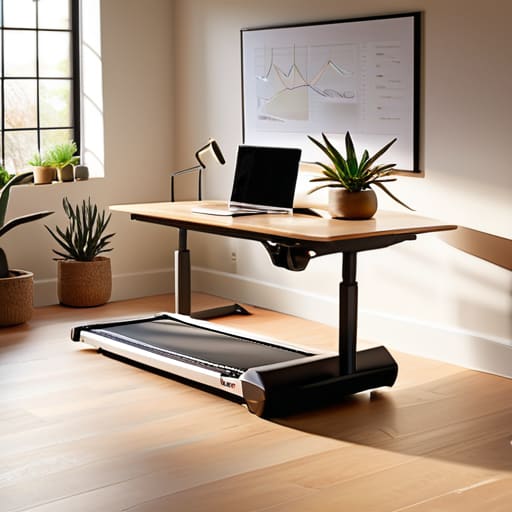
    Most people treat ergonomics like an afterthought—something you fix with a cheap lumbar pillow after your back starts screaming at you. But if you’re serious about long-term output, you need to integrate ergonomic workspace design into your actual aesthetic. I’ve learned the hard way that a beautiful desk means nothing if you’re hunched over a laptop in a coffee shop or a cramped studio apartment. The goal is to find that sweet spot where your hardware—the monitor arms, the mechanical keyboard, the riser—doesn’t look like a medical device, but rather a seamless part of your modern workstation aesthetics.

    I’m a big believer in the “functional beauty” approach. Instead of cluttering your surface with random trinkets, look for pieces that serve a dual purpose. A high-quality felt desk mat isn’t just there to look clean; it defines your workspace and provides a tactile, comfortable surface for your wrists. Even something as simple as adding a single, low-maintenance plant can lean into biophilic office design, softening the sharp edges of your tech while actually helping you breathe easier during a deep-work session. It’s about making the space feel alive, not just functional.

    Decor That Actually Works: 5 Ways to Keep Your Space From Getting in the Way

    • Stick to a cohesive color palette. I’ve learned the hard way that a random collection of bright, clashing desk accessories creates visual noise that kills my focus. Keep it muted—think grays, matte blacks, or deep forest greens—so your gear remains the star of the show.
    • Invest in cable management as a design choice. Most people treat cables as an afterthought, but a bird’s nest of wires under your desk is the ultimate focus killer. Use trays or sleeves to turn that mess into a clean, intentional part of your aesthetic.
    • Use lighting to define your zones. Since I’m often working in different spots, I rely on portable, high-CRI LED desk lamps rather than harsh overhead lights. It creates a “work bubble” that tells my brain it’s time to lock in, regardless of where I am.
    • Keep your greenery functional, not just decorative. A single, low-maintenance plant like a snake plant adds life to a setup without requiring constant attention. It breaks up the tech-heavy look without becoming another chore on my to-do list.
    • Choose modular storage that moves with you. If you’re buying organizers, make sure they aren’t heavy or permanent. I prefer small, stackable trays or felt organizers that I can toss into my tech bag if I decide to move my “office” to a cafe or a different city.

    The Frictionless Setup Checklist

    Prioritize modularity; if your decor or tech setup can’t be packed into a bag or moved to a new cafe without a meltdown, it’s clutter, not an asset.

    Treat aesthetics as a secondary function of utility; choose pieces that serve a purpose—like a high-quality desk mat or a cable management tray—rather than just filling empty space.

    Optimize for sensory control; your environment should allow you to instantly dial in your focus, whether that’s through lighting that mimics natural rhythms or a layout that minimizes visual noise.

    The Philosophy of Space

    Stop treating your desk like a museum for stuff you think looks “professional.” If a piece of decor doesn’t either solve a friction point or actually help you zone in, it’s just digital clutter in physical form.

    Elias Vandermeer

    Building a Space That Moves With You

    Building a Space That Moves With You.

    At the end of the day, decorating your home office isn’t about chasing some Pinterest aesthetic or buying every trendy gadget on the market. It’s about intentionality. We’ve looked at how a minimalist desk setup clears the mental clutter, and how ergonomic design ensures your physical body doesn’t pay the price for a long session of deep work. When you combine those elements with decor that actually serves a purpose—rather than just taking up space—you create a workspace that feels seamless and intuitive. Remember, the goal is to build a command center where the tools are invisible and the friction is non-existent, allowing you to actually get into a flow state without being interrupted by a messy cable nest or an uncomfortable chair.

    My advice? Stop treating your workspace like a static museum piece. Whether you’re setting up in a dedicated spare room or a corner of a studio apartment, your environment should be as fluid as your lifestyle. If a piece of decor doesn’t contribute to your focus or your comfort, it’s just dead weight. Build a setup that is portable, cloud-ready, and incredibly efficient. Your workspace should be an extension of your workflow, not a barrier to it. Once you stop decorating for others and start designing for your own actual productivity, everything changes.

    Frequently Asked Questions

    How do I balance a clean, minimalist aesthetic without making my workspace feel cold or uninspiring?

    The trick is layering texture without adding clutter. A sterile, all-white setup feels like a hospital wing, and honestly, that’s a productivity killer. I keep things functional but warm by adding a felt desk mat or a single wooden element—maybe a walnut headphone stand. It adds organic warmth without breaking the minimalist rule. Also, don’t sleep on smart lighting; a bit of warm, indirect ambient light makes the space feel lived-in rather than just clinical.

    What are some ways to incorporate decor that actually improves my focus rather than just being visual clutter?

    Stop thinking about decor as “stuff” to look at and start thinking about it as sensory management. If it doesn’t serve a function, it’s just friction. I use a single, high-quality desk mat to define my workspace and a small, low-maintenance plant to break up the tech glare. Even my lighting is intentional—warm, indirect tones that signal to my brain it’s time to deep work. If it doesn’t help you focus, toss it.

    Can I maintain a high-end professional look if I'm constantly moving between different temporary setups?

    Look, the “high-end” look isn’t about having a heavy mahogany desk or a permanent studio. For me, professional aesthetics are about consistency in the small, portable things. I carry a slim, high-quality tech pouch, a reliable mechanical keyboard, and a single, well-curated piece of gear like a minimalist laptop stand. If your core tools look intentional and organized, it doesn’t matter if you’re in a cafe or a temporary Airbnb—the vibe remains seamless.

  • Using Cloud Computing Virtualization for Remote Work

    Using Cloud Computing Virtualization for Remote Work

    I was sitting in a cramped, overpriced cafe in Lisbon last month, staring at a spinning loading icon while my laptop fans sounded like a jet engine trying to take off. I was trying to run a heavy local environment on a mediocre Wi-Fi connection, and it was a total disaster. Most people will try to sell you on the idea that you need massive hardware or complex, enterprise-grade setups to stay productive, but that’s just noise. The truth is, if you aren’t leveraging cloud computing virtualization to offload that heavy lifting, you aren’t working remote—you’re just tethered to a power outlet and a prayer.

    I’m not here to give you a textbook definition or a sales pitch for some bloated software suite. Instead, I want to show you how to actually use these tools to build a workspace that is truly fluid. I’ll be breaking down how to implement cloud computing virtualization so your setup stays lightweight, portable, and, most importantly, invisible. My goal is to help you strip away the technical friction so you can stop worrying about your local specs and start focusing on the actual work.

    Table of Contents

    Mastering Hypervisor Technology Types for Seamless Flow

    Mastering Hypervisor Technology Types for Seamless Flow

    When you’re trying to build a workflow that actually moves with you, you can’t afford to get bogged down in the wrong architecture. Understanding the different hypervisor technology types is basically like choosing the right switches for a mechanical keyboard—it’s all about the tactile feel and how much friction you’re willing to tolerate. Type 1 hypervisors, or bare-metal ones, are the heavy lifters. They run directly on the hardware, which is what you want when you’re looking for raw performance and stability in a professional cloud environment. If you’re running a serious remote setup, you want that direct access to minimize latency.

    On the flip side, Type 2 hypervisors run on top of an existing operating system. They’re great for testing a quick script or a new OS while I’m sitting in a cafe, but they aren’t going to give you that same level of efficiency. A common crossroads I see people hit is the debate over virtualization vs containerization. While VMs give you a fully isolated environment, containers are much lighter and faster for deploying specific apps. For my nomad lifestyle, it’s all about finding that balance where the tech stays out of my way and just works when I open my laptop.

    Leveraging on Demand Computing Resources to Follow Your Life

    Leveraging on Demand Computing Resources to Follow Your Life

    The real beauty of using on-demand computing resources isn’t just about the raw power; it’s about the freedom to scale your environment based on where you are and what you’re doing. Last week, I was working from a tiny cafe in Ghent with a connection that was barely holding on. Instead of trying to run heavy, resource-intensive builds locally on my laptop—which would have killed my battery and probably overheated the machine—I spun up a high-spec instance in the cloud. I could scale my entire environment up for a heavy compile and then instantly shrink it back down when I was done.

    This is where the distinction between virtualization vs containerization actually matters for your daily workflow. If I need a full, isolated OS to test a specific network configuration, I’m leaning on a VM. But if I just need to deploy a quick microservice to see if my code plays nice with a specific environment, I’m jumping straight into containers. It’s all about choosing the right tool so you aren’t fighting your hardware, but rather letting the infrastructure adapt to your immediate needs.

    My Rules for a Frictionless Virtualized Workflow

    • Prioritize Type-1 hypervisors for your core infrastructure. If you’re serious about stability, you don’t want a host OS eating up your resources and adding latency; you need that bare-metal efficiency so your virtual machines feel like local hardware.
    • Automate your environment deployment. I don’t have time to manually configure a new instance every time I move to a new city; use Infrastructure as Code (IaC) tools so your entire workspace can spin up in minutes via a single script.
    • Optimize for low-bandwidth scenarios. Since I’m often working off mediocre cafe Wi-Fi, I always configure my virtual instances to minimize data overhead—if your virtualization setup requires a massive, constant stream of data just to stay responsive, it’s a liability.
    • Keep your snapshots frequent and meaningful. There is nothing worse than a configuration error nuking three hours of deep work. Treat your VM snapshots like a “save point” in a game; if something breaks, you should be able to revert instantly without breaking your flow.
    • Decouple your storage from your compute. Never tie your critical data to a specific virtual machine instance. By using cloud-based, network-attached storage, you ensure that your files follow you regardless of which virtual environment you’re currently spinning up.

    The Bottom Line: Building Your Mobile Infrastructure

    Stop thinking about servers as physical boxes in a room; treat them as fluid, on-demand resources that follow you from a cafe in Lisbon to a co-working space in Tokyo.

    Choose your hypervisor based on your need for invisibility—the goal is a setup so seamless you forget the underlying tech is even running.

    If your workflow requires you to be physically tethered to a specific hardware setup, you aren’t actually working remotely; you’re just working from a different location.

    ## The Invisible Infrastructure

    “Virtualization shouldn’t feel like a complex layer of tech you have to manage; it should be the invisible engine that lets you shut your laptop in Berlin and pick up exactly where you left off in a cafe in Tokyo without missing a single beat.”

    Elias Vandermeer

    Cutting the Cord

    Cutting the Cord with cloud virtualization.

    At the end of the day, mastering cloud computing virtualization isn’t about chasing every new piece of enterprise jargon; it’s about building a digital environment that actually works for you. We’ve looked at how the right hypervisor setup can streamline your workflow and how leveraging on-demand resources allows you to scale your capacity without being anchored to a single physical location. When you stop thinking about hardware limitations and start focusing on seamless resource allocation, you stop managing machines and start actually doing the work. It’s the difference between being a slave to your local setup and having a truly fluid digital ecosystem that moves as fast as you do.

    My advice? Don’t get bogged down in the complexity for the sake of it. The best tech is the kind you eventually forget is even there. Aim for a setup where the infrastructure is invisible, leaving you with nothing but a clean interface and the freedom to work from a cafe in Lisbon or a quiet corner in Tokyo. Build your stack to be portable, cloud-first, and resilient. Once you stop being tethered to a desk, you’ll realize that true professional freedom isn’t about where you sit, but about how effectively your tools adapt to your life.

    Frequently Asked Questions

    How much latency am I actually going to deal with when running heavy dev environments over a shaky cafe Wi-Fi connection?

    Honestly, it depends on your stack, but expect some friction. If you’re just hitting a terminal via SSH, you won’t even notice. But if you’re trying to run a heavy GUI or a remote desktop over 50ms+ latency, that “seamless” feeling disappears fast. My rule of thumb: if the cafe Wi-Fi is jittery, stick to CLI-based workflows or lightweight web IDEs. Don’t fight the physics; optimize your toolset to stay lightweight so the lag doesn’t kill your flow.

    Is it worth the headache of managing my own hypervisor, or should I just stick to managed cloud services and call it a day?

    Look, if you’re chasing that pure, granular control and love tinkering with configurations, go for the self-managed hypervisor. But honestly? Most of us don’t have the time to babysit hardware. If you value your focus and need to stay mobile, stick to managed services. Let the cloud provider handle the heavy lifting and the uptime headaches so you can actually get your work done without being tethered to a server room.

    How do I keep my data secure when my entire workspace is essentially living on someone else's hardware?

    It’s a valid fear. When your setup lives in the cloud, you aren’t just trusting the hardware; you’re trusting the architecture. I handle this by treating every connection like it’s compromised. I use end-to-end encryption for everything and never rely on a single layer of defense. Think zero-trust: MFA is non-negotiable, and your data should be encrypted before it even hits the provider’s server. If you don’t own the keys, you don’t own the data.

  • Organizing Complex Projects With Asana

    Organizing Complex Projects With Asana

    I was sitting in a cramped cafe in Lisbon last month, trying to sync a client’s deployment while my lo-fi playlist fought against the screeching espresso machine next door. I looked at my screen and realized I wasn’t actually working; I was just managing the management. I had spent forty minutes tweaking tags and subtasks, trying to force an asana workflow to look “perfect” instead of just making it functional. Most productivity gurus will tell you that a complex, multi-layered system is the key to scaling, but they’re selling you noise. If your setup requires more cognitive load to maintain than the actual project itself, it’s not a tool—it’s a distraction.

    I’m not here to give you a masterclass on every single button in the interface. Instead, I want to show you how to build an asana workflow that actually disappears into the background of your life. I’ll be sharing the stripped-back, cloud-first frameworks I use to keep my freelance projects moving, whether I’m on a high-speed fiber connection or a spotty hostel Wi-Fi. No fluff, no unnecessary complexity—just practical systems designed to let you stop clicking and start doing.

    Table of Contents

    Mastering Asana Automation Features for Invisible Management

    Mastering Asana Automation Features for Invisible Management

    The goal isn’t to spend your day clicking buttons; it’s to make the software work so you don’t have to. I’ve found that the real magic happens when you lean hard into asana automation features to handle the repetitive grunt work. For instance, if you’re moving a task from “In Progress” to “Review,” don’t manually ping your lead. Set up a rule that automatically reassigns the task and updates the due date. When you automate these micro-transitions, you’re actually optimizing project management workflows by removing the friction that usually kills deep work.

    Another way to keep things seamless is by leveraging asana task dependencies. If I’m waiting on a server migration to finish before I can run a security audit, I don’t want to be checking my notifications every twenty minutes. By linking those tasks, the system handles the hand-off for me. It keeps the momentum moving without me having to micromanage the timeline. When your tools handle the “when” and the “who,” you can finally focus on the actual technical execution.

    Optimizing Project Management Workflows Without the Friction

    Optimizing Project Management Workflows Without the Friction

    The biggest mistake I see is people treating their project management tool like a digital filing cabinet instead of a living system. If you’re spending more time clicking through menus than actually executing tasks, your setup is failing you. For me, optimizing project management workflows starts with reducing the “decision fatigue” of where things live. I don’t want to wonder if a task is stuck; I want the system to tell me.

    This is where setting up asana task dependencies becomes a game changer for anyone working remotely. When I’m hopping between cafes or different time zones, I can’t afford to manually ping teammates to see if a prerequisite is done. By linking tasks, the moment one piece of the puzzle clicks into place, the next one is ready for me. It creates this sense of momentum that keeps the project moving even when I’m offline. It’s about building a structure that handles the hand-offs for you, so you can focus on the high-level integration work rather than the administrative overhead.

    5 Ways to Stop Fighting Your Asana Setup and Actually Get Things Done

    • Build your workflows for mobile first. If you can’t update a task or check a status on a spotty cafe Wi-Fi connection using the mobile app, your workflow is too heavy. Keep your task descriptions concise so they actually make sense on a small screen.
    • Kill the notification noise. Nothing breaks my flow like a barrage of pings for every tiny update. Set up your rules so you only get notified when something actually requires your brainpower, not just every time a subtask is checked off.
    • Use Custom Fields to automate your mental load. Instead of digging through comments to see the priority or the tech stack involved, use custom fields to make that data visible at a glance. It turns your board into a dashboard rather than a messy to-do list.
    • Standardize your task templates. I don’t have the mental bandwidth to reinvent the wheel every time I start a new integration project. Create templates that include your standard checklists and subtasks so you can jump straight into the work.
    • Link your cloud tools, don’t just copy-paste. If you’re using Google Drive or GitHub, integrate them directly into your Asana tasks. Having the files right there in the task card means you aren’t wasting ten minutes hunting through folders when you should be coding.

    The Bottom Line: Less Management, More Flow

    Stop treating Asana like a digital filing cabinet; use automation to handle the repetitive status updates so you can actually focus on the technical work that matters.

    Your workflow has to be cloud-first and mobile-ready, or it’s just extra weight in your bag when you’re working from a cafe or a train.

    If a tool requires constant manual tweaking just to stay organized, it’s failing you—build a setup that stays invisible and lets you stay in the zone.

    ## The Goal of a True Workflow

    “If you’re spending more time updating your Asana tasks than actually finishing them, your workflow isn’t working for you—it’s just more digital clutter. A real setup should be invisible; it should just move with you so you can stay in the zone, no matter where you’re logging in from.”

    Elias Vandermeer

    Final Thoughts on a Frictionless Workflow

    Final Thoughts on a Frictionless Workflow.

    At the end of the day, a solid Asana workflow isn’t about adding more layers of complexity or checking off more boxes just for the sake of it. It’s about using automation to handle the repetitive, soul-crushing tasks so you can actually focus on the high-level problem solving that matters. We’ve looked at how to strip away the friction, automate the manual stuff, and build a system that stays out of your way. When you get this right, your tools become invisible, and your productivity stops being something you have to fight for every single morning.

    Don’t get caught in the trap of “productivity porn”—spending more time tweaking your boards than actually finishing your sprints. The goal is to build a setup that is truly portable and cloud-resilient, something that works just as well from a cafe in Lisbon as it does from a dedicated home office. Your workflow should serve your lifestyle, providing the structure you need without the weight of a traditional corporate environment. Build it lean, keep it automated, and then get back to the work that actually moves the needle.

    Frequently Asked Questions

    How do I keep my Asana workflows from becoming a cluttered mess when I'm jumping between different projects?

    The trick is to stop treating every project like a separate universe. If you’re jumping between five different clients, don’t manually hunt through five different project boards. Use the “My Tasks” view as your single source of truth. I set up custom rules to funnel everything into one prioritized list based on due dates. If it’s not in “My Tasks,” it doesn’t exist. Keep the project boards for the big picture, but live in your dashboard.

    What’s the best way to integrate Asana with my other cloud tools so I'm not constantly context-switching?

    The goal is to make your tools disappear. If you’re jumping between tabs every five minutes, your setup is failing you. I live by the “single source of truth” rule: connect Asana to your Slack for instant updates and use the Google Drive integration so files live right inside your tasks. Don’t manually copy-paste links; let the API do the heavy lifting. If it doesn’t sync automatically, it’s just digital clutter.

    Can I actually run a complex Asana setup on a mobile device without it feeling clunky or impossible to manage?

    Look, I’ll be real: if you’re trying to build entire project architectures on a phone, you’re going to lose your mind. It’s not built for that. But if you’re talking about managing an existing, well-oiled machine? Absolutely. As long as your desktop setup is clean and your automations are doing the heavy lifting, the mobile app is perfect for quick updates, checking task dependencies, or clearing notifications while I’m sitting in a café. Use it to steer, not to build.

  • Using Cloud Tools for Remote Design Collaboration

    Using Cloud Tools for Remote Design Collaboration

    I was sitting in a cramped cafe in Lisbon last month, staring at a spinning loading icon while my local software tried to sync a massive project file over a spotty Wi-Fi connection. It was one of those moments where you realize your “professional” setup is actually just an expensive anchor. Most people think they need a $4,000 workstation and a dedicated office to produce high-end work, but that’s a lie designed to keep you tethered to a desk. The truth is, if you aren’t leveraging cloud-based design tools to handle the heavy lifting, you aren’t working smart—you’re just working harder than you need to.

    I’m not here to sell you on some shiny, overpriced subscription service that promises the world and delivers nothing but lag. I want to show you how to build a workflow that actually moves with you, whether you’re at a clean desk setup or a tiny table in a foreign city. I’ll be breaking down the specific cloud-based design tools that actually hold up under real-world pressure, focusing on seamless integration and portability. No fluff, no corporate jargon—just the practical setups that let you focus on the craft instead of the hardware.

    Table of Contents

    Embracing the Freedom of Cloud Native Creative Suites

    Embracing the Freedom of Cloud Native Creative Suites.

    The real shift happens when you stop thinking about “saving files” and start thinking about continuous flow. Transitioning to cloud-native creative suites means your heavy lifting isn’t tied to the local processing power of whatever laptop you happen to be using in a cafe in Lisbon. Instead, you’re leveraging massive server-side resources, which allows for much smoother performance when handling complex layers or high-res assets. It’s about removing the friction between having an idea and actually executing it.

    For anyone working in a remote or hybrid capacity, the biggest win is the ability to facilitate real-time design collaboration without the usual version-control nightmare. I’ve spent way too many hours in my past life chasing down “Final_v2_ACTUALLY_FINAL.psd” files via email. Now, with distributed design teams, everyone is looking at the same live canvas. This level of centralized asset management ensures that no matter where your team is physically located, the source of truth remains singular and accessible. It turns a fragmented workflow into a single, cohesive ecosystem that actually moves at the speed of your thought.

    Stop Losing Momentum to Local Hardware Constraints

    Stop Losing Momentum to Local Hardware Constraints.

    There’s nothing quite like the frustration of being mid-flow on a complex project, only to have your system hang because your local RAM decided it’s had enough. I’ve been there—stuck in a cramped cafe in Lisbon, watching a progress bar crawl while my laptop fans sound like a jet engine. When you rely solely on local hardware, you aren’t just working; you’re negotiating with your machine. You’re constantly managing thermal throttling and storage limits instead of actually creating.

    By shifting the heavy lifting to the cloud, you bypass those physical bottlenecks entirely. Using browser-based graphic design platforms means the processing power isn’t tied to the silicon under your desk; it’s tied to the network. This shift allows for much smoother real-time design collaboration, where the friction of “sending files back and forth” simply vanishes. You stop worrying about whether your hardware can handle the next layer or the next render, and you start focusing on the output. It turns your setup from a rigid cage into a flexible, high-performance extension of your workflow.

    How to Actually Make Cloud Tools Work for You

    • Audit your bandwidth before you commit. There’s no point in using a heavy-duty cloud suite if you’re trying to work from a cafe with 2Mbps speeds; always have a lightweight, offline-capable backup ready for when the Wi-Fi inevitably fails.
    • Prioritize version history over manual saving. One of the biggest perks of cloud-native tools is the ability to roll back mistakes instantly—stop wasting time creating “Final_v2_REAL_final.psd” files on your local drive.
    • Build a “zero-friction” file structure. Since your assets live online, organize them by project and status rather than file type so you can jump between your laptop and a tablet without a mental reset.
    • Master the collaborative handoff. Instead of exporting massive files to send to clients, use live sharing links. It keeps everyone on the same page and prevents the nightmare of working on outdated versions.
    • Automate your asset syncing. Don’t manually upload every texture or icon; set up your cloud environment so that your libraries are globally accessible the second you log in, regardless of what device you’re using.

    The Bottom Line

    Stop tying your productivity to a single machine; if your tools aren’t accessible from any decent Wi-Fi connection, you aren’t truly mobile.

    Prioritize cloud-native workflows to eliminate the friction of local hardware limits and the constant headache of manual file syncing.

    Build a setup that prioritizes portability and seamless integration, so your environment adapts to your location rather than forcing you to stay put.

    ## The Death of the Desktop Anchor

    “If your creative process is tethered to a specific workstation or a massive local drive, you aren’t actually free—you’re just an employee of your own hardware. True professional freedom means your tools are as mobile as your lifestyle, living in the cloud so they’re ready whenever you find a decent Wi-Fi signal.”

    Elias Vandermeer

    The Shift is Already Happening

    The Shift is Already Happening in workflows.

    At the end of the day, moving your design workflow to the cloud isn’t just about chasing a trend; it’s about removing the friction between your ideas and your output. We’ve talked about how cloud-native suites provide the collaboration you need, how they bypass the limitations of local hardware, and how they turn a mediocre Wi-Fi connection into a gateway rather than a barrier. When you stop worrying about whether your local machine can handle a heavy render or if your files are synced to a physical drive, you start focusing on what actually matters: the work itself. Transitioning to a cloud-first ecosystem means you are no longer tethered to a specific desk or a specific machine, allowing for a truly fluid workflow that moves as fast as you do.

    I’ve spent enough time in transit to know that the best setups aren’t the ones with the most expensive components, but the ones that disappear when you start creating. Don’t let your gear become an anchor that keeps you stuck in one place. Whether you’re working from a quiet corner of a library or a cafe in a city you’ve never visited, your tools should be as mobile and adaptable as your lifestyle. Build a setup that scales with your ambition, not one that limits your reach. The future of professional creativity is lightweight, distributed, and entirely unattached.

    Frequently Asked Questions

    How do these tools actually handle massive files when I'm stuck on a shaky cafe Wi-Fi connection?

    That’s the million-dollar question. Honestly, if you’re relying on a constant, high-speed stream, you’re going to have a bad time. The good ones use “delta syncing”—they only upload the specific changes you made, not the entire massive file. I usually look for tools with robust offline modes that cache your work locally and then quietly sync everything once I find a decent connection. It’s all about working in chunks, not one giant, fragile upload.

    Is the subscription cost of a full cloud suite actually worth it compared to just owning a one-time license for local software?

    Look, I get the hesitation. Paying monthly feels like a leak in your budget. But if you’re still tethered to a single machine, you’re paying for more than just software—you’re paying for a bottleneck. A one-time license is great until your laptop dies or you need to hop onto a different setup mid-project. For me, the subscription is basically insurance for my mobility. It keeps my workflow liquid, which is worth every cent.

    How much of my actual creative control am I sacrificing for the sake of portability and seamless syncing?

    Look, I get the hesitation. If you’re used to local workstations with massive GPU overhead, moving to the cloud feels like you’re trading power for convenience. But honestly? You aren’t sacrificing control; you’re just changing where the heavy lifting happens. As long as you’re choosing tools with low latency and robust versioning, the “loss” is mostly psychological. You still own the output. Don’t let the fear of losing a few niche local plugins keep you tethered to a desk.

  • Managing Tasks With Cloud Tools

    Managing Tasks With Cloud Tools

    I was sitting in a cramped cafe in Porto last month, staring at a spinning loading icon on my laptop while my lo-fi playlist looped endlessly. I had a deadline breathing down my neck, but I couldn’t access my project roadmap because it was tethered to a local drive on my home desktop. That’s when it hit me: if your workflow isn’t truly mobile, you aren’t actually free; you’re just working from a different location. Most people think they need a massive, expensive enterprise suite to stay organized, but the truth is that most of those bloated tools are just digital anchors. You don’t need more features; you need cloud-based task management that actually works when the Wi-Fi is spotty and your setup is minimal.

    I’m not here to sell you on some shiny, overhyped software subscription that promises to “revolutionize your life.” I’ve spent years testing these tools while bouncing between cities and mediocre hotel networks, so I know what actually holds up under pressure. I’m going to show you how to build a streamlined, invisible workflow that moves with you, focusing on tools that stay out of your way so you can actually get your work done.

    Table of Contents

    Breaking Free With Seamless Cloud Productivity Ecosystems

    Breaking Free With Seamless Cloud Productivity Ecosystems

    The real problem isn’t that you have too much to do; it’s that your tools are tethered to a specific machine or a specific desk. When I’m working out of a cafe in Lisbon or a tiny studio in Berlin, I can’t afford to be hunting for the latest version of a spreadsheet or waiting for a sync to finish. You need a cloud productivity ecosystem that feels like an extension of your brain, not a chore you have to manage. Everything should just be there the moment you open your laptop.

    This is where the magic happens. Instead of playing email tag or dealing with version control nightmares, you should be leaning into real-time project synchronization. When your entire stack—from your notes to your deadlines—lives in the cloud, you stop managing the software and start actually doing the work. It creates this seamless flow where the transition from your home setup to a mobile hotspot is completely invisible. If your tools require you to be “at your desk” to be effective, they aren’t tools; they’re anchors.

    Why Centralized Task Tracking Ends the Friction

    Why Centralized Task Tracking Ends the Friction

    There’s nothing that kills my focus faster than the “where is that file?” dance. I’ve been in cities where the Wi-Fi is spotty and the coffee shops are loud, and if my tasks are scattered across three different apps and a dozen bookmarks, I’m already losing the battle. When you rely on centralized task tracking, you stop wasting mental energy on the logistics of how to find your work and actually start doing it. It turns a chaotic pile of to-dos into a single, reliable source of truth that stays consistent whether I’m at a desk in Berlin or a cafe in Lisbon.

    The real magic happens when you integrate this with real-time project synchronization. Instead of constantly pinging people for updates or waiting for an email to clear, everything just updates in the background. It eliminates that weird friction where you feel like you’re working in a vacuum. By moving everything into a unified space, you aren’t just organizing tasks; you’re building a system that supports asynchronous communication workflows, allowing you to pick up exactly where you left off without the manual overhead.

    Five Ways to Stop Fighting Your Workflow

    • Prioritize cross-platform syncing. If I can’t jump from my laptop to my phone while waiting for a coffee in a new city, the tool is useless. Your task list needs to be everywhere you are.
    • Audit your notification settings. Cloud tools can get noisy fast. If your phone is buzzing every time a sub-task is completed, you aren’t being productive; you’re just being distracted.
    • Build a single source of truth. Stop using a mix of sticky notes, Slack messages, and random apps. Everything—and I mean everything—needs to live in one cloud-based hub so nothing slips through the cracks.
    • Use tagging for context, not just categories. Instead of just “Work,” use tags like “Deep Work” or “Low Bandwidth” so you know exactly what you can tackle when the local Wi-Fi starts acting up.
    • Automate the boring stuff. If you’re manually moving tasks between boards, you’re wasting brainpower. Use integrations to let your tools talk to each other so you can stay in the flow.

    The Bottom Line: Stop Working Around Your Tools

    If your task list is trapped on a single hard drive or a local machine, you aren’t actually mobile; you’re just tethered to a desk with a better view.

    Friction is the enemy of deep work, so choose a cloud ecosystem that syncs instantly so you can transition from a coffee shop to a train without missing a beat.

    True productivity isn’t about having more features; it’s about having a seamless, invisible workflow that lets you focus on the actual output instead of the software.

    ## The Death of the Desktop Anchor

    “If your workflow is tethered to a single machine or a specific desk, you aren’t actually working; you’re just being held hostage by your own setup. True productivity is when your tasks live in the cloud, ready to follow you from a cafe in Lisbon to a quiet corner in Tokyo without missing a single beat.”

    Elias Vandermeer

    The Freedom of a Fluid Workflow

    Experience The Freedom of a Fluid Workflow.

    At the end of the day, moving your task management to the cloud isn’t just about checking off boxes; it’s about removing the friction between your ideas and your execution. We’ve covered how seamless ecosystems prevent data silos and how centralized tracking keeps you from losing your mind when you switch from your home setup to a cafe in a different time zone. When your tools are truly cloud-native, they stop being obstacles you have to manage and start becoming the invisible infrastructure that supports your life. Stop tethering yourself to a single desk and a single machine; embrace a setup that actually moves with you.

    I’ve spent enough time traveling to know that the most productive days aren’t the ones where you have the most expensive gear, but the ones where your tools just work without you having to think about them. Your workflow should be as mobile and adaptable as you are. Don’t let outdated, localized software dictate where you can or can’t be successful. Build a digital environment that is built for autonomy, and you’ll find that the world becomes your office. It’s time to stop fighting your tools and start mastering your momentum.

    Frequently Asked Questions

    How do I keep my workflow moving when I'm stuck on a spotty cafe Wi-Fi connection?

    The key is redundancy and local-first syncing. I never rely on a live connection for heavy lifting. I use tools that cache my data locally, so I can keep checking off tasks and updating project notes even when the cafe’s Wi-Fi decides to die. Once I’m back on a stable connection, everything just pushes to the cloud automatically. Basically, don’t let a bad signal break your momentum; build a workflow that expects the connection to fail.

    Is it actually secure to keep my entire project roadmap in a third-party cloud tool?

    Look, I get the hesitation. I used to be the same way, hoarding local files like they were gold. But honestly? A well-vetted cloud tool with MFA and end-to-end encryption is usually way more secure than a single laptop sitting in a cafe in Lisbon. If your hardware gets swiped or your drive fails, your roadmap is gone. In the cloud, it’s backed up and encrypted. Just vet the provider—don’t settle for anything less.

    How do I stop my different apps from becoming a mess of notifications and redundant tasks?

    The trick is to stop treating every app like a separate island. If you’re jumping between Slack, Trello, and your email just to figure out what’s next, you’re losing focus. You need a single source of truth. Pick one cloud-based hub to act as your “brain” and use integrations to push everything there. If a notification doesn’t live in that one central spot, it doesn’t exist. Kill the noise; consolidate the signal.

  • Understanding the Fundamentals of Amazon Web Services

    Understanding the Fundamentals of Amazon Web Services

    I was sitting in a cramped cafe in Lisbon last month, staring at a spinning loading icon while trying to deploy a simple container. The local Wi-Fi was trash, and my local machine was thermal throttling like crazy. It hit me then: most people approach aws fundamentals like they’re studying for a dry, corporate certification exam, thinking they need a massive server rack or a massive budget to get started. That’s a lie. You don’t need a command center; you just need to understand how to make the cloud work for you so your hardware becomes completely irrelevant.

    I’m not here to feed you the textbook definitions or the high-level marketing fluff you’ll find in every overpriced bootcamp. Instead, I’m going to break down the actual aws fundamentals through the lens of someone who actually uses them to stay mobile. We’re going to focus on the core services that allow you to build a seamless, portable architecture that stays online even when your connection is shaky. No fluff, no corporate jargon—just the practical tools you need to build a workspace that actually moves with you.

    Table of Contents

    Amazon Web Services Core Concepts for Seamless Mobility

    Amazon Web Services Core Concepts for Seamless Mobility

    To make a mobile setup actually work, you have to stop thinking about physical servers and start thinking about availability. When I’m working from a café in Lisbon or a library in Tokyo, I rely on aws global infrastructure explained through the lens of regions and availability zones. Basically, AWS isn’t just one giant computer in the sky; it’s a massive, distributed network designed so that if one data center goes dark, your workflow doesn’t even flinch. For a nomad, this redundancy is the difference between a productive afternoon and a total meltdown.

    Understanding the cloud computing architecture basics is what allows you to build a setup that scales on demand. Instead of lugging around heavy external drives, I treat storage and compute as fluid resources. For instance, a quick introduction to ec2 and s3 is usually enough to get you started: EC2 gives you the raw processing power to run your dev environments anywhere, while S3 acts as your indestructible, infinite hard drive. Once you grasp how these pieces snap together, you stop worrying about your hardware and start focusing on the output.

    Aws Global Infrastructure Explained Work From Anywhere

    Aws Global Infrastructure Explained Work From Anywhere

    When I’m working from a tiny cafe in Lisbon or a co-working space in Tokyo, I don’t want to worry about whether my data is physically sitting in a server rack halfway across the world. This is where understanding aws global infrastructure explained actually becomes practical. AWS isn’t just one giant computer; it’s a massive, interconnected web of Regions and Availability Zones. Think of Regions as geographic hubs and Availability Zones as distinct, isolated data centers within them. For a nomad like me, this means I can deploy my stack in a region closest to my current location to slash latency, ensuring my remote desktop or dev environment feels snappy, even on questionable hotel Wi-Fi.

    The real magic happens when you realize this setup is built for redundancy. By leveraging different Availability Zones, you’re essentially practicing cloud computing architecture basics to ensure that if one data center hits a snag, your workflow doesn’t skip a beat. You aren’t just renting space; you’re building a resilient, distributed ecosystem that stays online regardless of where you happen to be plugging in your mechanical keyboard.

    5 Ways to Stop Fighting Your Infrastructure and Start Moving

    • Stop over-provisioning. You don’t need a massive, expensive instance running 24/7 just to host a small project. Learn to use AWS Lambda or small EC2 instances so your costs don’t spike while you’re busy traveling.
    • Master IAM from day one. Nothing kills my focus like getting locked out of my own environment because I messed up a permission. Set up granular, least-privilege access so your security is as seamless as your workflow.
    • Automate the boring stuff with CloudFormation or Terraform. If you have to manually click through the console every time you need a new environment, you’re doing it wrong. Treat your infrastructure like code so you can deploy it anywhere in seconds.
    • Use S3 as your digital backbone. Don’t rely on local drives that can get lost or broken in transit. If your data isn’t in an S3 bucket, it isn’t truly mobile. It’s the most reliable way to ensure your files are there whenever you find a decent Wi-Fi signal.
    • Get comfortable with the CLI. The AWS Management Console is fine for a quick glance, but if you want to work fast and stay in your flow, you need to be able to manage your services through the terminal. It’s much more efficient when you’re working from a cramped cafe table.

    The Bottom Line: Moving Beyond the Desk

    Stop thinking of AWS as “corporate infrastructure” and start seeing it as your digital mobility kit; it’s the only way to ensure your tools don’t die when you switch from a cafe in Lisbon to a library in Tokyo.

    Focus on mastering the core services that automate the boring stuff, like scaling and storage, so you can spend your energy on actual integration work instead of troubleshooting local hardware.

    Realize that a truly professional setup is invisible; use the global infrastructure to move your heavy lifting to the cloud so your actual machine stays light, fast, and portable.

    ## The Philosophy of Invisible Infrastructure

    “Learning AWS fundamentals isn’t about memorizing service names for a certification; it’s about building a digital foundation that’s so stable and scalable you actually forget it’s there, leaving you free to focus on the work instead of the hardware.”

    Elias Vandermeer

    The Path to a Frictionless Workflow

    The Path to a Frictionless Workflow.

    At the end of the day, mastering AWS fundamentals isn’t about memorizing every single service in the catalog; it’s about understanding how to leverage those building blocks to create a setup that doesn’t care where you are. We’ve looked at how core services provide the logic, how global infrastructure handles the heavy lifting, and how these tools can turn a mediocre cafe connection into a high-performance workstation. When you stop thinking about local hardware and start thinking in terms of scalable, cloud-native architecture, you stop being tethered to a desk. You’re essentially building a digital ecosystem that lives in the cloud, waiting for you to plug in from wherever you happen to be.

    My advice is simple: don’t let the complexity of the cloud intimidate you. Start small, build something that actually solves a problem in your current workflow, and let the automation do the boring stuff for you. The goal isn’t to become a walking encyclopedia of AWS documentation, but to reach a point where your tools are so seamless and invisible that they don’t even exist in your mind while you’re working. Build a setup that moves with you, keeps you productive, and—most importantly—gives you your freedom back. The world is too big to stay stuck in one room.

    Frequently Asked Questions

    If I'm just a solo freelancer, is it actually worth the learning curve to set up my own cloud infrastructure instead of just using basic SaaS tools?

    Look, if you’re just managing a calendar and a few docs, stick to SaaS. Don’t over-engineer. But the second you need custom automation, private dev environments, or data sovereignty that a standard subscription won’t give you, that’s when the shift happens. Building your own infra is about ownership. It’s the difference between renting a room and owning the whole building; it’s a steeper climb, but you’re no longer playing by someone else’s rules.

    How do I manage my data costs when I'm jumping between different Wi-Fi networks in different cities?

    Honestly, managing data while hopping between cafes and Airbnbs is a constant battle. I never let large syncs run on public Wi-Fi; it’s a recipe for a massive bill or a dropped connection. I rely heavily on AWS S3 for storage, but I keep my local caching tight. Use tools like Rclone to control transfer speeds and always prioritize lightweight, cloud-native workflows so I’m not pulling massive files every time the signal dips.

    What are the best ways to automate my backups so I don't have to worry about losing my work if my local hardware fails?

    If your local drive dies, your entire lifestyle shouldn’t go down with it. I stopped manually dragging files to external drives years ago—it’s a recipe for disaster. Instead, I lean heavily on S3 for automated, versioned backups. Set up a simple script or use a tool like Rclone to sync your critical directories directly to an S3 bucket. It’s invisible, it’s set-and-forget, and it means I never stress about hardware failure while I’m on the move.

  • Basics of Managing Applications With Kubernetes

    Basics of Managing Applications With Kubernetes

    I was sitting in a cramped cafe in Lisbon last month, trying to push a critical update through a spotty Wi-Fi connection, when my entire local environment decided to choke. Most people will point you toward a massive, enterprise-grade kubernetes tutorial that assumes you have a dedicated server room and a six-figure budget, but that’s just not how the real world works for those of us living out of a backpack. You don’t need a sprawling cluster of bare-metal machines to master orchestration; you just need a system that actually works when you’re moving between time zones and unreliable networks.

    I’m not here to feed you the theoretical fluff or the “industry standard” jargon that makes your head spin. Instead, I’m going to show you how to build a lightweight, portable workflow that treats your infrastructure as something that should stay out of your way. This isn’t a lecture; it’s a practical roadmap to setting up a cloud-native environment that scales with your life, not against it. We’re going to focus on the tools that make your setup seamless and invisible, so you can stop fighting your terminal and get back to the actual work.

    Table of Contents

    Mastering Kubernetes Architecture Explained for Fluid Workflows

    Mastering Kubernetes Architecture Explained for Fluid Workflows

    To get this right, you have to stop thinking about Kubernetes as a massive, static monolith and start seeing it as a dynamic ecosystem designed to move with you. When we talk about kubernetes architecture explained, it’s really just about how the control plane acts as the brain, making sure your actual work happens where it should. Instead of manually babysitting every single process, the system uses the control plane to orchestrate everything, ensuring that if a piece of your setup fails while you’re on a spotty cafe Wi-Fi, the cluster automatically heals itself.

    The real magic happens at the intersection of kubernetes pods and nodes. Think of nodes as the physical or virtual machines—the muscle—and pods as the smallest, most portable units of your application. By decoupling your code from the underlying hardware, you’re essentially creating a plug-and-play environment. This level of microservices orchestration means your workflow isn’t tethered to a specific laptop or a single server in a basement; it’s a fluid, living system that stays consistent whether you’re working from a co-working space in Lisbon or a quiet library in Tokyo.

    The Art of Managing Docker Containers Without Friction

    The Art of Managing Docker Containers Without Friction

    If you’re still manually spinning up containers every time you need to test a new microservice, you’re doing it the hard way. Managing Docker containers shouldn’t feel like a chore that anchors you to a single machine. The goal is to package your environment so tightly that it doesn’t matter if you’re sitting in a cafe in Lisbon or a library in Tokyo; the container stays consistent. When you stop treating containers as isolated silos and start viewing them as the building blocks of a larger system, you stop fighting the tools and start actually shipping code.

    The real magic happens when you transition from single-container thinking to true microservices orchestration. Instead of babysitting individual processes, you want to define your desired state and let the system handle the heavy lifting. This is where the friction disappears. By automating how these containers interact, you ensure that your workflow remains fluid, regardless of the underlying hardware. It’s about building a setup that is inherently portable, allowing you to move between environments without the constant fear of “it worked on my machine” breaking your momentum.

    Five Ways to Stop Fighting Your Cluster and Start Actually Using It

    • Stop trying to manage everything manually; embrace Helm charts to template your deployments so you aren’t copy-pasting YAML files like it’s 2015.
    • Keep your configurations out of your local environment by using managed cloud services like GKE or EKS—if you can’t deploy it from a coffee shop Wi-Fi, your setup isn’t portable enough.
    • Don’t get lost in the logs; set up basic observability early with something like Prometheus so you actually know why a pod is crashing instead of just staring at a spinning terminal.
    • Use lightweight distributions like K3s when you’re testing locally; you don’t need a massive, resource-heavy cluster just to see if your code actually runs in a container.
    • Treat your infrastructure as code from day one—if you can’t rebuild your entire environment with a single command, you’re building a cage, not a workflow.

    The Bottom Line: Build for Mobility, Not Just Stability

    Stop treating your infrastructure like a heavy, stationary anchor; use Kubernetes to create a portable environment that follows you from a cafe in Lisbon to a co-working space in Tokyo without breaking your workflow.

    The goal isn’t to master every complex configuration option, but to automate the “boring stuff” so your tools become invisible and you can actually focus on the code.

    If your container management strategy requires you to be tethered to a specific local machine or a massive, rigid office server, it’s not a scalable setup—it’s a bottleneck.

    Stop Treating Infrastructure Like an Anchor

    Most tutorials teach you how to manage clusters, but they forget to tell you why it matters: you shouldn’t be tethered to a specific machine or a rigid office setup. A real Kubernetes workflow isn’t about mastering complex YAML files; it’s about building a portable, cloud-native environment that follows you wherever you go, so your tools stay invisible and your focus stays on the code.

    Elias Vandermeer

    Moving Beyond the Local Machine

    Moving Beyond the Local Machine with Kubernetes.

    At the end of the day, Kubernetes isn’t just another layer of complexity to add to your stack; it’s the bridge between a fragile local setup and a professional, resilient workflow. We’ve covered how understanding the architecture keeps your deployments predictable, and how mastering container management ensures your apps behave exactly the same whether you’re sitting in a high-speed office or a cafe with spotty Wi-Fi. The goal isn’t to become a DevOps engineer overnight, but to build a system where infrastructure becomes invisible. When you stop worrying about whether your environment will break the moment you switch networks, you finally have the mental bandwidth to actually focus on the code.

    Don’t let the steep learning curve intimidate you into staying stuck in a rigid, old-school workflow. Start small, automate what you can, and prioritize portability in every tool you choose. The tech world is moving toward a future where your “office” is wherever your cloud credentials are, and Kubernetes is the engine that makes that freedom possible. Stop letting your tools dictate your location. Build something portable, scalable, and seamless, and then go find a better view. Your setup should work for you, not the other way around.

    Frequently Asked Questions

    How much overhead am I actually adding to my local machine by running a cluster just to test some containers?

    Honestly, if you’re running a full-blown production-grade cluster on a laptop, you’re definitely killing your battery and RAM. It’s overkill. But if you use something lightweight like k3s or Kind, the overhead is negligible—we’re talking a few hundred MBs of RAM. My rule of thumb: if you aren’t hitting resource ceilings, don’t sweat it. Just make sure your setup stays portable so you aren’t tethered to a desktop just to run a test.

    If I'm working from a cafe with spotty Wi-Fi, how do I keep my cluster from falling apart when my connection drops?

    The worst feeling is watching your terminal hang because the cafe’s Wi-Fi decided to take a nap. To stop this, move your management layer off your local machine. Use a managed service like GKE or EKS so the control plane lives in the cloud, not on your laptop. Pair that with a stable CLI tool like `k9s` and a robust VPN. If the cluster is running in the cloud, your connection drop is just a temporary inconvenience, not a catastrophe.

    Do I really need a full-blown orchestration setup for small freelance projects, or is that just over-engineering my workflow?

    Honestly? Most of the time, yeah, it’s over-engineering. If you’re just spinning up a couple of Node apps or a simple database for a client, K8s is a massive headache you don’t need. Stick to Docker Compose for now. But, if you’re building something that needs to scale or if you want to practice the exact workflow you’ll use in a high-level enterprise role, start small with Minikube. Don’t let the tools outpace your actual output.

  • Managing Your Schedule as a Remote Worker

    Managing Your Schedule as a Remote Worker

    I was sitting in a cramped cafe in Porto last month, trying to sync a client’s cloud migration while the local Wi-Fi kept dropping every ten minutes. I realized then that most advice regarding remote work scheduling is fundamentally broken; it assumes you’re sitting in a climate-controlled office with a dedicated fiber line and a standing desk. People love to push these rigid, time-blocked calendars that feel more like a prison sentence than a professional workflow. If your schedule is so brittle that a single delayed train or a spotty connection ruins your entire day, you aren’t actually working remotely—you’re just tethered to a different kind of desk.

    I’m not here to sell you on some complex productivity framework or a $50-a-month calendar app. Instead, I want to show you how to build a system that is actually portable and resilient. I’ll be sharing the exact methods I use to manage my projects across different time zones without losing my mind, focusing on asynchronous workflows that let the work happen whenever and wherever it makes sense. No fluff, just practical setups that keep you moving.

    Table of Contents

    Syncing Your Output to Your Circadian Rhythm Productivity

    Syncing Your Output to Your Circadian Rhythm Productivity

    Syncing Your Output to Your Circadian Rhythm Productivity

    Most people try to force a 9-to-5 structure onto a life that doesn’t fit it. I’ve spent too many mornings in hostels trying to grind through complex cloud migrations at 8 AM when my brain was still stuck in sleep mode. Instead of fighting your biology, you need to start optimizing deep work sessions around when you actually feel sharp. If you’re a night owl, that’s when your heavy lifting happens. Don’t let a rigid calendar tell you when to be creative; use your peak energy for the hard stuff and save the admin tasks for your natural lulls.

    This is where asynchronous communication strategies become your best friend. If you’re working in a different time zone or just on a different internal clock, you can’t rely on instant replies. By leaning into tools that don’t require real-time presence, you protect your focus from being shattered by constant pings. It’s about building a workflow that respects your energy levels rather than one that treats you like a predictable machine.

    Mastering Asynchronous Communication Strategies for True Freedom

    Mastering Asynchronous Communication Strategies for True Freedom

    The biggest killer of a nomad lifestyle isn’t bad Wi-Fi; it’s the constant ping of a Slack notification while you’re trying to actually get things done. If you’re tethered to your laptop just waiting for a “quick question” to resolve, you aren’t working remote—you’re just working on a leash. To get real freedom, you have to lean hard into asynchronous communication strategies. This means moving away from the expectation of instant replies and moving toward a culture of high-context documentation. When you leave a detailed brief or a recorded Loom video instead of asking for a meeting, you empower your team to move forward without needing you to be online at that exact second.

    This shift is essential for optimizing deep work sessions. When I’m deep in a system integration task, I can’t afford to have my flow broken by a synchronous chat thread. By setting clear boundaries and using the right remote team coordination tools, you create a buffer that protects your focus. You stop reacting to the noise and start controlling your output, ensuring that your work fits into your life rather than your life revolving around a notification bell.

    The Minimalist’s Guide to Controlling Your Calendar

    • Stop treating your calendar like a cage. Instead of blocking out rigid 9-to-5 chunks, use time-blocking based on your energy levels. If your brain is sharpest at 10 PM in a quiet cafe, that’s when you do the deep work. Don’t force a morning routine just because it’s “standard.”
    • Audit your notification fatigue. If you’re constantly jumping between Slack, Discord, and email, you aren’t working; you’re just reacting. Schedule specific “sync windows” where you’re available for pings, and keep the rest of the time strictly for execution.
    • Build a “portable” task list. I don’t use heavy, complex project management suites that require high bandwidth. Use lightweight, cloud-synced tools that work just as well on a tablet in a train station as they do on my main rig. If the tool is too heavy to move with you, it’s a liability.
    • Implement a “Hard Stop” protocol. When you work remotely, the lines between “office” and “home” don’t just blur—they vanish. Set a digital sunset. Once your scheduled deep-work blocks are done, close the laptop and walk away. If you don’t, you’ll burn out before you even realize you’ve lost your edge.
    • Plan for the “Mediocre Wi-Fi” factor. Always schedule your most intensive, cloud-dependent tasks during windows when you know your connection is stable. Never schedule a high-stakes video sync during a transit period. Build buffers into your schedule for when the tech inevitably fails.

    The Bottom Line: Build a Workflow, Not a Schedule

    Stop trying to force a 9-to-5 mindset onto a lifestyle that doesn’t support it; focus on when you’re most effective and let the cloud handle the rest.

    Prioritize asynchronous tools that keep projects moving without requiring you to be tethered to a specific time zone or a desk.

    Your setup is only as good as its portability—if your workflow breaks the moment you leave your home Wi-Fi, you aren’t actually working remotely, you’re just working from a different room.

    ## The Death of the 9-to-5 Grind

    Stop trying to force your life into a rigid calendar block; if your workflow isn’t portable and cloud-synced enough to move with you, you aren’t working remotely—you’re just tethered to a different kind of desk.

    Elias Vandermeer

    Designing Your Own Freedom

    Designing Your Own Freedom with remote work.

    At the end of the day, remote work scheduling isn’t about finding a perfect slot on a digital calendar; it’s about building a system that actually works with your biology and your lifestyle. We’ve talked about aligning your deep work with your natural energy peaks and moving away from the trap of instant-reply culture by mastering asynchronous tools. If you can stop trying to mimic a standard 9-to-5 and start leveraging cloud-based workflows that don’t care where you are sitting, you’ll find that the friction between your life and your job starts to vanish. It’s about making sure your tech stack serves your schedule, rather than your schedule being a slave to a rigid, outdated routine.

    Don’t let the fear of “being offline” keep you tethered to a specific chair or a specific time zone. The goal of a nomadic, remote setup is to create a life where your productivity is measured by your output, not by how many hours you spent staring at a Slack icon. Build a workflow that is portable, seamless, and entirely yours. Once you stop trying to fit into the traditional corporate mold and start building a setup that follows your lead, you’ll realize that true professional freedom isn’t just a dream—it’s a configuration choice.

    Frequently Asked Questions

    How do I manage a schedule when my clients expect immediate responses but I'm working in a different time zone?

    The “always-on” expectation is a trap that kills your focus. If you’re chasing client time zones, you’re not working; you’re just reacting. I handle this by setting hard boundaries in my onboarding docs. I use tools like Slack’s scheduled messages or Loom to provide deep-dive updates that they can watch on their time, while I stay in my flow. Set clear “office hours” in your status, and let your documentation do the heavy lifting.

    What are the best cloud-based tools for tracking tasks without getting sucked into a "productivity trap" of constant micro-management?

    The trap is thinking a complex dashboard equals progress. If you’re spending more time tweaking your Trello boards than actually shipping code, you’ve already lost. I stick to lightweight, cloud-first tools like Notion for high-level mapping or Linear if I’m deep in a build. The goal is visibility without the noise. Pick something that lives in the browser, stays out of your way, and lets you close the tab once the task is done.

    How do I prevent my "work hours" from bleeding into my personal life when my entire office is basically just a laptop and a coffee shop?

    The problem is that without a physical commute, your brain never gets the “off” signal. You need digital boundaries to replace the physical ones. I use a strict “context switching” ritual: once I close my laptop, the work-specific lo-fi playlist dies, and I switch to something entirely different. Also, keep your work profiles on a separate OS user or browser window. If you’re still seeing Slack notifications while trying to relax, you haven’t actually left the office.

  • Maximizing Efficiency With Google Workspace

    Maximizing Efficiency With Google Workspace

    I was sitting in a cramped cafe in Lisbon last month, fighting a connection that was barely holding on, when I realized I’d almost lost three hours of work because I was relying on a local file system instead of a true cloud setup. It’s the same mistake I see people making constantly: they buy into the idea that “pro-grade” software has to be heavy, bloated, and tied to a specific machine. Most people treat google workspace like it’s just a glorified collection of free docs, but they’re missing the point entirely. If your tools aren’t completely invisible and accessible from a shitty airport Wi-Fi connection, they aren’t actually helping you work; they’re just acting as anchors.

    I’m not here to give you a sales pitch or a list of every single button in the interface. Instead, I’m going to show you how I actually use google workspace to maintain a high-level professional workflow while moving between cities. I’ll break down the specific integrations that keep my setup seamless and, more importantly, how to configure things so you can stop managing your tools and actually start doing the work you moved abroad to do.

    Table of Contents

    The Power of a Seamless Cloud Based Office Suite

    The Power of a Seamless Cloud Based Office Suite

    The real headache with traditional setups is the friction. I’ve spent too many hours waiting for files to sync or dealing with “Version 2_FINAL_actual_final” email chains. When you switch to a true cloud-based office suite, that friction just evaporates. Everything lives in the ether, accessible whether I’m sitting in a quiet cafe in Lisbon or a noisy transit hub. The goal isn’t just to have your files online; it’s about having a system where the tools don’t demand your attention.

    What actually changes the game for me is real-time document editing. There is something incredibly liberating about jumping into a shared doc and seeing a collaborator’s cursor moving in sync with yours, without a single “file is locked for editing” error popping up. It turns a fragmented process into a fluid conversation. If you’re looking at improving remote team workflow, you have to prioritize tools that allow for this kind of instant, asynchronous cooperation. If your software makes you wait, it’s not helping you work; it’s just getting in your way.

    Real Time Document Editing for Uninterrupted Flow

    Real Time Document Editing for Uninterrupted Flow

    There is nothing that kills my focus faster than the “Version 2_FINAL_updated” file dance. I’ve spent enough time in rigid, legacy environments to know that chasing down the latest iteration of a spreadsheet is a massive waste of cognitive energy. With real-time document editing, that friction just disappears. I can be sitting in a cafe in Lisbon, working on a technical spec, while a client in New York adds comments in real-time. We aren’t sending files back and forth; we’re just existing in the same digital space.

    This level of synchronization is what actually makes improving remote team workflow possible without the constant headache of sync errors. When you’re moving between different Wi-Fi networks, you need to know that your progress is living in the cloud, not trapped on a local drive. It turns the document from a static object into a living workspace. For me, the goal is always to reach a state where the software becomes invisible, allowing me to stay in the zone rather than managing the tools themselves.

    How to Actually Make Google Workspace Work for Your Workflow

    • Stop saving files to your desktop. If it isn’t in Drive, it doesn’t exist. I’ve learned the hard way that local files are just anchors that keep you tied to one desk; keep everything in the cloud so you can swap from your home setup to a cafe in five minutes without a hitch.
    • Master the search, don’t bother with folders. I used to spend way too much time organizing deep folder hierarchies like it was 2010. Now, I just use advanced search operators in Drive to find what I need instantly. It’s faster and keeps my digital space clean.
    • Use “Offline Mode” before you leave the house. If you’re heading to a spot with questionable Wi-Fi—which is basically my entire life—make sure you toggle the offline setting on your essential Docs and Sheets. It prevents that soul-crushing moment when you realize you can’t access your work mid-task.
    • Stop the endless email chains with Shared Drives. Instead of attaching version 2, version 3, and “FINAL_v4” to emails, just drop a single link to a live Doc. It keeps the conversation focused and ensures everyone is looking at the same reality, not an outdated attachment.
    • Set up your notification hygiene early. Google Workspace can get noisy if you’re part of too many Docs or Sheets. Go into your settings and prune the noise so you’re only getting pinged for things that actually require your brainpower. Focus is everything.

    The Bottom Line: Why I Use Google Workspace

    Stop tethering yourself to a single desk; if your tools aren’t accessible from a cafe or a train, they’re working against you.

    Prioritize tools that disappear into the background so you can focus on the actual output rather than managing the software.

    Real-time collaboration isn’t just a “nice to have”—it’s the only way to maintain flow when you’re working across different time zones and setups.

    ## The Death of the Local File

    “If I have to worry about whether my files are synced or if I’m working on the latest version before I close my laptop and head to a new cafe, the tool has already failed me. Google Workspace works because it’s just… there. It’s the invisible infrastructure that lets me focus on the code, not the connection.”

    Elias Vandermeer

    The Bottom Line: Work Where You Want, Not Where You Have To

    The Bottom Line: Work Where You Want, Not Where You Have To.

    At the end of the day, Google Workspace isn’t just another subscription to manage; it’s the foundation that allows my setup to remain truly mobile. We’ve looked at how the seamless cloud integration and real-time collaboration tools strip away the friction that usually kills a productive session. When you stop worrying about file versions or whether you can access a specific spreadsheet from a cafe in Lisbon, you stop managing your tools and start actually doing the work. It turns your entire digital existence into a single, cohesive environment that stays out of your way, no matter how mediocre the local Wi-Fi gets.

    My philosophy has always been that your workspace should adapt to your life, not the other way around. If you’re still tethered to a specific hardware setup or local drives, you aren’t working; you’re just maintaining a cage. Transitioning to a cloud-first workflow like this is about more than just efficiency—it’s about reclaiming your autonomy. Build a system that is invisible, lightweight, and ready to move whenever you are. Once the tools become seamless, the only thing left to focus on is the craft itself.

    Frequently Asked Questions

    How does Google Workspace handle offline work when I'm stuck on a spotty cafe Wi-Fi?

    Look, I’ve been in plenty of cafes where the Wi-Fi is basically a suggestion rather than a service. If you haven’t enabled “Offline” mode in your Google Drive settings, you’re asking for trouble. Once it’s on, you can keep typing away in Docs or Sheets without the dreaded “reconnecting” spinner ruining your flow. The best part? Everything syncs the second you find a stable signal. It makes the tech invisible, which is the whole point.

    Is it actually secure enough to handle sensitive client data while I'm working from public spaces?

    Look, I get the anxiety. Working from a cafe in Lisbon or a library in Berlin means you’re constantly exposed. But honestly? The security isn’t the problem—it’s your connection. Google’s encryption handles the heavy lifting, but if you’re on sketchy public Wi-Fi, you need a solid VPN and two-factor authentication, no questions asked. As long as you aren’t leaving your laptop unlocked while grabbing a latte, the cloud is actually safer than most local drives.

    How much of a headache is it to migrate existing files from local drives or other suites into the Google ecosystem?

    Honestly, it’s usually more of a mental hurdle than a technical one. If you’re moving from local drives, Google Drive’s desktop client makes it feel like you’re just dragging files into a new folder. The real headache comes when you’re switching from another suite—formatting can get wonky. But if you take it slow and audit your files first, you avoid a massive digital junk drawer. Don’t migrate everything at once; move what you actually use.

  • Creating a Minimalist Home Office

    Creating a Minimalist Home Office

    I spent most of my junior year in college staring at a desk that looked more like a graveyard for tangled cables and heavy, outdated hardware. Everyone told me that to be a “serious” tech professional, I needed a massive, permanent workstation with dual monitors and a desktop that weighed more than my luggage. They were wrong. Most of that gear is just friction disguised as productivity. If your minimalist desk setup is just a collection of expensive, aesthetic trinkets that you can’t pack into a backpack and take to a coffee shop in a new city, then you haven’t actually built a workspace—you’ve just built a cage.

    I’m not here to sell you on a specific brand of overpriced mechanical keyboard or a $500 monitor arm. Instead, I want to show you how to build a setup that actually works for you. I’m going to break down the exact, cloud-first principles I use to stay mobile and efficient, regardless of whether I’m in a quiet library or a noisy transit hub. My goal is to help you strip away the digital and physical clutter so you can finally achieve a state of seamless focus.

    Table of Contents

    A Clutter Free Workstation Built for Deep Work

    A Clutter Free Workstation Built for Deep Work

    If you’re staring at a desk covered in tangled wires and half-finished coffee mugs, you aren’t working; you’re just managing chaos. To get into a flow state, you need a clutter free workstation that doesn’t fight for your attention. I’ve learned that every physical object on your desk is a potential distraction. I keep mine stripped down to the essentials: a laptop, a high-quality mechanical keyboard, and a single monitor. If I haven’t touched a piece of gear in two hours, it doesn’t belong on the surface.

    The real secret to maintaining this isn’t just buying less stuff; it’s about how you handle what you do have. I’m obsessed with clean cable management solutions because nothing kills a vibe faster than a “spaghetti” mess under your feet. I use under-desk trays and braided sleeves to keep everything tucked away and invisible. When your environment is dialed in, you stop noticing the tools and start actually doing the work. It’s about creating an ergonomic minimalist office that supports your body and your brain without requiring constant maintenance.

    Curating Minimalist Tech Accessories That Disappear

    Curating Minimalist Tech Accessories That Disappear.

    The trick to finding the right gear isn’t about buying the most expensive kit; it’s about choosing tools that don’t demand your attention. I’ve learned the hard way that every extra dongle or bulky peripheral is just another thing to trip over mentally. I lean heavily into minimalist tech accessories that serve a dual purpose. For me, that means a high-quality mechanical keyboard that feels tactile but stays compact, and a single, reliable USB-C hub that handles everything from my external drive to my peripherals. If a piece of gear doesn’t earn its spot on my desk through pure utility, it’s gone.

    I also focus on keeping the visual noise to a minimum to maintain a productivity enhancing workspace. I tend to stick to a neutral color palette for my gear—matte blacks, greys, or sand tones—so nothing clashes with my environment, whether I’m in a quiet cafe or a temporary rental. Most importantly, I treat my cables like a nuisance to be solved rather than a permanent fixture. Using subtle cable management solutions like magnetic ties or under-desk trays ensures that my tech stays functional without looking like a tangled mess of wires.

    Five Rules for a Setup That Doesn't Hold You Back

    • Go wireless or go home. Every single cable snaking across your desk is a visual distraction that breaks your focus. If you can’t ditch the dongles and the power bricks for a clean, wireless peripheral setup, you’re just managing clutter instead of managing your workflow.
    • Prioritize cloud-first storage over physical drives. I stopped carrying external SSDs everywhere once I realized my entire workflow could live in a well-configured cloud environment. If you can’t access your project files from a cafe in Lisbon or a library in Berlin, your setup isn’t truly portable.
    • Master the art of the single-cable dock. If you’re moving between locations, you don’t have time to plug in six different things. A single USB-C Thunderbolt dock is the ultimate minimalist cheat code; one plug for power, monitors, and peripherals, and you’re live in seconds.
    • Audit your digital desktop as much as your physical one. A clean desk means nothing if your monitor is a graveyard of random icons and unorganized folders. Keep your digital workspace as lean as your physical one so your brain doesn’t have to process unnecessary noise.
    • Invest in high-quality, multi-functional gear. Stop buying “single-use” tech gadgets. I’d rather have one high-end mechanical keyboard that feels great to type on for ten hours than a desk full of cheap, plastic accessories that serve no real purpose.

    The Bottom Line

    If a piece of gear doesn’t serve a specific, repeatable purpose, it’s just visual noise—toss it or archive it.

    Prioritize cloud-based workflows and portable hardware so your “office” is wherever you have a decent Wi-Fi signal.

    Aim for a setup where the tools feel invisible; the less you notice your equipment, the more you’ll notice your work.

    The Philosophy of Less

    A desk setup shouldn’t be a collection of gear you’re proud to show off; it should be a seamless extension of your workflow that stays out of your way until you actually need it.

    Elias Vandermeer

    The Path to a Seamless Workflow

    The Path to a Seamless Workflow setup.

    At the end of the day, a minimalist desk setup isn’t about owning fewer things just for the sake of aesthetics; it’s about intentionality. We’ve looked at how stripping away the physical clutter and choosing tech that integrates seamlessly into the cloud can fundamentally change your relationship with your work. By focusing on high-quality, portable tools and keeping your immediate environment clean, you remove the friction that usually leads to distraction. When your gear is streamlined and your cables are managed, you stop fighting your environment and start mastering your focus.

    I’ve learned through a lot of trial and error—and plenty of heavy, useless gear—that your setup should serve you, not the other way around. Whether you’re working from a quiet corner of a library or a makeshift desk in a small city halfway across the world, your digital and physical workspace should be an extension of your mind. Don’t get caught up in the gear acquisition trap. Instead, build a foundation that is lightweight, mobile, and ready for whatever comes next. Your best work happens when the tools disappear and only the craft remains.

    Frequently Asked Questions

    How do I keep a minimalist setup functional when I'm moving between different locations or cafes?

    The trick is to stop thinking in terms of “gear” and start thinking in terms of “ecosystems.” If your workflow relies on a specific desktop dock or a heavy monitor, you’ve already lost. I stick to a single, high-performance laptop and a cloud-based everything approach. My “setup” is really just a slim tech pouch with a GaN charger, a travel hub, and my mechanical keyboard. If it doesn’t fit in my backpack, it doesn’t belong in my workflow.

    What are the best cloud-based tools to replace physical hardware like external drives or bulky docking stations?

    Ditch the heavy external drives and those bulky docks that tether you to a single desk. I’ve moved almost everything to the cloud. For file storage, I rely on Dropbox or Google Drive—it’s seamless and works even on spotty cafe Wi-Fi. To replace a physical dock, I use high-speed Thunderbolt hubs or just stick to a single USB-C connection for everything. If your data isn’t accessible from any machine, you aren’t actually mobile.

    How can I maintain a clean, cable-managed look without sacrificing the power I need for heavy technical tasks?

    It’s a common trap: thinking you have to choose between a clean desk and a powerful machine. You don’t. The trick is moving the heavy lifting to the cloud or a dedicated hub. I use a single high-spec Thunderbolt dock tucked under my desk; it handles my peripherals and power while leaving only one cable visible. If you’re running heavy builds, offload the processing to a remote server. Keep the hardware invisible, and keep the power accessible.