I was sitting in a cramped cafe in Lisbon last month, fighting a connection that was barely holding on, when I realized I’d almost lost three hours of work because I was relying on a local file system instead of a true cloud setup. It’s the same mistake I see people making constantly: they buy into the idea that “pro-grade” software has to be heavy, bloated, and tied to a specific machine. Most people treat google workspace like it’s just a glorified collection of free docs, but they’re missing the point entirely. If your tools aren’t completely invisible and accessible from a shitty airport Wi-Fi connection, they aren’t actually helping you work; they’re just acting as anchors.
I’m not here to give you a sales pitch or a list of every single button in the interface. Instead, I’m going to show you how I actually use google workspace to maintain a high-level professional workflow while moving between cities. I’ll break down the specific integrations that keep my setup seamless and, more importantly, how to configure things so you can stop managing your tools and actually start doing the work you moved abroad to do.
Table of Contents
- The Power of a Seamless Cloud Based Office Suite
- Real Time Document Editing for Uninterrupted Flow
- How to Actually Make Google Workspace Work for Your Workflow
- The Bottom Line: Why I Use Google Workspace
- ## The Death of the Local File
- The Bottom Line: Work Where You Want, Not Where You Have To
- Frequently Asked Questions
The Power of a Seamless Cloud Based Office Suite
The real headache with traditional setups is the friction. I’ve spent too many hours waiting for files to sync or dealing with “Version 2_FINAL_actual_final” email chains. When you switch to a true cloud-based office suite, that friction just evaporates. Everything lives in the ether, accessible whether I’m sitting in a quiet cafe in Lisbon or a noisy transit hub. The goal isn’t just to have your files online; it’s about having a system where the tools don’t demand your attention.
What actually changes the game for me is real-time document editing. There is something incredibly liberating about jumping into a shared doc and seeing a collaborator’s cursor moving in sync with yours, without a single “file is locked for editing” error popping up. It turns a fragmented process into a fluid conversation. If you’re looking at improving remote team workflow, you have to prioritize tools that allow for this kind of instant, asynchronous cooperation. If your software makes you wait, it’s not helping you work; it’s just getting in your way.
Real Time Document Editing for Uninterrupted Flow
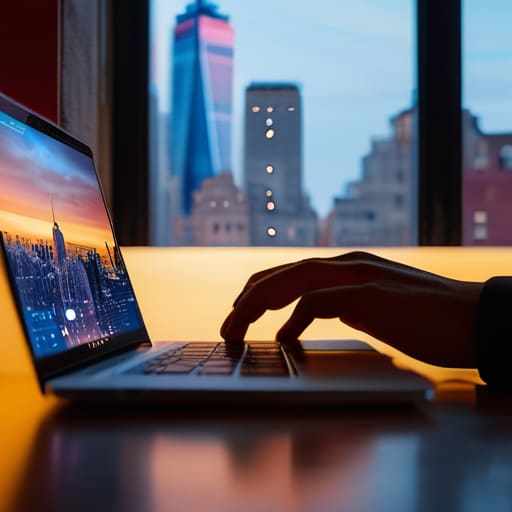
There is nothing that kills my focus faster than the “Version 2_FINAL_updated” file dance. I’ve spent enough time in rigid, legacy environments to know that chasing down the latest iteration of a spreadsheet is a massive waste of cognitive energy. With real-time document editing, that friction just disappears. I can be sitting in a cafe in Lisbon, working on a technical spec, while a client in New York adds comments in real-time. We aren’t sending files back and forth; we’re just existing in the same digital space.
This level of synchronization is what actually makes improving remote team workflow possible without the constant headache of sync errors. When you’re moving between different Wi-Fi networks, you need to know that your progress is living in the cloud, not trapped on a local drive. It turns the document from a static object into a living workspace. For me, the goal is always to reach a state where the software becomes invisible, allowing me to stay in the zone rather than managing the tools themselves.
How to Actually Make Google Workspace Work for Your Workflow
- Stop saving files to your desktop. If it isn’t in Drive, it doesn’t exist. I’ve learned the hard way that local files are just anchors that keep you tied to one desk; keep everything in the cloud so you can swap from your home setup to a cafe in five minutes without a hitch.
- Master the search, don’t bother with folders. I used to spend way too much time organizing deep folder hierarchies like it was 2010. Now, I just use advanced search operators in Drive to find what I need instantly. It’s faster and keeps my digital space clean.
- Use “Offline Mode” before you leave the house. If you’re heading to a spot with questionable Wi-Fi—which is basically my entire life—make sure you toggle the offline setting on your essential Docs and Sheets. It prevents that soul-crushing moment when you realize you can’t access your work mid-task.
- Stop the endless email chains with Shared Drives. Instead of attaching version 2, version 3, and “FINAL_v4” to emails, just drop a single link to a live Doc. It keeps the conversation focused and ensures everyone is looking at the same reality, not an outdated attachment.
- Set up your notification hygiene early. Google Workspace can get noisy if you’re part of too many Docs or Sheets. Go into your settings and prune the noise so you’re only getting pinged for things that actually require your brainpower. Focus is everything.
The Bottom Line: Why I Use Google Workspace
Stop tethering yourself to a single desk; if your tools aren’t accessible from a cafe or a train, they’re working against you.
Prioritize tools that disappear into the background so you can focus on the actual output rather than managing the software.
Real-time collaboration isn’t just a “nice to have”—it’s the only way to maintain flow when you’re working across different time zones and setups.
## The Death of the Local File
“If I have to worry about whether my files are synced or if I’m working on the latest version before I close my laptop and head to a new cafe, the tool has already failed me. Google Workspace works because it’s just… there. It’s the invisible infrastructure that lets me focus on the code, not the connection.”
Elias Vandermeer
The Bottom Line: Work Where You Want, Not Where You Have To
At the end of the day, Google Workspace isn’t just another subscription to manage; it’s the foundation that allows my setup to remain truly mobile. We’ve looked at how the seamless cloud integration and real-time collaboration tools strip away the friction that usually kills a productive session. When you stop worrying about file versions or whether you can access a specific spreadsheet from a cafe in Lisbon, you stop managing your tools and start actually doing the work. It turns your entire digital existence into a single, cohesive environment that stays out of your way, no matter how mediocre the local Wi-Fi gets.
My philosophy has always been that your workspace should adapt to your life, not the other way around. If you’re still tethered to a specific hardware setup or local drives, you aren’t working; you’re just maintaining a cage. Transitioning to a cloud-first workflow like this is about more than just efficiency—it’s about reclaiming your autonomy. Build a system that is invisible, lightweight, and ready to move whenever you are. Once the tools become seamless, the only thing left to focus on is the craft itself.
Frequently Asked Questions
How does Google Workspace handle offline work when I'm stuck on a spotty cafe Wi-Fi?
Look, I’ve been in plenty of cafes where the Wi-Fi is basically a suggestion rather than a service. If you haven’t enabled “Offline” mode in your Google Drive settings, you’re asking for trouble. Once it’s on, you can keep typing away in Docs or Sheets without the dreaded “reconnecting” spinner ruining your flow. The best part? Everything syncs the second you find a stable signal. It makes the tech invisible, which is the whole point.
Is it actually secure enough to handle sensitive client data while I'm working from public spaces?
Look, I get the anxiety. Working from a cafe in Lisbon or a library in Berlin means you’re constantly exposed. But honestly? The security isn’t the problem—it’s your connection. Google’s encryption handles the heavy lifting, but if you’re on sketchy public Wi-Fi, you need a solid VPN and two-factor authentication, no questions asked. As long as you aren’t leaving your laptop unlocked while grabbing a latte, the cloud is actually safer than most local drives.
How much of a headache is it to migrate existing files from local drives or other suites into the Google ecosystem?
Honestly, it’s usually more of a mental hurdle than a technical one. If you’re moving from local drives, Google Drive’s desktop client makes it feel like you’re just dragging files into a new folder. The real headache comes when you’re switching from another suite—formatting can get wonky. But if you take it slow and audit your files first, you avoid a massive digital junk drawer. Don’t migrate everything at once; move what you actually use.