I was sitting in a cramped cafe in Lisbon last month, fighting a losing battle against a spotty Wi-Fi connection and a laptop charger that felt like it was about to fray. I realized then that most people approach their digital setup like they’re building a fortress—heavy, static, and tethered to a single desk. They search for a “google workspace guide” expecting a lecture on enterprise-level bureaucracy, but that’s not what you need. You don’t need more complexity; you need a system that actually works when you’re moving between time zones and mediocre coffee shops.
I’m not here to give you a corporate manual that reads like a legal disclaimer. Instead, I’m going to show you how to strip away the friction and build a cloud-first workflow that feels completely invisible. This is a practical, no-nonsense breakdown of how to leverage these tools so they serve your lifestyle, rather than forcing you to adapt to them. We’re going to focus on seamless integration and extreme portability, ensuring your digital environment is as mobile as you are.
Table of Contents
- Optimizing Gmail for Business to Reclaim Your Focus
- Mastering Google Drive File Organization for Instant Access
- 5 Ways to Stop Fighting Your Tools and Start Working
- The Bottom Line: Making Google Workspace Work for You
- ## The Invisible Workflow
- The Goal is Frictionless Flow
- Frequently Asked Questions
Optimizing Gmail for Business to Reclaim Your Focus
Most people treat Gmail like a digital junk drawer, but if you’re trying to run a business from a laptop in a cafe, that’s a recipe for burnout. To actually stay in flow, you need to stop reacting to every single ping and start optimizing Gmail for business through aggressive filtering. I personally use custom labels and automated filters to shunt non-urgent newsletters and notifications into specific folders. If it’s not a direct client inquiry or a critical system alert, it shouldn’t be hitting my primary inbox.
The goal is to make the interface disappear. I rely heavily on integrating my task manager directly with my threads so I can archive an email the second I’ve turned it into an actionable item. This keeps my workspace clean and prevents that mental fog that comes from seeing fifty unread messages. By treating your inbox as a high-speed transit hub rather than a storage unit, you’re applying one of the most effective google workspace productivity tips there is: you stop managing your mail and start managing your time.
Mastering Google Drive File Organization for Instant Access

If you’re anything like me, you probably started with a massive, disorganized dumping ground of files that makes finding a specific contract feel like a scavenger hunt. When I’m working out of a cafe in Lisbon or a library in Berlin, I don’t have time to dig through nested folders that make no sense. Effective google drive file organization isn’t about having a perfect aesthetic; it’s about reducing the cognitive load required to find your assets. I rely on a strict, shallow folder hierarchy—think “Active Projects,” “Archive,” and “Resources”—so I never have to click more than three times to hit my target.
I’ve also learned that naming conventions are your best friend when you’re using cloud-based collaboration tools. Instead of “Final_v2_REALLY_FINAL.pdf,” I use a standardized `YYYY-MM-DD_ProjectName_Client` format. This keeps everything chronologically sorted and searchable, even when you’re working across different time zones. If you treat your Drive like a digital junk drawer, you’re just creating friction for your future self. Keep it lean, keep it searchable, and let the structure do the heavy lifting so you can stay in your flow state.
5 Ways to Stop Fighting Your Tools and Start Working
- Use Google Calendar’s “Working Location” feature to manage expectations; if you’re working from a cafe with spotty Wi-Fi, let your clients know before they try to jump on a heavy video call.
- Stop the endless tab-switching by using Google Keep for quick notes; it integrates directly into your Docs and Sheets so you can dump ideas without breaking your flow.
- Set up “Priority Inbox” in Gmail to let the AI filter out the noise, ensuring that actual client requests don’t get buried under automated notifications and newsletters.
- Leverage the “Shared Drives” feature for project-based work instead of individual folders; it keeps files tied to the project rather than a specific person, which is a lifesaver when you’re collaborating remotely.
- Master the “Search Chips” in Drive to find files instantly; stop clicking through nested folders and just use the advanced filters to find that one specific PDF from three months ago.
The Bottom Line: Making Google Workspace Work for You
Stop treating your inbox like a to-do list; use Gmail’s filters and labels to push the noise into the background so you can actually focus on deep work.
Your files shouldn’t be a scavenger hunt; build a logical, cloud-first folder structure in Drive that stays consistent whether you’re at a desk or a cafe.
The goal isn’t to master every single feature, but to automate the repetitive stuff so your tools become invisible and your workflow becomes portable.
## The Invisible Workflow
“If you’re spending more time managing your files than actually using them, your setup has failed you. A real Google Workspace workflow shouldn’t feel like a chore; it should feel like it’s just part of the air you breathe, letting you focus on the code or the client instead of the clutter.”
Elias Vandermeer
The Goal is Frictionless Flow
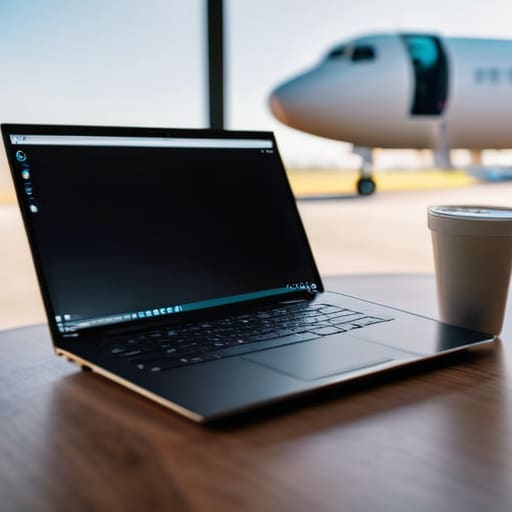
At the end of the day, mastering Google Workspace isn’t about learning every single button or obscure setting in the ecosystem. It’s about building a system where your tools actually get out of your way. We’ve talked about cleaning up your Gmail so it doesn’t hijack your attention and structuring your Drive so you aren’t hunting for files while sitting in a noisy cafe with spotty Wi-Fi. When you stop fighting your digital environment and start optimizing it, you transition from just “managing tasks” to actually having a seamless, cloud-first workflow that moves with you, no matter where your next flight lands.
Don’t feel like you need to overhaul everything overnight. Start small—fix your inbox, organize one major folder, and let the momentum build. The ultimate aim is to reach a point where your tech feels invisible, leaving you with nothing but the space to do the work that actually matters. Your setup should be an asset, not a tether. Build a digital workspace that is as mobile and adaptable as you are, and you’ll realize that true professional freedom isn’t about having a fancy office; it’s about having a system that works anywhere.
Frequently Asked Questions
How do I keep my files organized when I'm constantly jumping between different Wi-Fi networks and devices?
The trick is to stop relying on local storage entirely. If you’re jumping between cafes and coworking spaces, your files shouldn’t live on your hard drive; they should live in the cloud. Use Google Drive’s desktop client to sync everything, but set your most critical project folders to “available offline.” That way, when the Wi-Fi inevitably tanks, your workflow doesn’t die with it. Keep your structure shallow—too many nested folders just make things harder to find on a small screen.
Are there ways to automate my Google Workspace tasks so I'm not wasting time on repetitive manual work?
If you’re still manually moving data between Sheets or chasing email threads, you’re doing it wrong. To keep a setup truly seamless, you need to lean into Apps Script or tools like Zapier to bridge the gaps. I use basic automation to trigger email notifications when a Drive folder updates or to sync Form responses directly into my tracking sheets. If a task feels repetitive, it’s a candidate for automation. Don’t let manual busywork clutter your headspace.
How can I secure my entire cloud setup without making the login process a massive headache every time I move to a new city?
The trick is finding the balance between “paranoid” and “productive.” I don’t do passwords anymore—they’re a bottleneck. Instead, I lean heavily on hardware security keys like a YubiKey. It’s a physical piece of gear that makes MFA feel instant rather than a chore of checking my phone every five minutes. Pair that with a solid password manager that syncs across my devices, and you’ve got a setup that stays locked down without killing your flow.