Author: Elias Vandermeer

  • Creating a Minimalist Home Office

    Creating a Minimalist Home Office

    I spent most of my junior year in college staring at a desk that looked more like a graveyard for tangled cables and heavy, outdated hardware. Everyone told me that to be a “serious” tech professional, I needed a massive, permanent workstation with dual monitors and a desktop that weighed more than my luggage. They were wrong. Most of that gear is just friction disguised as productivity. If your minimalist desk setup is just a collection of expensive, aesthetic trinkets that you can’t pack into a backpack and take to a coffee shop in a new city, then you haven’t actually built a workspace—you’ve just built a cage.

    I’m not here to sell you on a specific brand of overpriced mechanical keyboard or a $500 monitor arm. Instead, I want to show you how to build a setup that actually works for you. I’m going to break down the exact, cloud-first principles I use to stay mobile and efficient, regardless of whether I’m in a quiet library or a noisy transit hub. My goal is to help you strip away the digital and physical clutter so you can finally achieve a state of seamless focus.

    Table of Contents

    A Clutter Free Workstation Built for Deep Work

    A Clutter Free Workstation Built for Deep Work

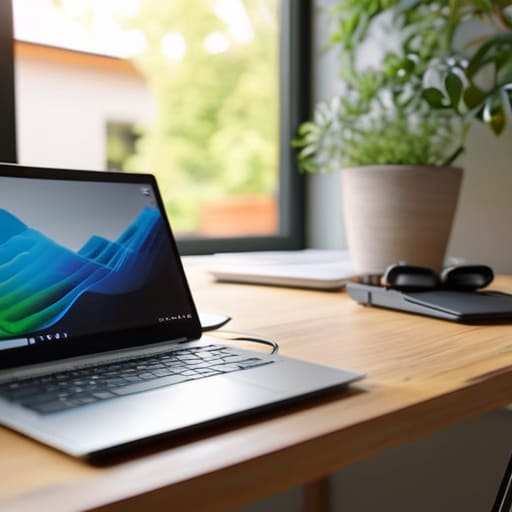
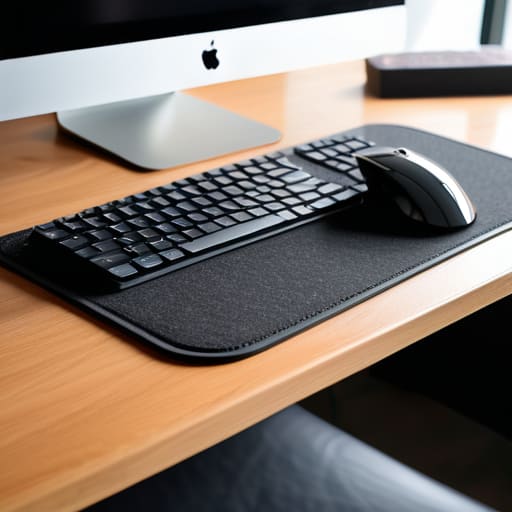
    If you’re staring at a desk covered in tangled wires and half-finished coffee mugs, you aren’t working; you’re just managing chaos. To get into a flow state, you need a clutter free workstation that doesn’t fight for your attention. I’ve learned that every physical object on your desk is a potential distraction. I keep mine stripped down to the essentials: a laptop, a high-quality mechanical keyboard, and a single monitor. If I haven’t touched a piece of gear in two hours, it doesn’t belong on the surface.

    The real secret to maintaining this isn’t just buying less stuff; it’s about how you handle what you do have. I’m obsessed with clean cable management solutions because nothing kills a vibe faster than a “spaghetti” mess under your feet. I use under-desk trays and braided sleeves to keep everything tucked away and invisible. When your environment is dialed in, you stop noticing the tools and start actually doing the work. It’s about creating an ergonomic minimalist office that supports your body and your brain without requiring constant maintenance.

    Curating Minimalist Tech Accessories That Disappear

    Curating Minimalist Tech Accessories That Disappear.

    The trick to finding the right gear isn’t about buying the most expensive kit; it’s about choosing tools that don’t demand your attention. I’ve learned the hard way that every extra dongle or bulky peripheral is just another thing to trip over mentally. I lean heavily into minimalist tech accessories that serve a dual purpose. For me, that means a high-quality mechanical keyboard that feels tactile but stays compact, and a single, reliable USB-C hub that handles everything from my external drive to my peripherals. If a piece of gear doesn’t earn its spot on my desk through pure utility, it’s gone.

    I also focus on keeping the visual noise to a minimum to maintain a productivity enhancing workspace. I tend to stick to a neutral color palette for my gear—matte blacks, greys, or sand tones—so nothing clashes with my environment, whether I’m in a quiet cafe or a temporary rental. Most importantly, I treat my cables like a nuisance to be solved rather than a permanent fixture. Using subtle cable management solutions like magnetic ties or under-desk trays ensures that my tech stays functional without looking like a tangled mess of wires.

    Five Rules for a Setup That Doesn't Hold You Back

    • Go wireless or go home. Every single cable snaking across your desk is a visual distraction that breaks your focus. If you can’t ditch the dongles and the power bricks for a clean, wireless peripheral setup, you’re just managing clutter instead of managing your workflow.
    • Prioritize cloud-first storage over physical drives. I stopped carrying external SSDs everywhere once I realized my entire workflow could live in a well-configured cloud environment. If you can’t access your project files from a cafe in Lisbon or a library in Berlin, your setup isn’t truly portable.
    • Master the art of the single-cable dock. If you’re moving between locations, you don’t have time to plug in six different things. A single USB-C Thunderbolt dock is the ultimate minimalist cheat code; one plug for power, monitors, and peripherals, and you’re live in seconds.
    • Audit your digital desktop as much as your physical one. A clean desk means nothing if your monitor is a graveyard of random icons and unorganized folders. Keep your digital workspace as lean as your physical one so your brain doesn’t have to process unnecessary noise.
    • Invest in high-quality, multi-functional gear. Stop buying “single-use” tech gadgets. I’d rather have one high-end mechanical keyboard that feels great to type on for ten hours than a desk full of cheap, plastic accessories that serve no real purpose.

    The Bottom Line

    If a piece of gear doesn’t serve a specific, repeatable purpose, it’s just visual noise—toss it or archive it.

    Prioritize cloud-based workflows and portable hardware so your “office” is wherever you have a decent Wi-Fi signal.

    Aim for a setup where the tools feel invisible; the less you notice your equipment, the more you’ll notice your work.

    The Philosophy of Less

    A desk setup shouldn’t be a collection of gear you’re proud to show off; it should be a seamless extension of your workflow that stays out of your way until you actually need it.

    Elias Vandermeer

    The Path to a Seamless Workflow

    The Path to a Seamless Workflow setup.

    At the end of the day, a minimalist desk setup isn’t about owning fewer things just for the sake of aesthetics; it’s about intentionality. We’ve looked at how stripping away the physical clutter and choosing tech that integrates seamlessly into the cloud can fundamentally change your relationship with your work. By focusing on high-quality, portable tools and keeping your immediate environment clean, you remove the friction that usually leads to distraction. When your gear is streamlined and your cables are managed, you stop fighting your environment and start mastering your focus.

    I’ve learned through a lot of trial and error—and plenty of heavy, useless gear—that your setup should serve you, not the other way around. Whether you’re working from a quiet corner of a library or a makeshift desk in a small city halfway across the world, your digital and physical workspace should be an extension of your mind. Don’t get caught up in the gear acquisition trap. Instead, build a foundation that is lightweight, mobile, and ready for whatever comes next. Your best work happens when the tools disappear and only the craft remains.

    Frequently Asked Questions

    How do I keep a minimalist setup functional when I'm moving between different locations or cafes?

    The trick is to stop thinking in terms of “gear” and start thinking in terms of “ecosystems.” If your workflow relies on a specific desktop dock or a heavy monitor, you’ve already lost. I stick to a single, high-performance laptop and a cloud-based everything approach. My “setup” is really just a slim tech pouch with a GaN charger, a travel hub, and my mechanical keyboard. If it doesn’t fit in my backpack, it doesn’t belong in my workflow.

    What are the best cloud-based tools to replace physical hardware like external drives or bulky docking stations?

    Ditch the heavy external drives and those bulky docks that tether you to a single desk. I’ve moved almost everything to the cloud. For file storage, I rely on Dropbox or Google Drive—it’s seamless and works even on spotty cafe Wi-Fi. To replace a physical dock, I use high-speed Thunderbolt hubs or just stick to a single USB-C connection for everything. If your data isn’t accessible from any machine, you aren’t actually mobile.

    How can I maintain a clean, cable-managed look without sacrificing the power I need for heavy technical tasks?

    It’s a common trap: thinking you have to choose between a clean desk and a powerful machine. You don’t. The trick is moving the heavy lifting to the cloud or a dedicated hub. I use a single high-spec Thunderbolt dock tucked under my desk; it handles my peripherals and power while leaving only one cable visible. If you’re running heavy builds, offload the processing to a remote server. Keep the hardware invisible, and keep the power accessible.

  • Achieving Cloud Computing Interoperability for Remote Workflows

    Achieving Cloud Computing Interoperability for Remote Workflows

    I was sitting in a cramped cafe in Lisbon last month, fighting a losing battle with a patchy Wi-Fi connection and a stack of broken API calls. I had my data sitting in one provider, my processing power in another, and they were refusing to speak the same language. It’s the same old story: companies sell you on the “magic” of the cloud, but they conveniently forget to mention how much of a nightmare cloud computing interoperability becomes when you actually try to move something between platforms. Most people will tell you it’s about complex architecture and enterprise-grade middleware, but honestly? It’s usually just bad design that keeps your tools from working together.

    I’m not here to sell you on some expensive, bloated ecosystem that locks you into a single vendor. My goal is to show you how to build a setup that actually moves with you, regardless of where you’re working from. I’m going to break down how to achieve real seamless integration without the corporate jargon or the massive price tags. We’re going to focus on practical, portable workflows that ensure your tech stays invisible, so you can stop troubleshooting your infrastructure and actually start doing the work.

    Table of Contents

    Breaking Free Through Effective Vendor Lock in Mitigation

    Breaking Free Through Effective Vendor Lock in Mitigation

    The biggest trap I see people fall into is thinking that picking a provider is a one-way street. You sign up for a slick dashboard, everything works perfectly, and then you realize six months later that your data is essentially a hostage. This is the reality of vendor lock-in. If you aren’t prioritizing data portability in cloud environments from day one, you aren’t building a workspace; you’re building a cage. I’ve seen too many setups crumble because they relied on proprietary tools that simply won’t function anywhere else.

    To avoid this, you have to be intentional about how you layer your tech. I personally lean heavily on API-driven cloud connectivity to ensure my tools can actually talk to one another without needing a middleman. It’s about making sure your workflow remains modular. If a specific service starts hiking prices or their uptime becomes unreliable, you should be able to pivot without a month-long migration headache. Your setup needs to be fluid, not fixed in stone.

    The Power of Seamless Api Driven Cloud Connectivity

    The Power of Seamless Api Driven Cloud Connectivity

    If you’re like me, you don’t want to spend your afternoon manually moving files or fighting with incompatible software. You want your tech to just work. This is where API-driven cloud connectivity becomes a total game-changer. Instead of treating every service like a walled garden, APIs act as the connective tissue, allowing different platforms to exchange data without you having to babysit the process. When your tools can talk to each other natively, you stop managing infrastructure and start actually executing your workflow.

    Relying on a single ecosystem is a trap that kills your agility. By leveraging robust APIs, you can implement much more effective multi-cloud management strategies, shifting workloads between providers based on where the latency is lowest or the cost is better. It’s about building a setup that is modular by design. If one provider changes their terms or hits a service outage, your entire digital life shouldn’t come crashing down. You need that layer of abstraction so your tools remain invisible, seamless, and—most importantly—entirely under your control.

    Five Ways to Stop Fighting Your Tech and Start Flowing

    • Prioritize open standards over proprietary features. If a tool only works well because it’s locked into one specific vendor’s ecosystem, it’s a trap. Look for services that stick to industry-standard protocols so you can swap them out without a total meltdown.
    • Build an API-first workflow. I don’t care how polished a piece of software looks; if it doesn’t have a robust, well-documented API, it’s going to be a roadblock later. You need to know you can programmatically move your data whenever you want.
    • Containerize everything you can. Using tools like Docker or Kubernetes isn’t just for heavy-duty DevOps; it’s about making your environment portable. If your setup can run the same way on a local machine as it does on a cloud instance, you’ve won half the battle.
    • Audit your data gravity. Data is heavy, and moving it between clouds is expensive and slow. Plan your architecture so that your most critical datasets aren’t stuck in a way that makes interoperability impossible or prohibitively costly.
    • Automate your configuration management. Don’t rely on manual setups that you have to remember every time you move to a new city. Use Infrastructure as Code (IaC) so your entire cloud environment is just a script away, making “moving” as simple as running a command.

    The Bottom Line: Building a Setup That Actually Scales

    Stop building digital cages for yourself; prioritize interoperability from day one so you aren’t stuck with one vendor’s ecosystem when their pricing or performance tanks.

    Treat your APIs like the glue of your entire workflow—if your tools aren’t talking to each other seamlessly, you’re just wasting time on manual data transfers.

    Aim for a “frictionless” stack where the tech disappears into the background, allowing you to focus on the actual work rather than troubleshooting your own infrastructure.

    ## The Cost of Friction

    “If you’re spending more time wrestling with data transfers between providers than you are actually building systems, your cloud isn’t a tool—it’s a cage. Interoperability isn’t just a technical buzzword; it’s the difference between a setup that scales with your life and one that anchors you to a single vendor’s ecosystem.”

    Elias Vandermeer

    The Bottom Line

    The Bottom Line: cloud interoperability benefits.

    At the end of the day, cloud interoperability isn’t just a technical buzzword for enterprise architects; it’s about removing the friction that keeps you from actually working. We’ve looked at how mitigating vendor lock-in keeps your options open and how leveraging API-driven connectivity turns a mess of isolated services into a unified engine. If you aren’t prioritizing how these systems talk to one another, you’re essentially building a digital cage for yourself. You want a stack that is agile, modular, and completely invisible, allowing you to shift your entire workflow from a café in Lisbon to a quiet corner in Tokyo without missing a single beat.

    Stop settling for setups that force you to adapt to their limitations. Your tech stack should be as fluid as your lifestyle, acting as a silent partner rather than a constant obstacle. When you master interoperability, you aren’t just managing data; you’re reclaiming your cognitive bandwidth. Build your environment with the mindset that mobility is non-negotiable. Once you stop fighting your tools and start making them work together, you’ll realize that true professional freedom isn’t about where you sit, but how seamlessly your digital world follows you wherever you go.

    Frequently Asked Questions

    How do I actually implement this without my security protocols becoming a total mess?

    Look, the fear of opening the floodgates is real. If you just start connecting everything via APIs without a plan, you’re basically inviting chaos. My rule of thumb: treat your interoperability layer like a controlled gateway, not a wide-open door. Use identity federation and centralized IAM policies so you’re managing access in one spot, rather than chasing permissions across three different clouds. Keep your security protocols standardized, and the seamlessness won’t break your setup.

    Is the extra effort of building for interoperability worth the overhead when I'm working with limited bandwidth?

    Look, I get it. When you’re sitting in a café with a spotty connection, every extra layer of configuration feels like a weight. But here’s the reality: if you build for interoperability now, you’re actually saving bandwidth later. Siloed, proprietary tools often force heavy, bloated sync processes. A streamlined, interoperable setup lets you move lightweight data across clouds without the friction. It’s upfront effort for long-term lightness. Trust me, it’s worth it.

    What are the best low-latency tools for keeping my data synced across different providers while I'm on the move?

    When I’m jumping between cafes with spotty Wi-Fi, I can’t afford a sync delay that kills my flow. For low-latency, cross-provider syncing, I lean heavily on Rclone. It’s basically the Swiss Army knife for cloud storage, letting you mount different providers like local drives. If you need something more automated for real-time files, Syncthing is my go-to—it’s peer-to-peer, meaning it bypasses the middleman to keep your data moving fast and private.

  • Minimizing Cloud Computing Latency in Your Remote Setup

    Minimizing Cloud Computing Latency in Your Remote Setup

    I was sitting in a tiny cafe in Lisbon last month, trying to push a heavy deployment through a spotty local network, when my entire workflow just… died. It wasn’t a total crash, but that soul-crushing delay between my keystrokes and the server’s response made it impossible to stay in the zone. People love to sell you on these massive, high-end cloud architectures as if they’re magic, but they conveniently forget to mention that cloud computing latency can turn a high-performance setup into a glorified paperweight if you aren’t careful. If your tools aren’t responding in real-time, they aren’t tools—they’re obstacles.

    I’m not here to give you a textbook definition or a sales pitch for more expensive bandwidth. Instead, I want to talk about how you can actually manage your environment so your tech stays invisible. I’m going to break down how to identify the real bottlenecks and how to build a resilient, low-lag workflow that works whether you’re at a high-end desk or a mediocre coffee shop. Let’s get into the practical side of making your cloud setup actually move as fast as you do.

    Table of Contents

    Reducing Network Round Trip Time for Invisible Workflows

    Reducing Network Round Trip Time for Invisible Workflows

    If you’re working out of a cafe in a mid-sized city, you can’t control the local ISP, but you can control how you architect your connection. The goal is reducing network round-trip time by shortening the physical distance your data has to travel. This is where data center proximity becomes everything. If your primary cloud instance is sitting in a region halfway across the continent, every click you make is fighting a battle against physics. I always try to pin my most critical workloads to the closest possible region to ensure my tools feel local, even when they’re technically thousands of miles away.

    I’ve also leaned heavily into leveraging edge computing benefits to handle the heavy lifting closer to my actual location. By offloading certain processes to the edge, you bypass the traditional bottleneck of routing everything back to a central hub. It’s the difference between a tool that feels like an extension of your hands and one that feels like a sluggish afterthought. When you get this right, the technology becomes invisible, and you can finally stay in that flow state without the constant, jarring interruption of a spinning loading icon.

    Bandwidth vs Latency Explained Why Speed Isnt Everything

    Bandwidth vs Latency Explained Why Speed Isnt Everything

    I see this mistake constantly in my client calls: people think that because they pay for a gigabit connection, their workflow will be flawless. They’re confusing raw capacity with responsiveness. Think of it like a highway. Bandwidth is the number of lanes available; it determines how much data can move at once. Latency, however, is the speed limit and the reaction time of the drivers. You can have a twenty-lane highway, but if there’s a massive delay every time you try to merge, your entire system feels sluggish.

    When we talk about bandwidth vs latency explained, the distinction is what keeps a remote setup from feeling “heavy.” You might be able to download a massive Docker image quickly because your bandwidth is high, but if you’re trying to SSH into a server or interact with a remote IDE, that millisecond delay in every keystroke will drive you insane. This is where data center proximity becomes the real MVP. It doesn’t matter how wide your pipe is if the data has to travel halfway across the globe just to say “hello” back to your terminal.

    5 Ways to Stop Latency from Killing Your Flow

    • Stop relying on public Wi-Fi for heavy lifting; if you’re working out of a cafe, use a dedicated travel router with a wired connection to your laptop to shave off those precious milliseconds of jitter.
    • Choose your cloud regions like you choose your coffee—don’t settle for anything that isn’t geographically close to you, because physics doesn’t care how fast your internet is if the data has to cross an ocean.
    • Audit your background processes; I’ve learned the hard way that having a dozen “syncing” apps running in the background is just a recipe for micro-stutters when you actually need to hit a deadline.
    • Invest in a high-quality VPN with optimized protocols if you’re working remotely, but don’t just pick any random one—you need a provider that prioritizes low-latency routing over sheer throughput.
    • Simplify your stack by using edge computing tools wherever possible, moving the processing power closer to your actual device so your setup feels local, even when it’s living entirely in the cloud.

    The Bottom Line: Keeping Your Setup Fluid

    Stop obsessing over raw download speeds; if your latency is high, your cloud tools will feel heavy and unresponsive no matter how much bandwidth you have.

    Prioritize edge computing and local caching to move your data closer to where you actually work, minimizing the distance between your keystrokes and the server.

    Build for mobility by testing your workflow on subpar connections—if your setup requires a perfect fiber line to function, it isn’t truly portable.

    ## The Frictionless Goal

    High bandwidth is just a bigger pipe, but latency is the actual speed of thought. If you’re fighting a half-second delay every time you click, you aren’t working in the cloud—you’re just tethered to a digital anchor.

    Elias Vandermeer

    The Goal is Invisibility

    The Goal is Invisibility in cloud latency.

    At the end of the day, managing cloud latency isn’t about chasing impossible benchmarks or obsessing over every millisecond in a vacuum. It’s about making sure your infrastructure doesn’t get in your way. We’ve looked at why bandwidth is a vanity metric if your round-trip time is spiking, and how optimizing your network path can turn a frustrating, stuttering connection into a seamless extension of your thought process. When you prioritize low latency and smart edge deployment, you aren’t just fixing a technical lag; you are removing the friction between your brain and your output.

    My philosophy has always been that the best tools are the ones you forget you’re even using. If you find yourself fighting your connection or waiting on a spinning loader, your setup is failing you. But when you nail that balance of portable hardware and high-performance cloud integration, you gain something much more valuable than just speed: you gain true professional autonomy. Don’t let a poor connection anchor you to a desk or a specific zip code. Build a workflow that is fast, fluid, and—most importantly—completely invisible, so you can focus on the work that actually matters.

    Frequently Asked Questions

    How much latency is actually "too much" before it starts breaking my focus during deep work?

    It really depends on what you’re doing, but for deep work, anything over 100ms is where the friction starts. If you’re just coding or writing, you might not notice a slight delay, but the moment you’re navigating a remote desktop or a cloud-based IDE and the cursor feels “heavy,” your flow is dead. Once you hit that 150ms+ threshold, your brain stops treating the tool as an extension of yourself and starts fighting it.

    Can I actually optimize my latency using my local hardware, or is it entirely out of my hands once I'm using the cloud?

    Look, it’s not entirely out of your hands, but you can definitely stop making it worse. You can’t fix the distance between your laptop and the data center, but you can fix the bottlenecks right in front of you. Ditch the spotty cafe Wi-Fi for a wired connection whenever possible, and stop running twenty background processes that eat your local resources. Optimize your local stack so your hardware isn’t fighting the cloud for breathing room.

    Does using a VPN or a specific DNS setup help stabilize my connection, or does it just add more layers of lag?

    Honestly, it’s a double-edged sword. A VPN usually adds an extra hop, which means more latency—it’s basically adding another layer of friction to your connection. If you’re on a shaky cafe Wi-Fi, it might actually stabilize things by routing around bad nodes, but for pure speed, it’s a drag. On the flip side, switching to a faster DNS (like Cloudflare’s 1.1.1.1) is a low-effort win. It won’t fix a bad signal, but it makes your tool discovery feel much snappier.

  • Managing Projects Using Trello Boards

    Managing Projects Using Trello Boards

    I was sitting in a cramped, dimly lit cafe in Lisbon last month, fighting a losing battle against a spotty Wi-Fi connection and a mental fog that only comes from a disorganized workflow. I realized then that most people treat trello boards like digital junk drawers—just a chaotic dumping ground for “to-do” items that eventually become a source of anxiety rather than a solution. If your setup requires a massive, rigid structure just to keep your head above water, then it isn’t actually working for you; it’s just another piece of digital clutter holding you back from actual deep work.

    I’m not here to sell you on some complex, enterprise-level productivity cult or a dozen complicated integrations you’ll never use. Instead, I want to show you how to build lean, highly portable systems that actually adapt to a nomadic lifestyle. I’ll be sharing the exact frameworks I use to keep my freelance projects moving across different time zones and setups, focusing on seamless, cloud-based workflows that stay out of your way. Let’s strip away the fluff and build something that actually moves with you.

    Table of Contents

    Leveraging Kanban Board Templates for Seamless Transitions

    Leveraging Kanban Board Templates for Seamless Transitions

    When I’m hopping between cafes or working from a temporary rental, I don’t have the mental bandwidth to build a system from scratch every single time. This is where kanban board templates become a lifesaver. Instead of staring at a blank screen trying to figure out how to categorize my sprint, I pull up a pre-built structure that already mirrors a functional workflow. It’s about reducing the friction between “I need to work” and actually being productive.

    Using these templates allows you to treat your project structure like a modular piece of hardware. You can swap out columns or add custom labels depending on whether you’re deep in a systems integration project or just managing personal errands. By leaning on these frameworks, you’re essentially utilizing agile project management tools to keep your brain from getting bogged down in the logistics of organization. It turns your digital workspace into something that feels intuitive immediately, letting you focus on the actual code or configuration instead of fighting with the interface.

    Digital Workspace Organization That Moves With You

    Digital Workspace Organization That Moves With You

    The real problem with most setups is that they’re too heavy—not just physically, but mentally. If you’re constantly digging through nested folders or trying to remember where you left off on a project, your setup is failing you. True digital workspace organization means your data and your tasks are accessible from a coffee shop in Lisbon or a quiet library in Tokyo without any friction. I’ve learned that if I can’t access my entire mental model of a project via a browser tab, it’s too bloated.

    To keep things fluid, I lean heavily into workflow automation with Trello to handle the repetitive stuff that usually drains my focus. Instead of manually moving every single card, I set up rules that trigger based on due dates or label changes. This keeps the momentum going even when I’m working on spotty hotel Wi-Fi. You want your tools to work in the background so you can stay in the zone. When the system handles the logistics, you actually get to do the work instead of just managing the appearance of it.

    My Blueprint for a Frictionless Trello Workflow

    • Stop overcomplicating your lists. If a card stays in “Doing” for more than three days, it’s either a massive task that needs breaking down or it’s dead weight. Keep your board lean so you actually know what needs your attention.
    • Use the Power-Ups to automate the boring stuff. I don’t have time to manually move cards or update due dates while I’m hunting for decent Wi-Fi in a new city. Set up automation rules so the board manages itself.
    • Label everything by context, not just category. Instead of just “Work” or “Personal,” use labels like “Deep Work,” “Quick Win,” or “Waiting on Client.” It helps you pick tasks based on your current energy level and environment.
    • Keep your mobile view clean. Since I’m often working from cafes or transit, I make sure my board isn’t a cluttered mess of long descriptions. Use clear, punchy card titles so I can scan my entire workflow on a small screen without squinting.
    • Sync your Trello with your cloud ecosystem. Whether it’s attaching Google Drive files or linking Slack notifications, your Trello board should be the central nervous system of your digital life, not another isolated silo of information.

    The Bottom Line for Your Mobile Setup

    Stop building rigid workflows; use Trello templates to create a foundation that adapts when you switch from a cafe in Lisbon to a quiet spot in Tokyo.

    Prioritize visibility over complexity so your digital workspace stays out of your way and lets you actually focus on the task at hand.

    Treat your boards as a portable extension of your brain, ensuring your entire project lifecycle is accessible through the cloud, regardless of your hardware.

    ## The Invisible Engine

    “A Trello board shouldn’t feel like a chore or a digital filing cabinet; it should be the invisible engine that keeps your projects running while you’re moving between cities and coffee shops. If you’re spending more time managing the tool than doing the work, your setup is broken.”

    Elias Vandermeer

    The Mobile Workflow Advantage

    The Mobile Workflow Advantage with Trello.

    At the end of the day, Trello isn’t just another app cluttering up your browser tabs; it’s the backbone of a setup that actually functions in the real world. By leveraging those Kanban templates and keeping your digital workspace organized, you’re essentially building a portable command center. Whether I’m sitting in a quiet cafe in Lisbon or working from a cramped corner of a hostel, having my tasks synced and visible means I don’t waste mental energy trying to remember where I left off. It’s about making sure your tools stay invisible and seamless, so the focus stays exactly where it belongs: on the work itself.

    Stop trying to force your life into a rigid, desk-bound structure that doesn’t fit who you are. Your setup should be as fluid as your lifestyle, moving with you whenever you decide to change your view. If you build your workflow around cloud-based agility, you aren’t just managing tasks—you’re buying yourself freedom. Don’t let a lack of organization keep you tethered to a single location. Set up your boards, refine your process, and then get out there and work from anywhere.

    Frequently Asked Questions

    How do I keep my Trello boards from getting cluttered when I'm jumping between different client projects?

    The trick is to stop treating every board like a permanent archive. I use a “Master Project Dashboard” to track high-level deadlines, then keep individual client boards strictly lean. If a task isn’t active, archive it immediately. Don’t hoard cards just because they might be useful later; that’s how you end up with digital noise. Keep your active boards focused on the immediate sprint so you can actually think when you log in.

    Can I actually run a complex systems integration workflow on Trello, or is it too lightweight for heavy technical tasks?

    Look, if you’re trying to map out a massive, multi-layered server migration with deep dependencies, Trello isn’t your heavy lifter. It’s too flat for that. But for my systems integration work? It’s perfect for the flow. I don’t use it to manage the code; I use it to manage the stages of deployment. As long as you bridge the gap with automation—like using Butler or linking to GitHub—it’s plenty robust for a mobile setup.

    What's the best way to sync my Trello setup across devices without losing my mind when the Wi-Fi gets spotty?

    The trick isn’t just about the app; it’s about how you manage your workflow. I always keep the mobile app active for quick card updates, but for heavy lifting, I stick to the browser version on my laptop. It handles intermittent drops better than the desktop client. Most importantly, don’t rely on real-time sync for complex moves. Batch your updates when you’re on stable Wi-Fi, so you aren’t fighting a loading spinner mid-task.

  • Communicating Effectively Across Distributed Teams

    Communicating Effectively Across Distributed Teams

    I was sitting in a cramped cafe in Lisbon last month, trying to sync a cloud deployment while my lo-fi playlist fought for dominance against the screeching espresso machine. My client was pinging me on three different apps, asking for “status updates” that should have been visible in our shared dashboard if our distributed team communication wasn’t such a fragmented mess. Most companies think they need a massive, expensive suite of enterprise tools to stay connected, but honestly? Most of those platforms are just digital clutter that actually slows you down.

    I’m not here to sell you on a new subscription or a complex hierarchy of Slack channels. I want to show you how to strip away the noise and build a workflow that actually works when you’re moving between time zones and mediocre Wi-Fi. I’ll be sharing the exact, no-nonsense frameworks I use to keep my integrations seamless and my focus unbroken. We’re going to focus on making your tools invisible so you can stop managing software and start actually getting your work done.

    Table of Contents

    Seamless Digital Workspace Management for Flow

    Seamless Digital Workspace Management for Flow.

    The biggest killer of deep work isn’t a bad Wi-Fi connection; it’s the constant, frantic pinging of notifications that fragment your attention. If you’re constantly jumping between Slack, email, and three different project boards, you aren’t actually working—you’re just reacting. Effective digital workspace management means setting up a system where information flows predictably without requiring your immediate presence. I’ve learned that the goal is to create an environment where your tools facilitate a state of flow rather than constantly interrupting it.

    To get there, you have to lean heavily into asynchronous communication strategies. Instead of forcing everyone into a synchronous meeting that could have been a well-structured Notion page or a Loom video, treat your documentation as the single source of truth. When your team relies on high-quality, written context, you eliminate the need for “quick syncs” that derail your entire afternoon. Stop treating every message like an emergency and start building a workflow that respects the rhythm of deep focus.

    Leveraging Remote Work Collaboration Tools Without Friction

    Leveraging Remote Work Collaboration Tools Without Friction

    The problem with most remote work collaboration tools isn’t that they don’t work; it’s that they create more noise than signal. If you’re jumping between five different apps just to find a single project update, your tech stack is failing you. I’ve seen so many setups where the tools actually interrupt the flow instead of facilitating it. To fix this, you need to prioritize asynchronous communication strategies that allow people to contribute when they’re actually in the zone, rather than forcing everyone into a constant state of “available” on a chat app.

    I try to treat my digital environment like a well-built mechanical keyboard—every component needs to serve a specific purpose without unnecessary clutter. When you’re building out your workflow, aim for tools that integrate deeply with your existing cloud setup. You want to focus on overcoming remote communication barriers by reducing the number of clicks it takes to get an answer. If your documentation, task management, and chat aren’t talking to each other, you aren’t working; you’re just managing chaos.

    My Rules for Keeping the Signal-to-Noise Ratio High

    • Kill the “Always-On” Expectation. If your team feels like they have to respond to every Slack ping within thirty seconds, they aren’t working—they’re just reacting. Set clear windows for deep work where notifications are silenced. Real productivity happens in the gaps between the pings.
    • Default to Asynchronous. Stop scheduling meetings just to “sync up.” If it can be an organized Loom video or a well-structured Notion doc, do that instead. Meetings should be the exception for complex problem-solving, not the default for status updates.
    • Centralize the Source of Truth. Nothing kills flow faster than hunting through three different threads to find a single spec. Pick one cloud-based hub—whether it’s Linear, Trello, or a shared doc—and make it the law. If it’s not in the hub, it doesn’t exist.
    • Over-Communicate Context, Not Just Content. In a distributed setup, you lose the “watercooler” cues. When you drop a task or a request, don’t just say what needs to be done; explain why and what the priority level is. It saves five follow-up messages later.
    • Audit Your Stack Monthly. Every few months, look at your tools and ask: “Is this actually making my life easier, or is it just another tab I have to manage?” If a tool adds friction instead of removing it, cut it. A bloated tech stack is just digital clutter.

    The Bottom Line: Build for Mobility, Not Just Presence

    Stop treating your communication tools like a destination; they should be an invisible layer that supports your workflow without forcing you to stop and troubleshoot mid-task.

    If your team’s setup isn’t cloud-first and portable, you’re not building a distributed team—you’re just building a digital version of a cubicle that limits where you can actually work.

    Focus on reducing friction over adding features; a simple, seamless toolset that actually works on mediocre Wi-Fi is worth more than a dozen complex platforms that break your focus.

    ## The Frictionless Connection

    “If your team has to stop and think about how they’re supposed to talk to each other, you’ve already lost the flow. Distributed communication shouldn’t feel like a series of meetings; it should feel like a continuous, invisible layer of your workspace that just works, regardless of where you’re logged in from.”

    Elias Vandermeer

    The Bottom Line

    The Bottom Line: Streamlined digital workspace.

    At the end of the day, effective distributed communication isn’t about hoarding every new app that hits Product Hunt; it’s about stripping away the noise. We’ve looked at how a seamless digital workspace and low-friction collaboration tools can keep you in the zone rather than pulling you out of it. If your setup requires constant troubleshooting or manual syncing, you aren’t actually working—you’re just managing your own chaos. The goal is to build a stack where the tech becomes invisible, allowing your team to focus on the actual output rather than the logistics of how to send a file or join a call.

    Moving away from the traditional office model is a massive shift, but it’s one that offers a level of freedom most people can’t even imagine. Don’t let clunky, legacy processes tether you to a desk or a specific time zone. Build your communication flow to be as mobile and resilient as you are. When you finally get your cloud-first setup right, you’ll realize that true productivity isn’t about being tethered to a physical location—it’s about having the right digital infrastructure to meet you wherever you happen to be in the world.

    Frequently Asked Questions

    How do I keep my team from burning out on constant Slack notifications while still staying in the loop?

    The constant ping of Slack is the fastest way to kill deep work. If your team is reactive instead of proactive, you’ve already lost. I suggest moving away from “always-on” expectations and toward asynchronous workflows. Use dedicated channels for non-urgent updates and set clear “deep work” blocks where notifications are muted. If it’s not a fire, it can wait for a scheduled sync. Protect your focus; it’s your most valuable asset.

    What’s the best way to handle real-time collaboration when half the team is on high-speed fiber and the other half is on shaky cafe Wi-Fi?

    The trick is to stop relying on heavy, synchronous video calls for everything. If someone’s on shaky cafe Wi-Fi, a high-def Zoom call is just going to turn into a laggy nightmare. Switch to asynchronous-first workflows. Use tools that prioritize text-based updates and lightweight cloud syncing. If you must jump on a call, keep the bandwidth low—audio only is often more reliable than trying to force a glitchy video stream through a weak connection.

    How do we move away from endless Zoom meetings and actually use asynchronous tools to protect our deep work time?

    The problem is we’ve treated video calls like a default setting instead of a last resort. To fix this, you have to kill the “meeting for the sake of meeting” culture. Start moving status updates and quick questions into async channels like Loom or Slack threads. If it doesn’t require real-time debate, don’t book a slot on my calendar. Protect your deep work by making synchronous time the exception, not the rule.

  • Managing Docker Containers in a Cloud Environment

    Managing Docker Containers in a Cloud Environment

    I was sitting in a cramped cafe in Porto last month, staring at a spinning loading icon while my local environment decided to spontaneously combust. I had spent three hours trying to debug a dependency conflict that only exists on my machine, and it hit me: if your workflow depends on a specific hardware configuration, you aren’t actually free. Most people treat docker container management like this complex, enterprise-level headache that requires a massive server farm to master, but that’s just marketing noise. You shouldn’t need a PhD in infrastructure just to keep your dev environment from breaking every time you switch from a coffee shop to a library.

    I’m not here to sell you on some bloated, over-engineered orchestration suite that you’ll never actually use. Instead, I want to show you how to strip away the friction and use docker container management to build a setup that is actually portable and invisible. I’m going to share the exact, lightweight tools and workflows I use to keep my projects running seamlessly across different clouds and mediocre Wi-Fi connections. No hype, no fluff—just practical ways to make sure your tools work for you, rather than becoming another thing you have to manage.

    Table of Contents

    Mastering the Container Lifecycle Management for Total Portability

    Mastering the Container Lifecycle Management for Total Portability

    If you’re still manually starting and stopping containers every time you switch from a coffee shop in Lisbon to a co-working space in Tokyo, you’re doing it wrong. Real portability comes from mastering container lifecycle management so your environment behaves exactly the same way regardless of the local Wi-Fi or the hardware you’re tethered to. You need a workflow where the transition from development to deployment is practically invisible. This means setting up your orchestration so that containers spin up, scale, and die off based on actual need, rather than you babysitting a terminal all afternoon.

    A huge part of this is getting smart about resource allocation for containers. When I’m working on a laptop with limited RAM, I can’t afford a runaway process eating up my entire system. You have to define strict limits from the jump. If your containers aren’t configured to play nice with your host machine’s constraints, your “portable” setup is going to feel like a brick the moment you try to run a heavy build. Focus on making your services lightweight and predictable; that’s the only way to stay truly mobile.

    Automated Container Provisioning to Keep Your Focus on Work

    Automated Container Provisioning to Keep Your Focus on Work

    If you’re still manually spinning up environments every time you switch from a cafe in Lisbon to a co-working space in Chiang Mai, you’re doing it wrong. Manually configuring every single instance is a massive drain on your mental bandwidth. Instead, you should be leaning heavily into automated container provisioning to handle the heavy lifting. The goal is to reach a point where your infrastructure is essentially “set and forget.” When you can trigger a script and know that your entire stack—from the database to the frontend—will deploy identically across any cloud provider, you stop being a sysadmin and start being a builder again.

    This isn’t just about speed; it’s about consistency. By automating the setup, you’re essentially enforcing microservices architecture best practices without having to constantly police yourself. It removes the “it worked on my machine” excuse because the machine is now defined by code, not by whatever local settings you forgot to document. When your deployment process is automated, your focus stays on the logic and the output, rather than wrestling with the plumbing of your setup.

    5 Ways to Stop Micromanaging Your Containers and Start Actually Working

    • Stop manually building images every time you change a line of code. Use multi-stage builds to keep your final images lean and fast, which is a lifesaver when you’re working off a spotty cafe Wi-Fi connection.
    • Treat your local environment like a disposable testing ground. If a container gets messy, don’t try to fix it—just kill it and spin up a fresh one. Your workflow shouldn’t be tied to a specific, “perfect” local machine.
    • Use Docker Compose for everything, even for small projects. Having a single YAML file that defines your entire stack means you can replicate your whole workspace on a new laptop in minutes, not hours.
    • Keep your sensitive data out of your Dockerfiles. If you’re hardcoding credentials into an image, you’re asking for trouble. Use environment variables or secret management so your setup stays secure and portable across different cloud providers.
    • Monitor your resource usage early. There’s nothing worse than a container silently eating up all your RAM while you’re trying to run a heavy IDE. Set resource limits in your compose files so one runaway process doesn’t tank your entire system.

    The Bottom Line for Your Portable Workflow

    Stop treating your local environment like a sacred, static temple; if your container setup isn’t documented and automated, you’re just building a digital anchor that’ll keep you stuck in one place.

    Aim for invisible infrastructure. The best tools are the ones you stop thinking about because they just work, allowing you to focus on the actual code rather than the plumbing.

    Prioritize portability over raw local power. A streamlined, cloud-integrated container workflow beats a heavy, localized setup every time when you’re working from a cafe or a mid-range Airbnb.

    ## Stop Managing Infrastructure, Start Shipping Code

    “If you’re still manually tweaking configurations every time you switch locations, you aren’t working; you’re just babysitting your hardware. Real container management isn’t about control freak tendencies—it’s about building a setup so seamless that your environment follows you from a cafe in Lisbon to a co-working space in Tokyo without you ever feeling the friction.”

    Elias Vandermeer

    The Path to a Truly Portable Workflow

    The Path to a Truly Portable Workflow

    At the end of the day, mastering Docker container management isn’t about collecting a bunch of fancy DevOps certifications; it’s about removing the friction between your brain and your code. We’ve looked at how lifecycle management keeps your environments consistent and how automated provisioning can save you from the soul-crushing task of manual configuration. When you get these pieces right, your infrastructure stops being a series of roadblocks and starts becoming a seamless extension of your intent. You stop worrying about whether your local environment matches the cloud, and you start focusing on the actual logic you’re building.

    My goal has always been to prove that high-level professional work shouldn’t be tethered to a specific desk or a heavy-duty workstation. By leaning into containerization, you’re essentially building a digital nomad’s toolkit that works just as well in a quiet cafe in Lisbon as it does in a high-end studio. Don’t let your setup dictate your lifestyle. Invest the time now to build a portable, cloud-ready foundation so that when the inspiration hits, you can just open your laptop, hit run, and get to work from anywhere in the world.

    Frequently Asked Questions

    How do I keep my container orchestration lightweight enough to run on a laptop without killing my battery or killing the Wi-Fi?

    Look, if you try to run a full-blown Kubernetes cluster on a MacBook while sitting in a cafe, you’re going to have a bad time. Your fans will scream, and your battery will tank. Stick to K3s or even just Docker Compose for most things. They’re way leaner. Also, keep your image pulls minimal; heavy, unoptimized images are what choke your Wi-Fi. Keep it light, keep it local, and keep moving.

    If I'm moving between different cloud providers, how do I ensure my Docker configurations don't break when the underlying infrastructure changes?

    The secret is abstraction. If you’re hardcoding IP addresses or relying on provider-specific storage drivers, you’re building a cage, not a workflow. Use Docker Compose to define your services and environment variables to handle the provider-specific bits. I also swear by using an agnostic orchestration layer or even just keeping my configurations in a clean Git repo. Treat your infrastructure like it’s disposable; if your setup depends on a specific cloud’s quirks, it isn’t truly portable.

    What’s the best way to manage local image registries so I'm not constantly pulling massive layers over mediocre hotel connections?

    Honestly, pulling multi-gigabyte layers over spotty hotel Wi-Fi is a nightmare. My fix is running a local registry—something lightweight like a Docker registry container—on my machine or a local NAS. I pull the heavy images once, cache them locally, and then just tag and push between my local environment and the cloud. It keeps the heavy lifting off the public web and saves my sanity when the connection inevitably drops.

  • Using Wrist Rests for Better Typing Comfort

    Using Wrist Rests for Better Typing Comfort

    I was sitting in a cramped cafe in Lisbon last month, trying to push through a complex cloud migration script, when that familiar, sharp ache flared up in my forearm. I had been working on my custom 65% build for three hours straight, and my setup—while aesthetically clean—was missing one crucial element. Most people think you need to drop $100 on some ergonomic “solution” that looks like a medical device to save your joints, but the truth is that most keyboard wrist rests on the market are just overhyped, bulky pieces of foam that clutter your desk and kill your portability. If a piece of gear doesn’t actually disappear into your workflow, it’s just more friction you don’t need.

    I’m not here to sell you on some overpriced gel cushion that’s going to sweat against your skin after a week. Instead, I want to talk about finding tools that actually integrate into a mobile, high-performance lifestyle. I’ve tested everything from minimalist wood slabs to ultra-slim memory foam to see what survives a life on the move. I’m going to show you how to pick keyboard wrist rests that provide genuine, invisible support without turning your compact desk into a cluttered mess.

    Table of Contents

    Achieving Optimal Wrist Alignment Without the Bulk

    Achieving Optimal Wrist Alignment Without the Bulk

    When I’m working out of a cafe or a cramped Airbnb, the last thing I want is a massive, chunky piece of plastic cluttering my workspace. I need something that supports my hands without turning my desk into a permanent construction site. Achieving optimal wrist alignment is less about finding the biggest cushion and more about finding the right height relative to your specific board. If you’re using a high-profile mechanical keyboard, a thin, low-profile support is usually the way to go to keep your tendons from screaming after a long session.

    The real debate usually boils down to gel vs foam wrist rests, and honestly, it depends on your typing style. I personally prefer a firm foam; it doesn’t bottom out under pressure, which is crucial when you’re deep in a flow state. Gel can feel great for the first twenty minutes, but it often lacks the structural integrity needed for long-term support. If you’re serious about preventing repetitive strain injury while maintaining a mobile, minimalist kit, look for something slim and high-density. It should feel like an extension of your desk, not an obstacle.

    Preventing Repetitive Strain Injury in Mobile Workflows

    Preventing Repetitive Strain Injury in Mobile Workflows

    When you’re bouncing between cafes or working from a cramped Airbnb, your setup usually takes a hit. It’s easy to justify a subpar angle because “it’s just for a few hours,” but that’s exactly how chronic issues start. If you’re serious about preventing repetitive strain injury, you can’t treat your physical health as an afterthought. I’ve learned the hard way that even the best cloud-based workflow won’t matter if your hands are too inflamed to type.

    The trick is finding a balance between support and portability. I used to think anything soft was fine, but there’s a massive difference between gel vs foam wrist rests when you’re looking for long-term stability. Gel tends to hold its shape better during intense coding sessions, while foam is lighter for the nomad life. Ultimately, the goal is to maintain optimal wrist alignment regardless of whether you’re at a dedicated desk or a tiny bistro table. Don’t let a lack of proper support become a permanent bottleneck in your career.

    My Rules for Picking a Rest That Actually Works

    • Prioritize low-profile designs. If your wrist rest is a massive, chunky block, it’s going to throw off your entire ergonomic angle, especially when you’re working on a coffee shop table that isn’t perfectly level.
    • Go for materials that breathe. I’ve learned the hard way that cheap foam or solid silicone traps heat. You want something like high-density memory foam or even a slim gel layer that doesn’t make your hands sweat after an hour of deep work.
    • Think about portability over everything. If it doesn’t slide easily into your tech pouch or laptop sleeve, it’s just extra weight you’re carrying for no reason. A dedicated, slim rest is a tool; a bulky one is just luggage.
    • Match the height to your specific board. Since I switch between different mechanical keyboards, I’ve realized there is no “one size fits all.” A rest that works for a low-profile membrane board will feel completely wrong under a heavy, high-profile custom build.
    • Look for “set it and forget it” textures. You don’t want a surface that’s so grippy it feels like it’s pulling at your skin, but you also don’t want something so slick that your wrists slide off mid-sentence. Aim for a matte, seamless finish.

    The Bottom Line for Your Mobile Setup

    Prioritize low-profile, slim designs that don’t add unnecessary weight to your tech bag; if it’s too bulky to toss in your backpack, it’s not a tool, it’s a burden.

    Look for materials that feel natural under your skin—avoid cheap, sweaty plastics in favor of something that lets you stay in the zone without distraction.

    Don’t treat a wrist rest as an afterthought; it’s a fundamental part of your ergonomics that keeps your workflow sustainable when you’re working from a cafe or a temporary desk.

    The Invisible Essential

    “A good wrist rest shouldn’t feel like a piece of hardware you’re lugging around; it should be so seamless that it just disappears, leaving you with nothing but the flow.”

    Elias Vandermeer

    Finding Your Flow

    Ergonomic wrist rests for Finding Your Flow.

    At the end of the day, choosing a wrist rest isn’t about buying more gear; it’s about removing the friction between your hands and your code. We’ve looked at how to maintain alignment without turning your portable setup into a bulky mess, and why prioritizing ergonomics is the only way to keep a mobile workflow sustainable. Whether you opt for a slim foam pad that slides into your tech pouch or a custom-built wooden piece for your stationary desk, the goal remains the same: minimizing physical distraction. If you’re constantly adjusting your posture or feeling that dull ache in your tendons, your tools aren’t serving you—they’re actively working against your ability to focus.

    Don’t let your hardware dictate your limits. A truly professional setup is one that feels like an extension of your own body, allowing you to sink into deep work regardless of whether you’re in a quiet cafe or a temporary co-working space. Invest in the small details that protect your long-term health, because your career is a marathon, not a sprint. Build a setup that supports your ambition and stays out of your way, so you can spend less time managing discomfort and more time actually building things that matter.

    Frequently Asked Questions

    How do I find a wrist rest that actually fits in my tech pouch without adding unnecessary weight to my carry?

    Look, if you’re anything like me, every gram in your tech pouch matters. Forget those massive, chunky foam blocks; they’re dead weight. I look for slim, high-density silicone or even felt-based rests that fold flat. If it doesn’t slide into a side pocket of your organizer without bulging, it’s not worth the space. Aim for something low-profile that prioritizes material density over sheer volume. Keep it thin, keep it light, and keep moving.

    Is it better to go with a firm foam support or something more squishy like gel when I'm working from a cafe?

    If you’re working from a cafe, go with firm foam. Gel feels great for the first twenty minutes, but once it warms up, it loses its structure and starts feeling mushy, which actually messes with your alignment. A high-density foam rest stays consistent regardless of the ambient temperature or how long you’ve been grinding. It’s more predictable, takes up less space in your tech pouch, and keeps your wrists steady on those uneven cafe tables.

    Can I use a wrist rest with a compact or 65% mechanical keyboard, or do they only work with full-sized setups?

    Absolutely. In fact, I’d argue they’re even more essential for compact boards. When you’re running a 65% or a 60% layout, your hands are naturally closer to the edge of the desk, which can actually increase strain if you aren’t careful. You just need to be intentional about the size. Look for slim, low-profile rests that match the shallower depth of your board so you don’t create a weird angle that breaks your flow.

  • Adding Plants to Your Home Office for Better Focus

    Adding Plants to Your Home Office for Better Focus

    I used to think that adding greenery to a workspace was just another way for people to overcomplicate a minimalist setup with unnecessary maintenance and clutter. I’ve spent years perfecting cable management and optimizing cloud latency, so the idea of “decorating” felt like a distraction from actual deep work. But after months of staring at nothing but cold aluminum and matte black surfaces in various Airbnbs, I realized I was missing something vital. It turns out that the real home office plant benefits aren’t about making your desk look “aesthetic” for a social media post; they’re about breaking the sterile, digital vacuum that kills your focus when you’re grinding through a long deployment.

    I’m not here to sell you on some expensive, high-maintenance jungle that requires a degree in botany to keep alive. I’m going to show you how to integrate a few low-friction living elements that actually serve your workflow without becoming another chore on your to-do list. We’re talking about practical, durable choices that improve your air quality and mental clarity while staying out of the way of your hardware. If you want to build a workspace that actually feels human, here is how you do it without the fluff.

    Table of Contents

    Natural Air Purification Indoor Plants for Seamless Focus

    Natural Air Purification Indoor Plants for Seamless Focus

    When I’m deep in a systems integration sprint, the last thing I want to deal with is stale, recycled air making my head feel heavy. It’s a subtle thing, but a stuffy room is a productivity killer. This is where natural air purification indoor plants actually earn their keep. I’m not talking about a complex garden, but rather a few strategic pieces like a Snake Plant or a Peace Lily that act as silent, organic filters. They scrub the air of toxins while I’m busy debugging code, helping to keep my mental clarity sharp without me having to lift a finger.

    For my setup, I prioritize low maintenance office greenery because, frankly, I don’t have time to baby a high-maintenance fern. If a plant requires a daily misting schedule, it’s just another piece of “clutter” fighting for my attention. I look for species that thrive on neglect. By integrating these living elements, you’re essentially upgrading your environment’s hardware. It’s about creating a seamless ecosystem where the air quality supports your focus rather than working against it.

    Reducing Workplace Stress With Plants to Maintain Momentum

    Reducing Workplace Stress With Plants to Maintain Momentum

    When I’m deep in a complex systems integration, my brain can start to feel like it’s redlining. The mental fatigue is real, especially when you’re staring at terminal windows for six hours straight. I’ve found that having some low maintenance office greenery nearby acts like a manual reset button for my focus. It isn’t about making a “pretty” space; it’s about breaking that visual monotony that leads to burnout.

    There is a genuine psychological impact of indoor greenery that most people overlook in their quest for a sterile, high-tech aesthetic. Instead of a cold, empty desk, a bit of life around your peripherals helps lower your cortisol levels without being a distraction. For me, it’s about reducing workplace stress with plants so I can stay in the zone longer. You don’t need a jungle—just a few resilient species that won’t die the moment you change your location or travel for a week. Keeping the environment soft helps you maintain momentum when the troubleshooting gets heavy.

    Low-Maintenance Integration: Keeping Your Setup Green Without the Friction

    • Stick to “set and forget” varieties like Snake Plants or Pothos; if you’re constantly worrying about watering schedules, they’re just another piece of technical debt in your workspace.
    • Match your plant’s light requirements to your desk’s position—don’t force a high-maintenance tropical into a dark corner just because it looks good in a mockup.
    • Use smart moisture sensors if you’re prone to overwatering; I’d rather spend ten seconds checking an app than replacing a dead succulent every month.
    • Keep the footprint minimal; choose slim, vertical planters that don’t eat into your desk real estate or mess up your cable management.
    • Group your greenery near your primary workstation to maximize the visual connection during deep work sessions, but keep them far enough away that a spill doesn’t fry your hardware.

    Quick Wins for a Better Setup

    Don’t overcomplicate it; pick a few low-maintenance plants that clean the air without requiring a constant maintenance schedule that breaks your flow.

    Use greenery as a visual reset to lower your cortisol levels when you’ve been staring at a terminal or a cloud dashboard for too long.

    Treat plants as functional components of your workspace, not just decor, to help maintain a calm, focused environment anywhere you land.

    ## The Aesthetic of Functionality

    “At the end of the day, a workspace shouldn’t just be a collection of hardware and cables; adding a bit of life into the setup breaks that sterile, digital fatigue and actually makes the environment feel like somewhere you can sustain deep work for the long haul.”

    Elias Vandermeer

    Final Thoughts on a Living Setup

    Final Thoughts on a Living Setup.

    At the end of the day, adding plants to your setup isn’t just about aesthetics or making your desk look good for a quick social media post. It’s about building a functional ecosystem that supports your brain while you’re deep in a flow state. We’ve looked at how they scrub the air to keep your focus sharp and how they act as a natural buffer against the mental fatigue that comes with back-to-back sprints. Whether you’re managing complex cloud migrations or just trying to stay sane during a long deployment, these small, living additions help minimize the friction between you and your work.

    My philosophy has always been that your tools should be invisible, and honestly, I think plants fit that perfectly. They don’t require a software update or a massive power draw; they just exist to make your environment feel less like a sterile server room and more like a space where you can actually thrive. Don’t overthink it—you don’t need a jungle, just a few low-maintenance pieces that move with your lifestyle. Invest in a bit of greenery and let your workspace evolve alongside you. It’s one of the simplest ways to ensure your setup is working as hard as you are.

    Frequently Asked Questions

    Which low-maintenance plants actually survive in a setup with minimal natural light?

    If you’re working in a corner with zero windows, don’t stress. You don’t need a greenhouse; you just need survivors. I usually go with Snake Plants or ZZ Plants—they’re basically indestructible and thrive on neglect. If you want something that looks a bit more “organic” near your monitors, a Pothos is your best bet. They handle low light easily and won’t die just because you forgot to water them during a heavy sprint.

    How do I integrate greenery into a minimalist, cable-managed desk without creating more clutter?

    Keep it small and intentional. If you’re running a clean, cable-managed setup, you don’t want a massive ceramic pot swallowing your desk real estate. Go for small succulents or a single snake plant in a sleek, matte planter that matches your tech aesthetic. Tuck them into the corners or near your monitor stand to fill negative space without breaking your flow. If it doesn’t serve the minimalism, it’s just more noise.

    Are there specific plants that help with air quality without requiring a heavy, high-maintenance watering schedule?

    If you’re looking to keep your setup clean without adding “plant parent” to your to-do list, go for Snake Plants or ZZ plants. They’re basically indestructible and thrive on neglect, which is perfect when you’re traveling or deep in a sprint. If you want something that actually cleans the air while looking sharp, a Pothos is your best bet. They grow fast, handle low light well, and won’t die if you forget them for a week.

  • Maintaining Health While Working Remotely

    Maintaining Health While Working Remotely

    I was sitting in a cramped cafe in Lisbon last month, staring at a $400 “ergonomic” laptop stand that was currently doing nothing but taking up space in my tech pouch. It felt like a joke. Most advice you see about remote worker wellness is just a way to sell you more gear you don’t need or suggest “mindfulness” when your real problem is a cluttered digital workflow and a setup that feels like a cage. If your wellness routine requires you to be tethered to a specific desk or a mountain of expensive peripherals, it’s not wellness—it’s just another obligation holding you back from actually living.

    I’m not here to pitch you on overpriced standing desks or complicated meditation apps. Instead, I want to talk about how to build a lifestyle where your tools are invisible and your setup is actually adaptable. I’m going to share the practical, cloud-first strategies I use to stay sharp while moving between cities, focusing on how to maintain your mental clarity without sacrificing your mobility. We’re going to strip away the fluff and focus on what actually works for a seamless, high-performance life.

    Table of Contents

    Optimizing Your Ergonomic Home Office Setup for Fluid Focus

    Optimizing Your Ergonomic Home Office Setup for Fluid Focus

    Most people think an ergonomic home office setup is just about buying a fancy chair and calling it a day. I used to think that too, back when I was still tethered to a single desk in a cramped apartment. But after months of moving between Airbnbs and co-working spaces, I’ve realized that true ergonomics is about adaptability. If your gear is too heavy to move or your monitor height is fixed, you’re essentially building your own cage. I aim for a setup that supports my posture whether I’m in a cafe in Lisbon or a library in Tokyo, focusing on modularity that keeps my spine aligned without sacrificing portability.

    Beyond the hardware, you have to be intentional about movement to avoid the physical toll of being glued to a screen. I’ve found that preventing a sedentary lifestyle isn’t about a scheduled hour at the gym; it’s about integrating micro-movements into your workflow. I use a standing desk converter that I can pack into a backpack, allowing me to switch positions whenever I feel my focus dipping. If you stay static for four hours straight, your brain is going to fog up long before your back starts hurting.

    Preventing Sedentary Lifestyle With a Truly Adaptive Workspace

    Preventing Sedentary Lifestyle With a Truly Adaptive Workspace

    The problem with a “perfect” setup is that it can easily become a trap. When you finally dial in your gear and find that sweet spot of comfort, the temptation is to stay anchored there for eight hours straight. But sitting still is a slow drain on your cognitive load. I’ve learned that preventing a sedentary lifestyle isn’t about buying a $1,500 standing desk; it’s about building movement into your actual workflow. If your gear is too heavy or too static to move, you’ll end up stuck in one position, and that’s when the brain fog sets in.

    I try to treat my workspace like a modular system. If I’m stuck on a complex integration task, I might move to a standing counter for twenty minutes just to shift my perspective. It’s a small tweak, but it’s essential for maintaining long-term work-life balance for remote employees. You have to break the loop of constant sitting. Think of your physical movement as a way to clear the cache in your brain—sometimes you need to step away from the screen to actually solve the problem sitting right in front of you.

    Digital Hygiene: Keeping Your Brain as Clean as Your Cable Management

    • Audit your notification stack. If your phone is pinging every time a random Slack channel breathes, you aren’t working; you’re just reacting. Turn off everything that isn’t mission-critical to protect your deep work state.
    • Implement a hard “analog” cutoff. When I’m done for the day, the laptop goes in the bag and stays there. You need a physical ritual to signal to your brain that the digital world is officially closed.
    • Stop treating your eyes like they’re invincible. Use blue light filters or high-quality glasses, and actually follow the 20-20-20 rule. Staring at a screen for ten hours straight without a break is a fast track to burnout and headaches.
    • Sync your tasks with your energy, not just your clock. If your brain is fried by 3 PM, don’t force complex systems integration. Use that low-energy window for mindless admin or cleaning your mechanical switches instead.
    • Build a cloud-first documentation habit. Don’t let vital info live on a single physical machine. If you can’t access your workflow from a tablet in a cafe, your system is too rigid and will eventually cause unnecessary stress.

    The Bottom Line: Build for Mobility, Not Just Comfort

    Stop building a static monument to your job; if your gear isn’t cloud-synced and portable enough to move from a desk to a cafe, you’re building a cage, not a workspace.

    Physical health isn’t just about an expensive chair—it’s about creating a setup that forces you to move and adapt rather than staying locked in one position for eight hours.

    Prioritize seamless tool integration so your tech fades into the background, allowing your focus to stay on the task instead of fighting your environment.

    ## Digital Wellness Isn't a Luxury

    “Wellness isn’t about buying a fancy standing desk or a subscription to a meditation app; it’s about building a workflow that doesn’t drain your battery before you’ve even finished your first sprint. If your tech setup is constantly fighting you, your brain is going to pay the price.”

    Elias Vandermeer

    The Final Sync

    Achieving productivity with The Final Sync.

    At the end of the day, wellness isn’t about buying the most expensive ergonomic chair or following a rigid 9-to-5 schedule that doesn’t exist anymore. It’s about the intersection of your physical space and your digital workflow. We’ve talked about how a properly tuned desk setup prevents physical burnout and how an adaptive, cloud-first routine keeps you from feeling tethered to a single spot. If you can’t move your setup, or if your tools are constantly fighting your environment, you aren’t working—you’re just managing friction. Real productivity happens when your gear and your habits become invisible, leaving you with nothing to do but actually execute the work.

    Don’t let your workspace become a cage that dictates how you live. Whether you’re working from a tiny apartment or a cafe with spotty Wi-Fi, your priority should always be maintaining a setup that serves your mobility. Stop trying to fit your life into a static office model and start building a system that evolves with you. When you finally bridge the gap between a seamless digital stack and a healthy physical routine, you realize that professional freedom isn’t just about where you work, but how much control you actually have over your own focus. Now, go fix your cables, grab your headphones, and get back to it.

    Frequently Asked Questions

    How do I maintain a high-performance cloud workflow when I'm working from locations with unreliable or spotty Wi-Fi?

    The key is to stop relying on a continuous stream and start building for latency. I never trust local Wi-Fi; I always run a local Git repo and work offline as much as possible, syncing to the cloud only when the connection stabilizes. I also keep a dedicated mobile hotspot as a failover. If your workflow breaks the second your ping spikes, your setup isn’t resilient—it’s fragile. Build for the worst-case connection.

    What are some minimalist, portable gear recommendations that won't compromise my ergonomics when I'm traveling?

    If you’re moving between cafes or Airbnbs, don’t settle for a laptop sitting flat on a table—that’s a recipe for neck pain. I always pack a Roost or Nexstand; they’re lightweight, foldable, and save my posture. Pair that with a Logitech MX Anywhere mouse and a compact mechanical keyboard like the NuPhy Air75. It keeps my setup tactile and ergonomic without adding bulk to my tech pouch. Keep it slim, keep it mobile.

    How can I set digital boundaries to prevent my "always-on" remote setup from leading to burnout?

    The problem with a cloud-based setup is that your office is literally in your pocket. If you’re checking Slack on your phone while grabbing coffee, you aren’t “remote”—you’re just tethered. I had to implement a hard digital sunset. Once my lo-fi playlist stops, the work tabs close, and notifications go dark. If your tools are invisible, your work hours need to be, too. Don’t let your setup bleed into your life.

  • Ensuring Cloud Computing Reliability for Remote Workers

    Ensuring Cloud Computing Reliability for Remote Workers

    I was sitting in a cramped cafe in Porto last month, my lo-fi playlist humming through my noise-canceling headphones, when my entire workflow just… evaporated. I wasn’t dealing with a hardware failure or a dead battery; I was staring at a spinning loading icon because the service provider’s uptime wasn’t actually what their sales deck promised. It’s the ultimate betrayal for anyone trying to live a nomadic life. Everyone talks about the “magic” of the cloud, but nobody wants to talk about the reality of cloud computing reliability when you’re tethered to a mediocre Wi-Fi connection in a city halfway across the world. If your infrastructure can’t handle a little instability, you aren’t actually mobile—you’re just unemployed on the go.

    I’m not here to sell you on some expensive, enterprise-grade suite that requires a dedicated server room to function. Instead, I’m going to break down how to actually vet your stack so you can build a setup that survives the real world. We’re going to look at practical redundancy and seamless failovers that actually work, ensuring your tools stay invisible so you can stay focused on the work, no matter where you plug in.

    Table of Contents

    Why High Availability Architecture Is Your New Freedom

    Why High Availability Architecture Is Your New Freedom

    When I’m working from a cafe in a city I’ve never been to, I don’t have the luxury of calling a local IT guy to reboot a server. My entire livelihood depends on the fact that my stack doesn’t just work, but stays working even when things go sideways. This is where high availability architecture moves from being a technical buzzword to a personal necessity. It’s about building a system that expects failure and handles it before you even notice a hiccup. If your setup isn’t designed to absorb a hit, you aren’t actually mobile; you’re just a person sitting in a different chair, waiting for a crash.

    To get that kind of freedom, you have to move past basic backups and start looking at fault tolerance in cloud services. It’s the difference between losing an hour of work and not even realizing a node went down. By implementing automated failovers and distributed systems, you ensure that your tools remain invisible. When your infrastructure is truly resilient, you stop babysitting your uptime and start actually focusing on the projects that matter.

    Mastering Fault Tolerance in Cloud Services for Seamless Flow

    Mastering Fault Tolerance in Cloud Services for Seamless Flow

    If you’re like me, your entire livelihood lives in a browser tab or a remote terminal. When a service goes down, it’s not just a minor inconvenience; it’s a total halt to your momentum. This is where fault tolerance in cloud services actually matters. It’s the difference between a momentary glitch and a complete system meltdown. You don’t want to be the person frantically checking server status pages while sitting in a cafe with spotty Wi-Fi; you want a system that absorbs the hit and keeps moving without you even noticing.

    Achieving this kind of stability isn’t just about luck; it’s about intentional cloud infrastructure resilience. I always look for setups that bake in data redundancy protocols from the jump. If one node fails, another should spin up instantly to catch the load. It’s about building a safety net that works in the background so you can stay in your flow state. When your architecture is designed to handle failure gracefully, you stop worrying about the “what ifs” and start focusing on the actual work.

    5 Ways to Stop Worrying About Your Connection and Start Working

    • Automate your backups across multiple regions. Don’t just trust one data center; if a local outage hits, you need your environment to spin up elsewhere without you having to manually intervene while you’re stuck in a cafe.
    • Implement real-time monitoring that actually matters. You don’t need a thousand useless alerts; you need a system that pings you only when a service is actually drifting from its baseline so you can fix it before it breaks your flow.
    • Treat your infrastructure as code. If you can’t redeploy your entire setup with a single script, you aren’t actually mobile—you’re just a person with a laptop waiting for something to fail.
    • Test your failover protocols regularly. It sounds tedious, but there’s nothing worse than a “reliable” cloud setup that falls apart the second you actually try to switch to a redundant node.
    • Optimize for low-bandwidth management. Since I’m often working on subpar Wi-Fi, I make sure my cloud management tools are lightweight. If your dashboard requires a fiber connection just to load, it’s a liability, not an asset.

    The Bottom Line: Building for Freedom

    Stop treating reliability as a “nice-to-have” feature; if your cloud infrastructure can’t handle a hiccup without killing your workflow, you aren’t actually remote—you’re just tethered to a different kind of desk.

    Prioritize high availability and fault tolerance so your tools become invisible, allowing you to focus on the actual work instead of babysitting your connection or worrying about a server going dark.

    Design your entire stack around mobility; if your setup isn’t resilient enough to survive mediocre Wi-Fi or unexpected downtime, it’s a bottleneck, not a toolkit.

    The Real Cost of Downtime

    Reliability isn’t just a metric on a dashboard; it’s the difference between working from a sun-drenched cafe in Lisbon or being stuck staring at a loading spinner in a cramped hotel room because your infrastructure decided to quit.

    Elias Vandermeer

    The Bottom Line

    The Bottom Line: Prioritizing cloud reliability.

    At the end of the day, building for cloud reliability isn’t just about preventing downtime or checking a box on a technical spec sheet. It’s about the architecture you choose—leveraging high availability and fault tolerance—to ensure that your work doesn’t stop just because a single server or a local connection decides to flake out. When you prioritize these redundant systems, you’re essentially decoupling your productivity from your physical location. You stop worrying about whether your setup can handle a hiccup and start focusing on the actual output. If your infrastructure is solid, you can trust that your progress is safe, no matter how mediocre the Wi-Fi is in the cafe you’re currently sitting in.

    Don’t let outdated, rigid hardware dictate where you can or cannot be successful. The goal is to build a digital environment that is as mobile and fluid as you are. Invest the time now into mastering these cloud principles so that your tools become truly invisible, leaving you free to chase inspiration wherever it leads. Stop building cages out of your equipment and start building a foundation for total professional autonomy. The world is too big to stay tethered to a single desk just because your tech can’t keep up.

    Frequently Asked Questions

    How do I actually test if my cloud setup can handle a sudden connection drop without losing my progress?

    You need to play dirty with your own connection. I usually run a simple script to drop my packets or just toggle my travel router’s WAN off while I’m mid-sync. If you’re working on something critical, try a “chaos test”: kill your local network during a heavy upload or a database write. If your state doesn’t persist or you end up with corrupted files, your architecture isn’t actually resilient—it’s just optimistic.

    Is it worth paying the premium for multi-region redundancy if I'm just working solo?

    Honestly? For a solo freelancer, full multi-region redundancy is usually overkill. You’d be paying a massive premium for uptime you probably don’t need. Unless you’re managing mission-critical infrastructure for high-paying clients where every minute of downtime costs thousands, stick to a single region with solid automated backups. Focus your budget on high-quality tools and a solid mobile hotspot instead. Don’t over-engineer your stack just because it sounds “pro”—keep it lean and portable.

    What are the best lightweight tools to monitor my cloud uptime without cluttering my workflow?

    I’m all about keeping my digital footprint lean. If a tool requires a massive dashboard that eats up my RAM, it’s out. I usually stick to UptimeRobot or Better Stack for something quick and lightweight. They handle the heavy lifting in the background and just ping me via Telegram or Slack if a node goes down. You want something that stays out of your sight until the second it actually matters.