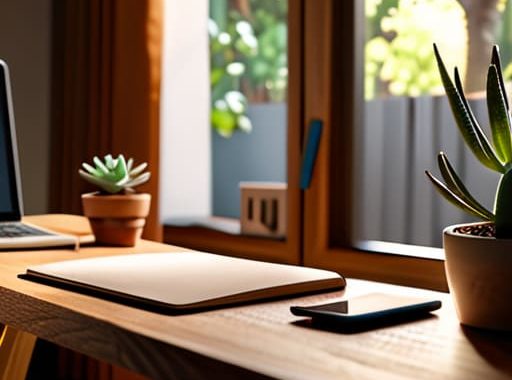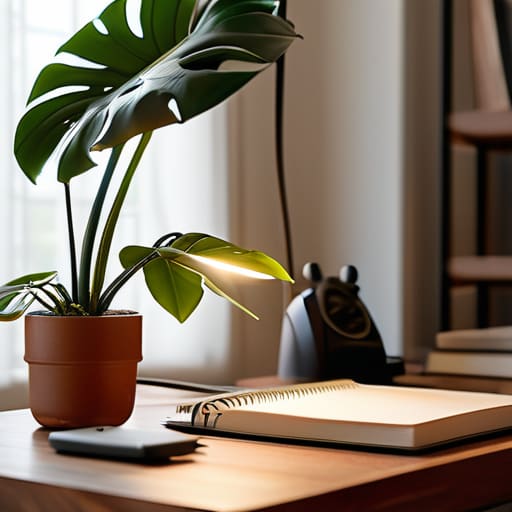
I was sitting in a cramped, neon-lit hostel in Berlin last month, trying to push through a client deployment, when I realized my entire setup was a mess. Between the tangled charging cables and the pile of laundry just out of frame, my zoom background looked less like a professional workspace and more like a disaster zone. It’s frustrating because most people think you need a dedicated home office or a high-end studio setup to look competent on camera. They sell you this idea that you need expensive acoustic panels or a perfectly curated bookshelf to be taken seriously, but that’s just noise.
I’m not here to tell you how to build a fake office; I’m here to help you find a way to make your current reality work for you. I’ve spent years testing how to maintain a professional presence while jumping between coffee shops and temporary rentals, and I’ve learned that minimalism is your best friend. In this post, I’m going to show you how to use a clean, intentional zoom background to hide the chaos and keep the focus entirely on your work. No fluff, no expensive gear—just practical solutions for the modern nomad.
Table of Contents
- Curating Virtual Background Aesthetics for Frictionless Focus
- The Power of Digital Background Downloads in a Portable Setup
- Pro-Tips for a Low-Friction Virtual Presence
- The Bottom Line for a Frictionless Setup
- ## The Invisible Layer of Your Digital Workspace
- Final Thoughts on a Frictionless Presence
- Frequently Asked Questions
Curating Virtual Background Aesthetics for Frictionless Focus
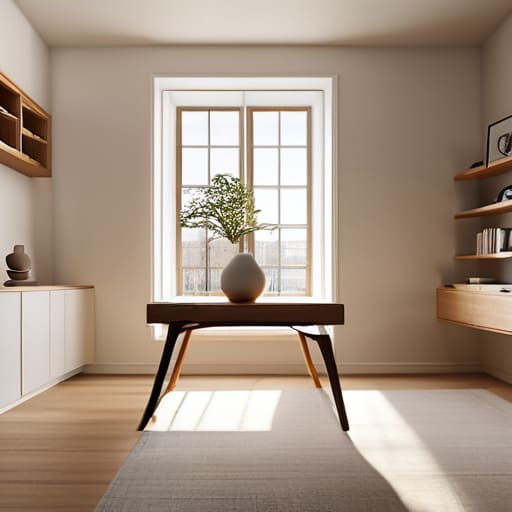
When I’m working from a temporary Airbnb or a cramped café, I don’t want my clients seeing the unmade bed or the pile of tech cables in the corner. That’s where curating specific virtual background aesthetics becomes a tool for mental clarity. Instead of just picking a random image of a mountain range, I look for something that mimics a real environment—think a minimalist studio or a clean, neutral-toned bookshelf. The goal is to create a sense of permanence and professionalism without the physical clutter.
If you don’t want to go the route of heavy digital assets, don’t overlook the power of your blur background settings. It’s the fastest way to mask a chaotic environment while keeping the focus entirely on you. It creates a natural depth of field that mimics a high-end lens, which is a massive step up for improving webcam appearance on a budget. Whether you’re using high-quality digital background downloads or just a subtle software blur, the objective remains the same: remove the visual noise so you can actually get the work done.
The Power of Digital Background Downloads in a Portable Setup

When you’re moving between Airbnbs or working from a cramped cafe, you can’t exactly lug a physical bookshelf or a curated plant collection with you. This is where digital background downloads become a total lifesaver for anyone running a mobile setup. Instead of trying to find a corner with decent lighting and zero visual noise, I just pull up a high-res file that mimics a clean, minimalist studio. It’s about creating a consistent environment that stays the same, regardless of whether I’m in Lisbon or a library in Berlin.
Relying solely on blur background settings can sometimes feel a bit glitchy, especially if your hardware is struggling with a weak connection or a low-end webcam. A high-quality static image provides a much sharper, more intentional look. It allows you to maintain your professional video call setup without the distracting “halo” effect around your hair that software blurring often creates. For me, it’s all about reducing the friction between my physical reality and my digital presence so I can just focus on the code.
Pro-Tips for a Low-Friction Virtual Presence
- Keep your background depth in mind; a flat, single-color wall looks amateur and creates a “floating head” effect, so try to find a spot with a bit of natural dimension behind you.
- Match your lighting to your background—if you’re using a bright, airy digital backdrop but your face is in shadow, the illusion breaks immediately and looks distracting.
- Test your background against your actual hardware; some high-res images can hog CPU cycles on older laptops, and the last thing you want is your fan spinning like a jet engine mid-call.
- Stick to a consistent aesthetic across all your meetings; whether it’s a minimalist office or a clean texture, consistency builds a subtle sense of professional reliability.
- Always have a “failsafe” backup, like a simple blurred background, ready to go in case your primary digital download glitches or your local Wi-Fi struggles to render the overlay.
The Bottom Line for a Frictionless Setup
Your background shouldn’t be a distraction; choose something clean and minimal that keeps the focus on your work, not your messy room.
Invest in high-quality digital assets rather than relying on glitchy real-time filters to keep your professional image seamless.
Treat your virtual environment as part of your portable toolkit—it needs to be as adaptable and ready as your hardware.
## The Invisible Layer of Your Digital Workspace
“A good background isn’t about showing off a fake office; it’s about removing the visual noise so the person on the other side of the screen can actually focus on what you’re saying, rather than the mess behind you.”
Elias Vandermeer
Final Thoughts on a Frictionless Presence
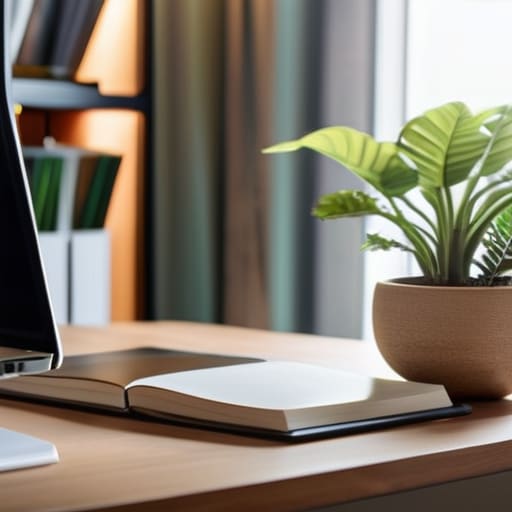
At the end of the day, choosing a Zoom background isn’t about hiding a messy apartment or pretending you’re in a high-rise office in Singapore; it’s about minimizing cognitive load. We’ve talked about how a curated aesthetic prevents visual distractions and how having a library of high-quality digital downloads makes your setup truly portable. When you treat your virtual environment with the same intentionality as you would a physical desk setup, you stop worrying about what’s behind you and start focusing on the actual work. A clean, seamless background is just another way to ensure your tools remain invisible so your expertise can take center stage.
The goal of a digital nomad or a remote specialist shouldn’t be to recreate the office, but to master the art of being present from anywhere. Whether you’re working from a cramped cafe or a temporary studio, your digital footprint should reflect your professionalism. Don’t let your surroundings dictate your performance. Build a toolkit that is as mobile and adaptable as you are, and remember that true productivity comes from the ability to create a focused space out of thin air. Stay mobile, stay focused, and keep your setup lean.
Frequently Asked Questions
How do I stop my virtual background from flickering or cutting out around my hair and shoulders?
That flickering is usually a lighting or processing issue. If your room is too dark or has high contrast—like a bright window right behind you—your webcam struggles to map your silhouette. Try to get even, soft lighting on your face. Also, if you’re running a heavy cloud-based setup on mediocre Wi-Fi, your CPU might be throttling the background processing. Simplify your background or switch to a physical green screen to take the load off.
Are there specific file formats or resolutions I should use to keep my background looking sharp without lagging my connection?
Keep it simple so you don’t choke your bandwidth. Stick to high-quality JPEGs or PNGs; they’re lightweight and won’t make your CPU sweat. Aim for a resolution of 1920×1080—that’s the sweet spot for HD without the massive file size of a 4K image. If you’re on a sketchy cafe Wi-Fi, a smaller file size means less lag and a much smoother experience. Don’t overcomplicate it; just keep the files lean and sharp.
Can I sync my Zoom background aesthetics with my actual desk setup so the transition doesn't look jarring during a call?
Absolutely. In fact, that’s the goal. If your digital background looks like a neon-soaked cyberpunk loft but your actual desk is a minimalist wooden setup, the visual disconnect is distracting. I try to match my virtual environment to my physical gear—think neutral tones, clean lines, and similar lighting. When the textures and color palettes align, the transition feels seamless, and you can actually focus on the conversation instead of the weird visual jump.