I was sitting in a dim cafe in Lisbon last month, trying to finish a cloud migration script, when the headache finally hit. It wasn’t the caffeine or the mediocre Wi-Fi; it was that piercing, artificial glare from my monitor that makes your eyes feel like they’ve been scrubbed with sandpaper. I’ve seen people spend a ridiculous amount of money on these heavy, yellow-tinted glasses that claim to be the holy grail of eye care, but honestly, most of those products are just marketing fluff. You shouldn’t have to wear clunky hardware just to mitigate the strain caused by blue light filters that don’t actually work the way they promise.
I’m not here to sell you a lifestyle or a pair of overpriced frames. My goal is to cut through the noise and show you how to integrate seamless eye protection into your existing digital workflow. I’ll be sharing the specific software tweaks and hardware adjustments I use to keep my vision sharp while I’m working remotely, focusing on tools that are actually invisible. We’re going to find the setup that lets you focus on the code, not the strain.
Table of Contents
- Digital Eye Strain Prevention for the Mobile Professional
- Protecting Retinal Health Without Breaking Your Workflow
- My Low-Friction Approach to Managing Blue Light
- The Bottom Line: Protecting Your Vision Without the Friction
- ## Focus Over Friction
- Final Thoughts on a Clearer Workflow
- Frequently Asked Questions
Digital Eye Strain Prevention for the Mobile Professional
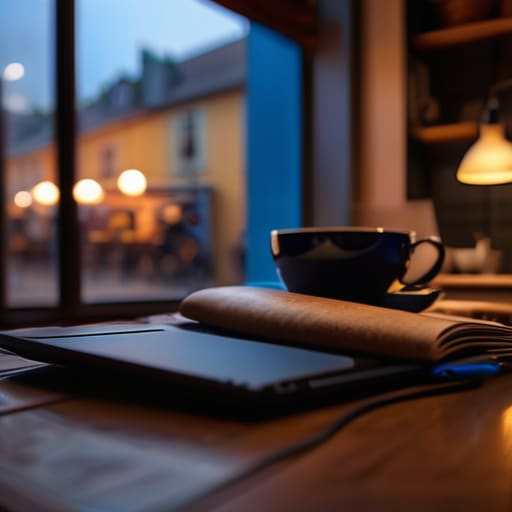
When you’re working from a cafe in Lisbon or a library in Berlin, you’re often staring at a screen for ten hours straight under suboptimal lighting. This is where most people fail; they ignore the physical toll until they’re staring at a wall with a massive headache. For someone living the nomad life, digital eye strain prevention isn’t just a luxury—it’s a requirement for staying functional. If your eyes are fried, your productivity dies with them.
I’ve learned the hard way that it’s not just about the brightness. It’s about how the light affects your internal clock. Constant exposure to high-intensity light late at night can lead to serious circadian rhythm disruption, making it nearly impossible to shut your brain off when you finally close your laptop. I’ve started leaning heavily on automated night mode settings across all my devices. It’s a small, seamless tweak that helps manage melatonin production and screens without me having to manually fiddle with settings every time the sun goes down. It keeps the workflow smooth and my sleep schedule intact.
Protecting Retinal Health Without Breaking Your Workflow
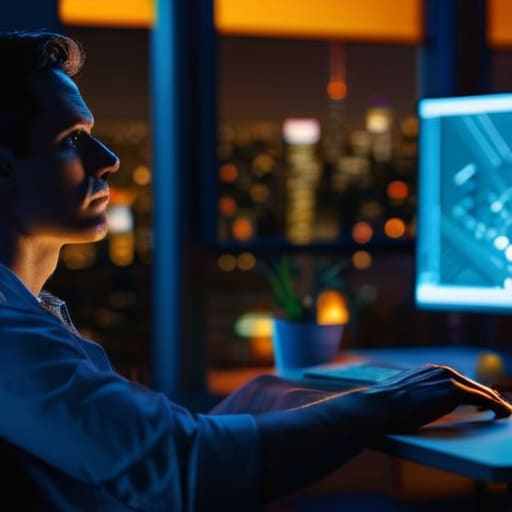
It’s not just about the immediate headache or that gritty feeling in your eyes after a six-hour deep work session. The real issue is how our setups mess with our internal clocks. When I’m working late in a new city, trying to finish a deployment before my next flight, I’ve seen how heavy screen use leads to serious circadian rhythm disruption. If you’re staring at high-intensity light right up until you hit the pillow, your brain isn’t getting the signal that it’s time to wind down.
You don’t need a massive overhaul to fix this, though. I usually lean on a combination of software-level night mode settings and hardware solutions that don’t feel intrusive. If you’re someone who can’t stand the yellow tint of software filters, investing in a decent pair of dedicated lenses is a game changer. The real computer glasses benefits come from the fact that they handle the heavy lifting of light filtration without making your color-accurate work look like it’s being viewed through a sepia lens. It’s about finding that sweet spot where the protection is invisible, but your eyes actually feel rested.
My Low-Friction Approach to Managing Blue Light
- Stop relying on cheap physical overlays; they mess with your color accuracy and feel like a layer of grime on your screen. Use software-based solutions like f.lux or your OS’s built-in night shift mode so the transition is seamless and doesn’t interrupt your focus.
- Automate your color temperature shifts based on the time of day. I don’t want to manually toggle settings every time the sun goes down; I want my setup to shift into a warmer spectrum automatically so my brain knows it’s time to wind down.
- If you’re doing color-sensitive work like UI design or photo editing, don’t use a global filter. Use a calibrated monitor and only apply blue light mitigation to your secondary devices or during your “admin” hours to keep your professional output accurate.
- Pair your digital filters with physical habits. A software filter is a safety net, not a cure. If you’re working in a cafe with harsh overhead lighting, your eyes are still going to struggle regardless of how warm your screen looks.
- Test your setup’s portability. If you’re jumping between different cloud environments or using a secondary laptop on the road, make sure your blue light settings are synced or easily replicable so you aren’t constantly fighting a different visual profile every time you switch hardware.
The Bottom Line: Protecting Your Vision Without the Friction
Don’t treat eye protection as a separate task; integrate blue light filters directly into your OS or hardware so they work silently in the background.
Prioritize software-based solutions like Night Shift or f.lux—they’re portable, cloud-friendly, and don’t require you to carry extra physical gear between cities.
If a tool adds more friction to your setup than it solves for your health, ditch it. Your goal is a seamless workflow, not a desk full of gadgets.
## Focus Over Friction
A good blue light filter shouldn’t feel like a heavy tint or a constant reminder that something is wrong; it should just be a seamless part of your environment that lets you lose yourself in the code without the headache hitting you two hours in.
Elias Vandermeer
Final Thoughts on a Clearer Workflow
At the end of the day, managing blue light isn’t about overcomplicating your gear or adding more clutter to your bag. It’s about making sure your tools don’t become a distraction. Whether you’re opting for software-based solutions that adjust your color temperature on the fly or investing in high-quality physical filters for your primary monitors, the goal remains the same: reducing friction. You need to protect your eyes from strain and maintain your circadian rhythm without having to constantly tinker with settings. If your eye protection isn’t seamlessly integrated into your setup, it’s just another thing you have to manage, and that’s the opposite of what a good workflow should be.
I’ve learned through plenty of late-night troubleshooting sessions in different time zones that your health is the only piece of hardware you can’t replace. You can always upgrade your laptop or swap out a mechanical keyboard, but once your vision starts to fail or your sleep cycle is trashed, it’s a much harder fix. Don’t wait until you’re staring at a screen through a fog of fatigue to make a change. Build a setup that respects your biology so you can stay focused on the work that actually matters. After all, the best tech is the kind that disappears, leaving you free to just create.
Frequently Asked Questions
Do software-based filters actually mess with the color accuracy I need for my design work?
Short answer: Yes, they absolutely do. If you’re doing color-critical design work, software filters like Night Shift or f.lux are your enemy because they shift everything toward the warmer end of the spectrum. I can’t work with a yellow tint when I’m trying to match hex codes. My workaround is to use hardware-level calibration or high-end monitors with built-in blue light reduction modes that don’t mess with the color profile. Use software for emails; use hardware for design.
Is it worth investing in high-end physical screen protectors, or is a quick app setting enough?
Honestly, if you’re constantly jumping between cafes and coworking spaces, go for the physical protector. Software filters are great for shifting color temperature, but they don’t do anything about the actual glare from a window or a bright overhead light. A high-quality matte screen protector kills that reflection instantly. It’s a one-time investment that makes your screen actually readable when the lighting isn’t perfect, which happens way more than you’d think.
Will using blue light filters actually help me sleep better if I’m finishing a deployment late at night?
Honestly, yeah. If you’re pushing a deployment at 2 AM, that harsh blue light is basically telling your brain it’s midday, which nukes your melatonin. Using a filter won’t magically make you fall asleep instantly, but it stops the screen from actively fighting your circadian rhythm. It makes the transition from “high-intensity coding” to “actual sleep” a lot less jarring. Think of it as softening the landing so your brain can actually wind down.