I was sitting in a dimly lit cafe in Lisbon last month, trying to push through a complex cloud integration task, when the glare from my screen hit me like a physical weight. The cafe was moody and atmospheric, but my display was screaming with a brightness that felt completely disconnected from the reality of the room. It’s that classic struggle: you spend hundreds on a high-end panel, yet you’re still squinting because your monitor backlight settings are fighting against your environment instead of working with it. Most people think you just need a “bright” or “dim” preset, but that’s a surface-level fix for a much deeper workflow problem.
I’m not here to give you a lecture on color theory or sell you on some overpriced calibration hardware. Instead, I want to show you how to treat your display as a seamless extension of your workspace. I’ll walk you through how I calibrate my setup to disappear into the background, ensuring that whether I’m working under harsh fluorescent lights or a soft lamp in a nomad hostel, the screen never breaks my focus. We’re going to get your monitor backlight settings dialed in so you can stop fighting your hardware and actually get back to the work that matters.
Table of Contents
Decoding Lcd vs Led Backlight Differences for Seamless Focus
When you’re staring at a screen for ten hours straight, understanding the hardware under the hood actually matters. Most of us just grab whatever display is available, but the LCD vs LED backlight differences can completely change how your eyes feel by the end of a sprint. If you’re working with an older CCFL-backlit LCD, you’re likely dealing with a flicker that’s almost imperceptible but still draining your mental energy. Modern LED setups are much better, but they aren’t perfect; they can sometimes produce a harsh, “clinical” light that breaks your flow if the brightness isn’t dialed in.
I’ve found that the panel type brightness impact is the biggest factor in whether I can stay in a deep work state or if I’m constantly squinting. For instance, an IPS panel with an LED backlight offers much better color accuracy for my design tasks, but if the backlight is too aggressive in a dark room, it’s a recipe for a headache. If you want to keep your focus sharp, you need to treat your backlight like a tool—something that supports your vision rather than fighting against it.
Reducing Digital Eye Strain Through Intelligent Luminance Control
If you’ve ever spent six hours deep in a cloud architecture sprint only to end the day with a dull ache behind your eyes, you know the struggle. It’s usually not the work itself; it’s how your gear interacts with your environment. One of the most effective ways of reducing digital eye strain is by mastering the relationship between your screen and the room around you. If you’re working in a dimly lit cafe or a sun-drenched Airbnb, a static brightness level is your worst enemy. I’ve learned that if your screen is significantly brighter than your surroundings, your pupils are constantly fighting a losing battle, which drains your mental energy faster than a heavy compile script.
I’m a big advocate for leveraging ambient light sensor settings whenever they’re available. It’s one of those “invisible” tools I mentioned in my manifesto—it works in the background so you don’t have to. If your hardware doesn’t have an automated sensor, you need to manually bridge that gap. Match your luminance to the natural light in the room so the display feels like a natural extension of your space rather than a glowing lightbox. Consistency is key here; the goal is to make the screen disappear into your field of vision so you can focus on the code, not the glare.
Practical Tweaks for a Zero-Distraction Display
- Stop relying on “Auto-Brightness.” It’s a trap. Most sensors react to every passing shadow or cloud, causing your screen to pulse and breaking your flow. Lock your luminance at a fixed level that matches your current room lighting so your eyes don’t have to constantly re-adjust.
- Match your ambient light, not your preference. If you’re working in a dim cafe or a low-light Airbnb, drop that backlight immediately. A screen that’s too bright in a dark room is like someone shining a flashlight in your eyes while you’re trying to code.
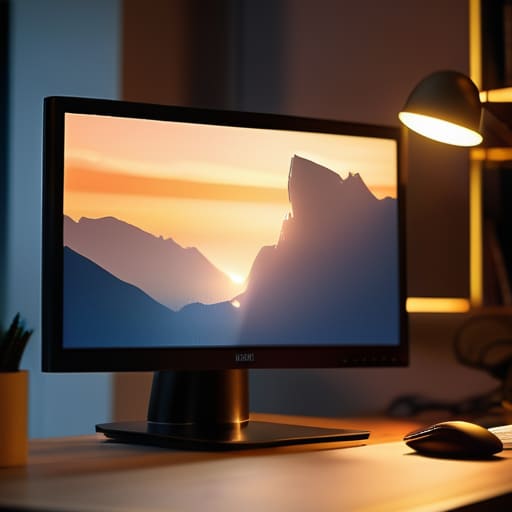
- Use a bias light to soften the contrast. If you can’t control the room’s lighting, stick a cheap LED strip behind your monitor. It creates a subtle glow on the wall that reduces the harshness of the backlight, making the screen feel less like a light source and more like a window.
- Check your color temperature alongside brightness. High backlight settings often make whites look blue and clinical. If you’re pulling an all-nighter, dial the brightness down and warm up the color profile to keep the screen from feeling aggressively artificial.
- Test your setup in “real-world” conditions. Don’t calibrate your monitor in a perfectly lit studio and then expect it to work when you’re on a train with flickering overhead lights. Always do a final brightness check in the actual environment where you’ll be doing the heavy lifting.
Quick Wins for a Frictionless Visual Setup
Stop treating your monitor brightness like a static setting; match your luminance to your immediate environment so the screen becomes an extension of your workspace rather than a distraction.
Prioritize backlight technology that minimizes flicker and light bleed, ensuring your hardware supports deep work instead of causing the eye fatigue that kills your momentum.
Aim for a setup where you don’t “notice” your monitor; calibrate your settings so the light is just enough to be functional, letting your focus stay entirely on the task at hand.
The Philosophy of Invisible Hardware
Your monitor shouldn’t feel like a spotlight hitting your face every time you sit down; it should be a window that fades into the background so the only thing you actually notice is the work you’re doing.
Elias Vandermeer
Final Calibration
At the end of the day, mastering your monitor backlight isn’t about chasing some perfect, theoretical spec sheet; it’s about removing the friction between your eyes and your code. We’ve looked at how understanding the nuances of LCD versus LED can change your perception of depth, and how managing luminance is the most practical way to prevent that mid-afternoon eye fatigue that kills my productivity. Whether you’re tweaking settings in a sun-drenched cafe or a dimly lit apartment, the goal remains the same: minimizing visual noise. When you get these settings right, your screen stops being a distraction and starts becoming a seamless extension of your workflow.
Don’t get caught in the trap of thinking you need a thousand-dollar studio setup to do high-level work. Most of the time, the difference between a productive session and a headache is just a few smart adjustments to the tools you already own. My philosophy has always been that your gear should serve your lifestyle, not dictate it. Take five minutes today to audit your brightness and contrast. Once you stop fighting your environment, you’ll finally have the mental bandwidth to focus on what actually matters: the work itself.
Frequently Asked Questions
How do I balance backlight intensity when I'm switching between a bright cafe window and a dim hotel room?
This is the nomad’s struggle. When I’m fighting glare in a sun-drenched cafe, I crank the brightness to compete with the ambient light, but that same setting will absolutely wreck my eyes in a dim hotel room. My rule: don’t rely on one preset. Use a quick-access brightness slider or a dedicated macro on my keyboard. Match your screen’s luminance to the room’s light so the monitor feels like a window, not a flashlight.
Is it actually better to dim the backlight manually or should I just rely on software like f.lux to handle the color temperature?
Honestly, don’t choose one—use both. I treat them as two different layers of my setup. I use software like f.lux to handle the color temperature and shift those harsh blues out of my sight as the sun goes down. But for actual brightness, I always go manual via the monitor’s physical controls. Software can only do so much; if your backlight is blasting, no amount of “warmth” is going to stop that eye fatigue.
Will aggressive backlight reduction actually kill my color accuracy when I'm doing precise systems documentation or design work?
Short answer: Yes, it can. If you’re cranking that backlight down to almost nothing, you’re essentially killing your dynamic range and crushing your blacks. For precise documentation or design work, you need accuracy, not just comfort. My rule of thumb? Don’t just dim the backlight; instead, balance your ambient room lighting with your screen’s luminance. Keep the backlight high enough to maintain color integrity, but use a warm-toned light source in your environment to take the edge off.