I was sitting in a cramped cafe in Lisbon last month, lo-fi beats pulsing through my headphones, when my primary drive decided to give up the ghost. There’s no panic quite like the cold realization that your entire digital life is trapped inside a piece of hardware that won’t spin up. Most people will tell you to just go buy the most expensive, shiny brick on the shelf, but that’s a lie. Relying on a single, clunky external hard drive backup sitting in your backpack isn’t a strategy; it’s a gamble you’re eventually going to lose.
I’m not here to sell you on some enterprise-grade hardware overkill or complicated RAID arrays that require a dedicated desk to manage. My goal is to show you how to build a redundant, lightweight system that actually fits a mobile lifestyle. I’ll be sharing the exact, no-nonsense workflows I use to keep my data safe without being tethered to a single location. We’re going to talk about real-world reliability and how to make sure your files are actually there when you need them, regardless of where you’re working from.
Table of Contents
The 3 2 1 Backup Strategy for a Life in Motion
If you’re living out of a backpack like I am, you can’t afford to be reckless with your data. I live by the 3-2-1 backup strategy because it’s the only way to sleep soundly in a random Airbnb. The logic is simple: keep three copies of your data, on two different types of media, with one of those copies stored off-site. It sounds like overkill until you’re staring at a spilled coffee or a stolen laptop.
When I’m setting this up on the move, I usually lean on USB-C external storage solutions for my local copies. They’re fast, compact, and don’t add unnecessary bulk to my tech pouch. I’ve found that using an SSD for my active “working” backup is a game changer for speed, but for long-term cold storage, a high-capacity HDD is still my go-to for cost-effectiveness.
The “off-site” part of the equation is where most people fail. You can’t just keep all your drives in the same bag. I rely on automated cloud syncing to ensure that even if my hardware takes a dive, my digital life stays intact.
Choosing Between Hdd vs Ssd for Backups on the Go
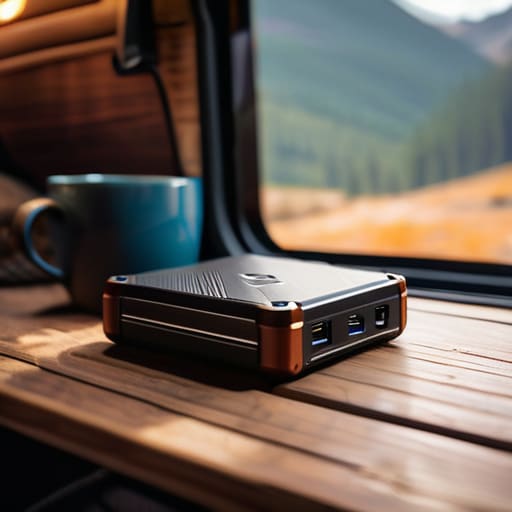
When you’re bouncing between coffee shops or working out of a van, the physical reality of your gear matters more than the spec sheet. If you’re debating HDD vs SSD for backups, you have to weigh capacity against survivability. HDDs are great if you need massive amounts of space for a low price, but they’re essentially fragile spinning disks. One bad bump in your backpack while you’re moving between cities and you might lose everything. They’re fine for a stationary home setup, but they feel a bit too “tethered” for my lifestyle.
On the flip side, SSDs are the gold standard for anyone prioritizing mobility. They have no moving parts, meaning they can handle the literal bumps and bruises of life on the road. If you’re looking into USB-C external storage solutions, go the SSD route. They’re faster, smaller, and much more resilient when you’re constantly packing up. It’s a higher upfront cost, but when you consider the importance of protecting digital assets that represent your entire livelihood, the reliability of solid-state tech is worth every extra cent.
Five Rules for a Setup That Doesn't Break When You Move
- Stop trusting a single point of failure. If your entire digital life lives on one drive in your backpack, you aren’t prepared; you’re just lucky. Always keep a secondary, encrypted copy in a different physical location, even if it’s just a cloud bucket.
- Prioritize ruggedness over capacity. I’ve seen too many people carry high-capacity HDDs that die the second they get bumped in a cafe. If you’re traveling, get an SSD with an IP rating. It needs to survive a drop on a cobblestone street, not just sit on a desk.
- Automate the boring stuff. I don’t have the mental bandwidth to remember to run a backup every Tuesday. Set up a script or use software that triggers a sync the moment your drive is plugged in. If it isn’t seamless, you won’t do it.
- Test your recovery before the crisis hits. A backup is useless if the file structure is corrupted or the encryption key is lost. Once a month, try to pull a random file from your external drive to make sure the “safety net” actually works.
- Keep your cables as organized as your workflow. There is nothing worse than reaching for a backup drive only to find a tangled mess of proprietary cables. Stick to USB-C everything. It keeps your kit minimal and ensures you can power up anywhere without a specialized toolkit.
The Bottom Line: Keep Your Data as Mobile as You Are
Stop treating backups like a stationary chore; if your data isn’t accessible from the road, it’s a liability, not a safety net.
Prioritize SSDs for your active, on-the-go backups to save space and avoid the physical fragility of spinning disks when you’re moving between cities.
Automate the boring stuff with cloud integration so you can focus on your actual work instead of babysitting a progress bar.
## The Mobility Trap
“If your backup strategy requires you to be tethered to a specific desk with a mountain of clunky hardware, it’s not a safety net—it’s an anchor. Real security is about having your data follow you, not forcing you to stay in one place just to keep it safe.”
Elias Vandermeer
Moving Forward Without the Weight

At the end of the day, your backup strategy shouldn’t be a chore that keeps you glued to a single corner of a cafe. We’ve looked at how the 3-2-1 rule keeps your data safe even when things go sideways, and we weighed the raw capacity of HDDs against the rugged, lightning-fast reliability of an SSD. Whether you’re leaning into high-capacity drives for massive archives or sticking to slim, portable SSDs for your active projects, the goal is the same: redundancy without the friction. Don’t overcomplicate it, but please, don’t leave your digital life to chance just because you’re in a rush to catch a train.
Technology is supposed to serve us, not act as a tether that limits where we can go or how we work. When you get your backup workflow dialed in—making it as seamless and invisible as possible—you stop worrying about “what if” and start focusing on the actual work that matters. Build a setup that respects your need for mobility and your need for security. Once you’ve automated the boring stuff and secured your files, you’re finally free to actually live the life you’re working so hard to build.
Frequently Asked Questions
How do I automate my backups without constantly plugging things in every time I switch locations?
Stop playing manual catch-up with your data. If you’re still plugging in a drive every time you move to a new cafe, you’re doing it wrong. I lean heavily on cloud-synced services like Backblaze or even a personal NAS if the Wi-Fi allows. The goal is “set it and forget it.” Set up a background sync that triggers whenever you hit a stable connection. Your backup should be invisible, not another chore on your to-do list.
Is it actually safe to toss a portable drive into my tech pouch, or am I asking for a hardware failure?
Honestly? If you’re tossing a traditional spinning HDD into a bag, you’re playing Russian roulette with your data. Those mechanical platters hate being bumped or jostled while they’re spinning. If you want to actually live the nomad life without constant anxiety, stick to an SSD. There are no moving parts to break when you’re rushing to a cafe. Treat your gear with respect, but don’t let a clunky drive dictate your mobility.
If I'm relying on cloud tools, how much of my backup should actually stay on a physical drive?
Look, the cloud is great for sync, but it isn’t a true backup—it’s just a mirror. If you accidentally delete a directory or a sync error nukes a file, the cloud will happily replicate that mistake across all your devices. I keep my most critical, “never-lose-this” data on a rugged SSD. Think of the cloud as your daily workspace and the physical drive as your ultimate safety net when the internet fails or things go sideways.