I was sitting in a cramped, overpriced cafe in Lisbon last month, staring at a spinning loading icon while my lo-fi playlist looped endlessly in my ears. I had a critical deployment pending, but my connection was stuttering, and my attempt at remote server access felt like I was trying to pull teeth through a straw. It’s the same frustration I saw back in college: people think you need a $5,000 workstation and a dedicated fiber line to be a professional, but that’s a lie. If your setup depends on being physically tethered to a specific piece of hardware, you aren’t actually free; you’re just a high-paid prisoner of your own gear.
I’m not here to sell you on some bloated, enterprise-grade software suite that requires a PhD to configure. Instead, I want to show you how to build a workflow that actually moves with you. I’ll be sharing the exact, no-nonsense tools I use to maintain stable, secure, and lightning-fast access to my environments from anywhere in the world. We’re going to strip away the complexity and focus on what actually matters: seamless connectivity that stays out of your way so you can get back to the work that counts.
Table of Contents
- The Invisible Bridge Using a Secure Remote Desktop Protocol
- Beyond the Screen Command Line Interface Management on the Move
- My Non-Negotiables for a Frictionless Remote Setup
- The Bottom Line: Build for Mobility
- ## The Myth of the Physical Workspace
- Cutting the Cord for Good
- Frequently Asked Questions
The Invisible Bridge Using a Secure Remote Desktop Protocol
When I’m working out of a cafe in a city I’ve only lived in for a week, I don’t want to think about the “how” of connecting to my rig. I just want it to work. This is where a secure remote desktop protocol becomes your best friend. Instead of wrestling with clunky, laggy interfaces, a well-configured RDP or SSH setup acts like an invisible bridge between my laptop and my home server. It makes the physical distance vanish, turning a cheap tablet or a lightweight ultrabook into a powerhouse that feels like it has all my local resources.
However, being mobile means being exposed. You can’t just open up ports and hope for the best; that’s a one-way ticket to a security nightmare. I always layer my connection with a virtual private network for servers before I even think about logging in. It’s not about being paranoid; it’s about building a workflow that stays stable and private regardless of how sketchy the local Wi-Fi is. If your connection isn’t encrypted and tucked behind a proper tunnel, you aren’t being a nomad—you’re being a target.
Beyond the Screen Command Line Interface Management on the Move
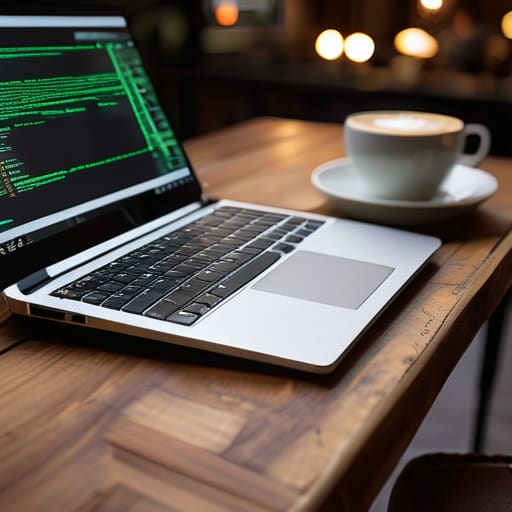
Sometimes, a full GUI is just too much overhead, especially when I’m sitting in a cramped cafe with a spotty connection. When I need to tweak a config file or restart a service, I skip the heavy desktop environments entirely and lean into command line interface management. There’s something incredibly satisfying about the speed of a terminal; it’s lightweight, it’s fast, and it doesn’t care if your bandwidth is struggling. I usually pull up my preferred terminal emulator software on my laptop, and suddenly, I’m not just looking at a remote screen—I’m actually living inside the machine.
The key here is making sure that speed doesn’t come at the cost of safety. Since I’m jumping between different networks constantly, I never touch a server without a solid layer of protection. I treat network security for remote access as non-negotiable. For me, that means pairing my SSH sessions with a robust authentication method so I’m not just praying the connection stays stable. If you can master the CLI, you stop being a passenger to your hardware and start becoming the architect of your own mobile workflow.
My Non-Negotiables for a Frictionless Remote Setup
- Stop relying on public Wi-Fi without a dedicated VPN. I’ve learned the hard way that trying to tunnel into a production server through a coffee shop’s unencrypted network is a recipe for a massive headache. Use a hardened WireGuard setup so your connection is invisible to everyone else in the cafe.
- Automate your SSH config files. I don’t have time to manually type out IP addresses and port numbers every time I move to a new city. Setting up a clean `.ssh/config` file means I can just type `ssh my-cloud-node` and get straight to the work without the friction.
- Prioritize low-bandwidth tools. When I’m working out of a small town with mediocre connection speeds, a heavy GUI is my enemy. Stick to terminal-based editors like Neovim or lightweight clients that don’t choke the moment my ping spikes.
- Implement hardware-based MFA. If your server access relies solely on a password or a push notification on a phone that might die mid-flight, you’re asking for trouble. I use a physical security key; it’s fast, it’s seamless, and it’s way more secure when you’re jumping between networks.
- Keep your local environment synced with the cloud. Your local machine should be a lightweight gateway, not a storage silo. If your configuration files and scripts aren’t version-controlled and accessible from any device, you aren’t truly mobile—you’re just tethered to a different kind of desk.
The Bottom Line: Build for Mobility
Stop thinking about your setup as a physical location; if you can’t access your core infrastructure from a coffee shop on a spotty connection, your workflow is broken.
Prioritize security without the friction—use tools that keep your data locked down but allow you to jump into a terminal or a remote desktop in seconds.
Invest in a stack that stays out of your way; the best tools are the ones you forget are even running because they just work.
## The Myth of the Physical Workspace
“If your ability to manage a server depends on you being physically plugged into a specific wall in a specific building, you haven’t built a workflow—you’ve just built a digital cage.”
Elias Vandermeer
Cutting the Cord for Good
At the end of the day, mastering remote server access isn’t about chasing every shiny new tool on GitHub; it’s about building a reliable, frictionless pipeline between your brain and your hardware. We’ve looked at how secure RDP sessions can give you that full desktop experience when you need it, and how mastering the CLI allows you to perform surgical strikes on your systems without the overhead of a GUI. Whether you’re leaning on a heavy-duty remote desktop or just SSHing into a lightweight instance from a coffee shop, the goal remains the same: minimizing the distance between your idea and its execution.
Stop thinking of your workstation as a physical location and start seeing it as a digital state of mind. Once you move your core infrastructure to the cloud and refine your access methods, the world stops being a collection of “bad Wi-Fi spots” and starts becoming your office. Don’t let a lack of local processing power or a heavy hardware footprint dictate where you can be productive. Build a setup that is truly portable, and you’ll realize that as long as you have a connection, you’re already home.
Frequently Asked Questions
How do I keep my connection stable when I'm stuck on a spotty cafe Wi-Fi?
Honestly, cafe Wi-Fi is the ultimate test for any setup. When the signal starts dropping, my first move is switching to a lightweight SSH connection instead of a heavy RDP session—it handles latency way better. If I’m doing something more visual, I use a VPN with a stable protocol like WireGuard to keep the tunnel from collapsing. And if all else fails? I just tether to my phone. It’s more reliable than most “free” networks.
Is it actually safe to access my home server from a public network without getting hacked?
Look, if you’re just opening up RDP ports to the open web, you’re basically leaving your front door unlocked in a bad neighborhood. It’s not “safe”—it’s an invitation. But if you’re using a VPN or a zero-trust tunnel like Tailscale, you’re golden. You want to build a private, encrypted layer that only your devices can see. Secure the perimeter first; then you can actually focus on the work without worrying about every script kiddie on the cafe Wi-Fi.
What’s the best way to manage latency if I'm trying to do more than just terminal work?
If you’re moving past the terminal and trying to run actual GUI-based apps, latency is your biggest enemy. Don’t rely on standard RDP over a shaky cafe connection; it’ll feel like sludge. Look into something like Sunshine or Parsec. They’re built for low-latency streaming, originally for gaming, but they work wonders for remote desktop fluidity. Also, keep your data heavy-lifting on the server side—if you’re moving files, don’t pull them locally; push them through the cloud.