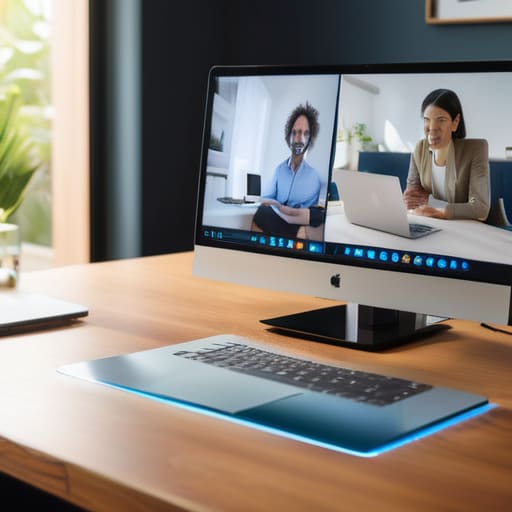
I was sitting in a cramped cafe in Porto last month, trying to sync a client’s cloud architecture, when my screen froze mid-sentence. There I was, looking like a pixelated mess while my client stared at a spinning loading icon, all because I was chasing some theoretical bandwidth number instead of actual stability. Most people think you need a massive, expensive fiber connection to stay professional, but that’s a lie. The truth about internet speed for video calls isn’t just about the raw download numbers you see on a marketing flyer; it’s about latency and jitter—the invisible killers of a smooth workflow.
I’m not here to sell you on a premium ISP upgrade you don’t actually need. Instead, I’m going to break down the real-world specs you need to keep your tools invisible and your presence seamless, whether you’re on a high-end home setup or a mediocre cafe Wi-Fi. I’ve tested these limits across half a dozen countries, and I’m going to give you the practical, no-nonsense math so you can stop worrying about your connection and get back to the work that actually matters.
Table of Contents
- The Minimum Upload Speed for Zoom You Actually Need
- High Definition Video Conferencing Requirements for Seamless Focus
- Five Ways to Stop Fighting Your Connection and Start Focusing
- The Bottom Line for Your Setup
- ## The Invisible Barrier
- Stop Letting Your Connection Control You
- Frequently Asked Questions
The Minimum Upload Speed for Zoom You Actually Need
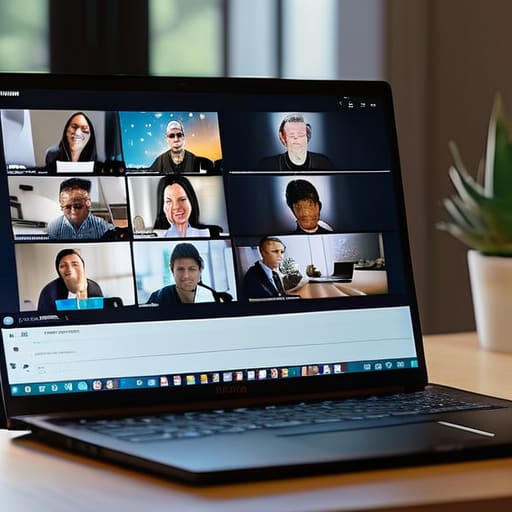
Most people obsess over download speeds because that’s what the ISPs brag about, but if you’re the one hosting the meeting, your upload speed is actually the bottleneck. When you’re sharing your screen or sitting in a high-stakes client call, your connection has to push data out just as much as it pulls it in. For a standard, clear experience, you’re looking at a minimum upload speed for Zoom of about 1.5 to 3 Mbps. That sounds low, but remember, that’s just the baseline for a single stream.
If you’re trying to maintain high definition video conferencing requirements—meaning you want to look crisp and professional rather than a pixelated mess—you really want to aim for at least 5 Mbps of dedicated upload headroom. Anything less and you’ll start seeing that dreaded freeze-frame effect. I’ve spent too many afternoons in cafes where the download speed looked great on a speed test, but the upload was so choked that my video looked like a slideshow. Don’t let a weak outbound stream make you look like you’re working from a basement; prioritize that upload capacity so your presence stays seamless.
High Definition Video Conferencing Requirements for Seamless Focus

If you’re trying to run high-stakes client meetings, “good enough” bandwidth isn’t going to cut it. When you move from basic audio to HD, the data load jumps significantly. To meet true high definition video conferencing requirements, you need to look beyond just your download speed. It’s the upload side that usually trips people up; if your outbound stream is struggling, your video will look like a pixelated mess, even if you can see everyone else perfectly.
This is where the impact of packet loss on video quality becomes real. You might have decent broadband speeds for remote work in general, but if your connection is dropping tiny fragments of data, your video will stutter and freeze. I’ve sat in cafes where the download speed looked fine on a speed test, but the constant jitter made a professional presentation impossible. To maintain that seamless flow, you need a stable, consistent stream that prioritizes reducing video call latency so your presence feels immediate and sharp, rather than a laggy, digital ghost.
Five Ways to Stop Fighting Your Connection and Start Focusing
- Prioritize your upload speed, not just your download. Most people obsess over download speeds because that’s what ISPs brag about, but if your upload is choked, your video will freeze and your audio will jitter, making you look like you’re stuck in a slideshow.
- Hardwire whenever you can. I know, I know—cables aren’t “aesthetic” and they ruin a clean desk setup, but a direct Ethernet connection is the only way to truly bypass the instability of mediocre Wi-Fi when you’re in a new city.
- Kill the background bandwidth hogs. If your laptop is trying to sync a massive cloud backup or download a system update while you’re mid-meeting, your call is going to suffer; keep your tools invisible by managing your background processes.
- Use a wired headset to save bandwidth. If your connection is already struggling, trying to push high-quality audio through Bluetooth on top of a video stream is just asking for latency; a simple wired connection keeps the data stream lean and stable.
- Test your connection in the actual spot you’ll be working. Don’t just assume the Wi-Fi in your Airbnb is fine because it worked for Netflix; run a speed test specifically looking at your upload and ping before you jump into a high-stakes client call.
The Bottom Line for Your Setup
Stop obsessing over raw download speeds; if your upload is lagging, your video will freeze no matter how fast your Netflix streams.
Aim for at least 3-5 Mbps of dedicated upload speed to keep your presence sharp and your tools invisible during critical calls.
Always test your connection on the actual network you’ll be using—don’t assume a high-speed router at home translates to a cafe’s mediocre Wi-Fi.
## The Invisible Barrier
“If you’re constantly checking your connection bar or apologizing for a frozen screen, your tech isn’t working for you—it’s working against you. Real productivity happens when the connection is so stable it becomes invisible, letting you actually engage with the person on the other side instead of fighting your own router.”
Elias Vandermeer
Stop Letting Your Connection Control You
At the end of the day, it all comes down to finding that sweet spot where your hardware and your bandwidth stop fighting each other. We’ve looked at the numbers—whether you’re scraping by on a basic connection or pushing for that crisp, 1080p high-definition look—but the goal isn’t just to hit a specific Mbps target. It’s about ensuring your upload speed is stable enough that your presence doesn’t turn into a pixelated mess mid-sentence. If you can secure a reliable baseline and manage your background processes, you’ve already won half the battle against digital friction.
I’ve spent enough time in cafes and temporary rentals to know that a bad connection can make even the best professional feel like an amateur. But don’t let a mediocre Wi-Fi signal define your capabilities. Treat your connectivity as a core part of your digital infrastructure, just as important as your laptop or your cloud stack. When your tools finally become invisible and the lag disappears, you stop worrying about the tech and start focusing on the work that actually matters. Build a setup that moves with you, stays connected, and lets you work from anywhere without apology.
Frequently Asked Questions
What happens to my call quality if someone else on my network starts streaming 4K video?
This is where most people’s setups fall apart. If someone starts a 4K stream, they’re essentially hogging the bandwidth—specifically the upload side if you’re trying to send your own video out. Your call quality will likely tank; expect your frame rate to drop, your video to pixelate, or even complete freezes. It’s frustrating because it breaks your flow. If you can’t control the network, prioritize your connection or look into a router with better QoS settings.
Is a wired Ethernet connection actually worth the extra gear when I'm working from a cafe or temporary rental?
Honestly? If you’re in a cafe, forget it—you’re stuck with whatever Wi-Fi they’re throwing at you. But for temporary rentals or Airbnbs? Absolutely. I never travel without a compact USB-C to Ethernet adapter in my tech pouch. Wi-Fi is convenient, but it’s unpredictable. When you’re mid-call and the local network starts acting up, that physical wire is the only thing keeping your connection stable and your focus intact. It’s worth the extra grams in your bag.
How can I test my actual upload speed to make sure it's stable enough for a client presentation?
Don’t just trust the number your ISP promises; you need to see what’s actually hitting your machine. Run a few tests on Speedtest.net or Fast.com, but do it while your other background apps are closed. Better yet, run the test from the same spot you’ll be sitting during the presentation. If you see a massive gap between your download and upload, or if the jitter is spiking, your connection isn’t stable enough for a high-stakes call.