I was sitting in a cramped cafe in Lisbon last month, staring at a tiny 13-inch laptop screen while trying to debug a complex cloud deployment. My neck was aching, my eyes were straining, and I felt like I was trying to perform surgery through a keyhole. People keep telling you that you need a dual-monitor setup to be “productive,” but let’s be real: managing two separate screens with a messy bezel in the middle is just digital clutter that breaks your focus. Switching to an ultrawide monitor isn’t about having a massive, flashy screen just to show off; it’s about creating a single, seamless canvas that actually lets you stay in the flow without the constant friction of window switching.
I’m not here to sell you on the most expensive panel on the market or peddle some overhyped spec sheet. I want to talk about how an ultrawide actually integrates into a minimalist, mobile-first workflow where your tools stay out of your way. I’ll be breaking down what actually matters—resolution, curve, and connectivity—so you can build a setup that adapts to your life instead of fighting against it.
Table of Contents
Maximizing Aspect Ratio Benefits for Digital Freedom
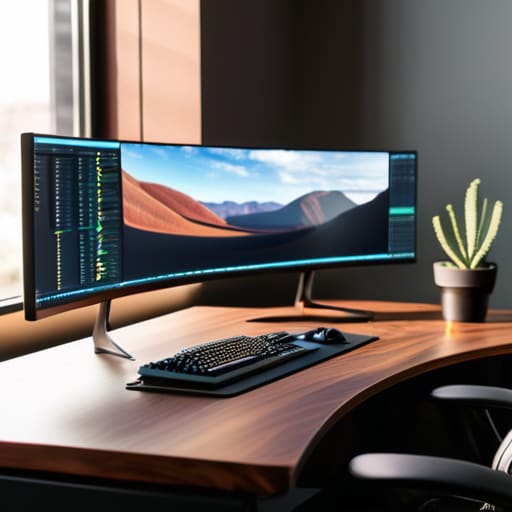
When I’m working from a cramped Airbnb or a quiet cafe, I don’t have the luxury of a multi-monitor rig. This is where the real aspect ratio benefits kick in. Instead of having two separate screens with a massive plastic bezel cutting your vision in half, a single wide panel creates a continuous canvas. It’s the ultimate setup for dual monitor alternative, allowing me to snap my terminal on the left, a documentation window in the middle, and my communication tools on the right without any awkward visual breaks.
The key, though, is not just about size—it’s about how you utilize that space. If you’re looking at gaming vs productivity monitors, you’ll notice that while gamers want high refresh rates for smoothness, I prioritize the ability to tile windows without losing clarity. You need to ensure your resolution for ultrawide displays is high enough that text doesn’t look pixelated when you’re deep in a coding session. When the software and the hardware finally align, the screen stops being a tool and starts becoming an extension of your workflow.
Finding the Perfect Resolution for Ultrawide Displays
Don’t fall into the trap of thinking more pixels always equals better work. I’ve seen too many people grab a massive screen only to realize their text looks like blurry soup because the resolution can’t keep up with the scale. If you’re looking for the right resolution for ultrawide displays, you really need to aim for at least 1440p (WQHD) or even 5K2K if your budget allows. Anything less than 1440p on a large panel is just going to leave you squinting, which is the fastest way to kill a deep work session.
The choice also depends on whether you’re leaning toward gaming vs productivity monitors. If you’re mostly running terminal windows, cloud dashboards, and documentation, pixel density is your best friend—it keeps everything crisp and legible. However, if you want that immersive viewing experience for media or high-end rendering, you might prioritize a slightly different panel type. Personally, I find that a high-density setup serves as the ultimate setup for dual monitor alternative, letting me ditch the bezel clutter without sacrificing the sharpness I need to stay focused.
Five Ways to Stop Fighting Your Monitor and Start Flowing
- Ditch the window snapping. If you’re still manually resizing windows every five minutes, you’re wasting mental energy. Use a window management tool like Magnet or FancyZones to snap your apps into a grid that actually makes sense for your workflow.
- Watch your neck, not just your screen. An ultrawide is huge, and if you’ve got it sitting too low or too far back, you’re going to end up with a tension headache by noon. Get a solid monitor arm to position it exactly where your eyes naturally land.
- Master the peripheral vision trick. The whole point of an ultrawide is to keep your secondary tools—Slack, Spotify, or your terminal—in your peripheral view. If you have to turn your head constantly, your setup is working against you, not with you.
- Don’t neglect the lighting. Those massive panels can be brutal on the eyes in a dark room. Grab a monitor light bar to wash the desk in soft light without creating glare on the screen; it keeps the focus on the work and off the eye strain.
- Match your peripheral gear to the scale. A tiny, cramped keyboard looks ridiculous on a massive ultrawide setup. Stick to a clean, minimalist layout—like a 65% or a TKL—to keep the desk looking intentional and prevent your workspace from feeling cluttered.
The Bottom Line: Making the Switch
Don’t just buy a bigger screen for the sake of it; choose an ultrawide that actually reduces your window-switching friction and keeps your workflow seamless.
Prioritize resolution over pure size—a massive screen with blurry text is just a digital distraction that breaks your focus.
Treat your monitor as a tool for digital freedom, ensuring it supports a setup that stays mobile and cloud-ready rather than tethering you to a single desk.
The End of Digital Friction
“I’m done with the mental tax of toggling between windows and hunting for lost tabs; an ultrawide isn’t just a luxury, it’s about clearing the digital clutter so you can actually stay in your flow without the setup getting in your way.”
Elias Vandermeer
The Final Setup Check
At the end of the day, picking an ultrawide isn’t just about buying a bigger piece of glass; it’s about optimizing your digital real estate so you aren’t constantly tab-switching just to see your workflow. We’ve looked at how the right aspect ratio gives you that much-needed breathing room and why choosing the correct resolution is the difference between a crisp, professional interface and a blurry, frustrating mess. If you get the specs right, the monitor stops being a peripheral and starts being an invisible extension of your brain. Don’t settle for a setup that forces you to fight against your own tools just to stay organized.
My philosophy has always been that your tech should serve your lifestyle, not dictate it. Whether you’re working from a temporary studio in a new city or a permanent home office, your gear needs to facilitate deep work, not distraction. An ultrawide monitor is a massive step toward that seamless, cloud-integrated flow I’m always chasing. Stop letting cramped screen space be the bottleneck in your productivity. Invest in a display that actually matches the scale of your ambitions, clear the digital clutter, and finally get into that uninterrupted flow state where the work actually happens.
Frequently Asked Questions
How do I manage window snapping and multitasking without feeling overwhelmed by the extra space?
The biggest mistake I see is trying to treat an ultrawide like two separate monitors. Don’t just throw windows around; you’ll lose your flow. I rely heavily on power tools like FancyZones (if you’re on Windows) to create custom, invisible grids. It lets me snap my IDE, terminal, and documentation into specific zones instantly. If you don’t define your zones, that extra screen real estate just becomes digital clutter that kills your focus.
Is it actually worth the extra desk footprint if I'm constantly moving between different remote workspaces?
Honestly? If you’re living out of a backpack, a massive ultrawide is a liability. But if you’re a nomad who settles into a co-working space or a rental for a month at a time, it’s a game changer. Don’t lug the monitor with you—just find a local spot with a solid setup or invest in a high-end portable dual-screen. Your goal is mobility; don’t let a heavy glass slab anchor you to one zip code.
Will my current laptop or cloud-based setup actually have the bandwidth to drive a high-resolution ultrawide smoothly?
It really comes down to your I/O. If you’re trying to push a 5K ultrawide through a cheap USB-C hub or an old HDMI cable, you’re going to see lag and stuttering—and that kills your flow instantly. Check your laptop’s specs for Thunderbolt or DisplayPort Alt Mode. If your local hardware is the bottleneck, move your heavy lifting to a cloud workstation. It’s much smoother to stream a high-end desktop than to fight a struggling local GPU.